EducationSoftwareStrategy.com
StrategyCommunity

Knowledge Base

Product

Community

Knowledge Base

TopicsBrowse ArticlesDeveloper Zone

Product

Download SoftwareProduct DocumentationSecurity Hub

Education

Tutorial VideosSolution GalleryEducation courses

Community

GuidelinesGrandmastersEvents
x_social-icon_white.svglinkedin_social-icon_white.svg
Strategy logoCommunity

© Strategy Inc. All Rights Reserved.

LegalTerms of UsePrivacy Policy
  1. Home
  2. Topics

KB13924: How to increase the number of elements displayed for an attribute in Data Explorer or prompt execution in MicroStrategy Developer 10.x


Stefan Zepeda

Salesforce Solutions Architect • Strategy


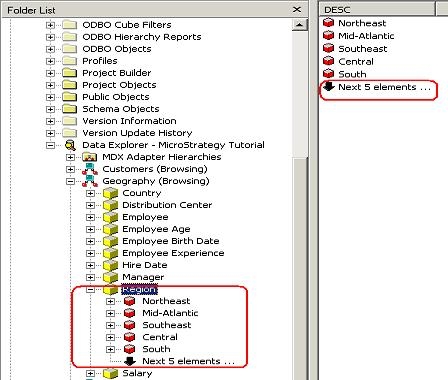
Attribute elements are only displayed when browsing in the Data Explorer and during prompt execution in MicroStrategy Developer 10.x

Attribute elements are only displayed when browsing in the Data Explorer and during prompt execution in Strategy Developer 10.x, as shown below:
ka02R000000kcj8QAA_0EM440000002FUH.jpeg

 
In order to increase the number of attribute elements displayed, right-click on the project and go to Project Configuration -> Project Definition -> Advanced. Change the 'Maximum number of elements to display' to a higher number, as shown below:

ka02R000000kcj8QAA_0EM440000002FU8.jpeg

Make this change, logout, and then login again. Now expand the Data Explorer more elements will be displayed, the amount depending on what the 'Maximum number of elements to display' setting was changed to, as shown below:

ka02R000000kcj8QAA_0EM440000002FU4.jpeg


Comment

0 comments

Details

Knowledge Article

Published:

April 3, 2017

Last Updated:

April 3, 2017