EducationSoftwareStrategy.com
StrategyCommunity

Knowledge Base

Product

Community

Knowledge Base

TopicsBrowse ArticlesDeveloper Zone

Product

Download SoftwareProduct DocumentationSecurity Hub

Education

Tutorial VideosSolution GalleryEducation courses

Community

GuidelinesGrandmastersEvents
x_social-icon_white.svglinkedin_social-icon_white.svg
Strategy logoCommunity

© Strategy Inc. All Rights Reserved.

LegalTerms of UsePrivacy Policy
  1. Home
  2. Topics

KB14090: How to create a continuous line graph for rolling 12 months comparing current and prior rolling 12 months metrics in MicroStrategy Developer 9.4.x - 10.x


Stefan Zepeda

Salesforce Solutions Architect • Strategy


How to create a continuous line graph for rolling 12 months comparing current and prior rolling 12 months metrics in MicroStrategy Developer 9.4.x - 10.x

SYMPTOM:
In Strategy Developer 9.4.x - 10.x, users are unable to create a rolling 12 month graph in one single line if the 12 months are split into two separate years with Month in the rows and the Year attribute in the columns.
 
The following figures illustrate what the current behavior is and what users may want to achieve:
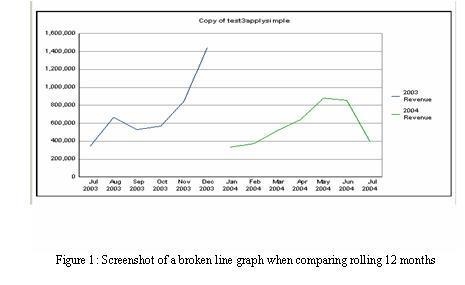
 

ka02R000000kW9mQAE_0EM440000002FTe.jpeg

 
STEPS TO REPRODUCE:
Follow the steps below to reproduce this issue using the Strategy Tutorial project:
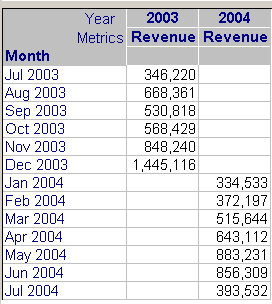
  • Create a report with the Month attribute in the rows and the Year attribute and Revenue metric in the columns.
  • Create a prompt on the Month attribute and add it to the Report filter.
  • Select July 2003 - June 2004 as the prompt answer.
  • As can be seen from the grid results below, 2004 data appears on the 2004 column and not as a continuation of the 2003 column, which causes the line graph to be separated into two lines instead of being a single continuous line for a 12-month period:
ka02R000000kW9mQAE_0EM440000002FTd.jpeg

ACTION:
Follow the steps below to resolve this issue:


  • Create a transformation metric that shows prior year (12 months) revenue.
  • Create a report with Month and Month of Year attributes in the rows and the Revenue and Prior Year Revenue in the columns. The month attribute must be in the report because only having Month of Year in the report causes the sorting of the grid to start from January even if a user chooses starting months other than January.
  • Go to the Report Data options in the Data menu of the report and blank out the display of the Month attribute in the Display Alias settings.
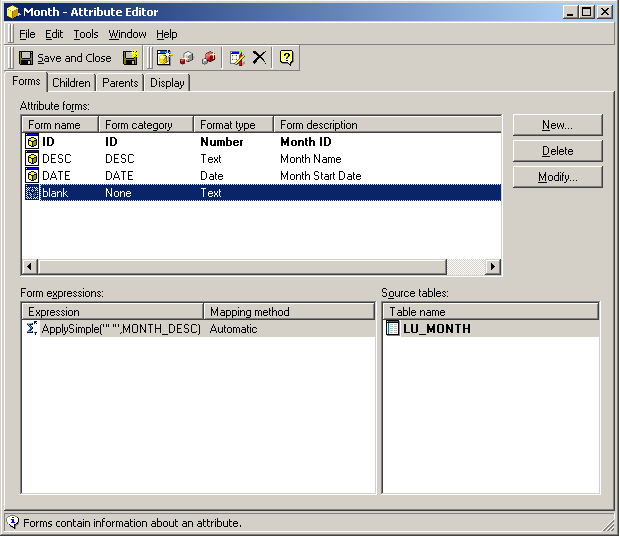
  • Edit the Month attribute and add a blank form by using an ApplySimple statement ApplySimple("' '", ). Note that there are single quotes inside the double quotes, as shown below:
ka02R000000kW9mQAE_0EM440000002FTV.jpeg
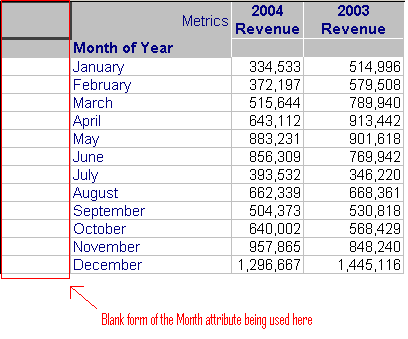
  • Choose this blank form in the report so that the Month elements do not show up and, at the same time, the order of sorting is kept based on what the user chooses (e.g. if the user chooses July 04 - June 05, the first element on the grid will be July and not January.)
ka02R000000kW9mQAE_0EM440000002FTX.jpeg

NOTE: An enhancement request has been made to allow users to create a graph for rolling 12 months comparing current and prior year metrics without having to modify attributes by implementing ApplySimple statements. Contact Strategy Technical Support for an update on the status of this request.


Comment

0 comments

Details

Knowledge Article

Published:

May 1, 2017

Last Updated:

May 1, 2017