EducationSoftwareStrategy.com
StrategyCommunity

Knowledge Base

Product

Community

Knowledge Base

TopicsBrowse ArticlesDeveloper Zone

Product

Download SoftwareProduct DocumentationSecurity Hub

Education

Tutorial VideosSolution GalleryEducation courses

Community

GuidelinesGrandmastersEvents
x_social-icon_white.svglinkedin_social-icon_white.svg
Strategy logoCommunity

© Strategy Inc. All Rights Reserved.

LegalTerms of UsePrivacy Policy
  1. Home
  2. Topics

KB14144: How to configure multiple page-by attributes to be independent of each other so that each page-by displays all the elements along with the Totals in MicroStrategy Developer 10.x


Stefan Zepeda

Salesforce Solutions Architect • Strategy


How to configure multiple page-by attributes to be independent of each other so that each page-by displays all the elements along with the Totals in MicroStrategy Developer 10.x

SYMPTOM:
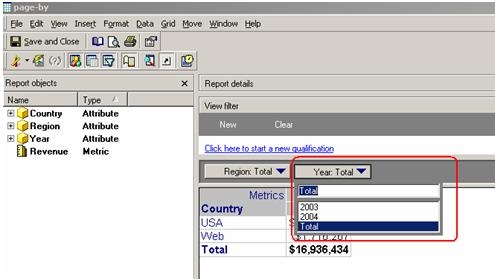
Consider a report with two attributes in the page-by in Strategy Developer 10.x.
When subtotals are enabled, the second page-by becomes dependent on the first page-by.
Meaning, when the first page-by attribute is selected to be a 'Total,' then the second page-by attribute will show 'Total' as well.
The individual attribute elements are not listed to be selected, as shown below:
ka02R000000kXcHQAU_0EM440000002FSq.jpeg

CAUSE:
This issue occurs when 'Grand Total' is selected for 'Pages' under the Subtotals option, as shown below:
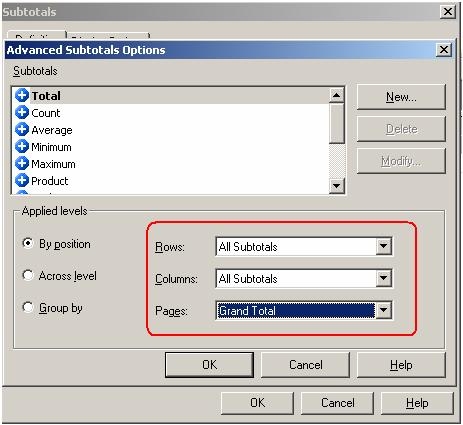
ka02R000000kXcHQAU_0EM440000002FSo.jpeg

As a result, when the first page-by shows the Total, the second page-by will also show the Total and not the respective elements under it, as shown below:
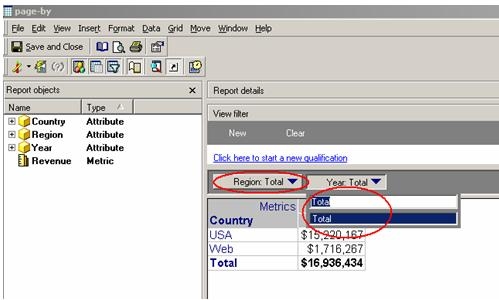
ka02R000000kXcHQAU_0EM440000002FSk.jpeg

ACTION:
Follow the steps below to resolve this issue:
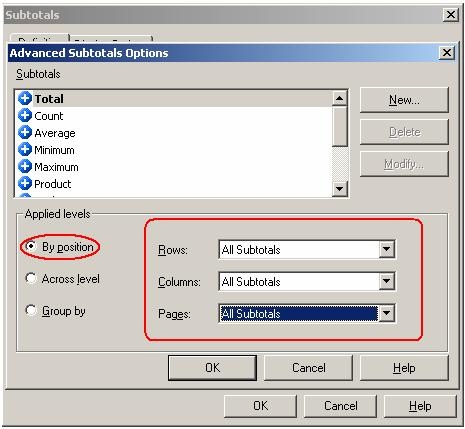
  • On the toolbar, go to Data -> Subtotals.
  • Select 'Total' and then click the 'Advanced' button.
  • At the 'Applied Levels', select 'By Position'.
  • Change Pages to 'All Subtotals', as shown below:
ka02R000000kXcHQAU_0EM440000002FSn.jpeg
  • Click OK.
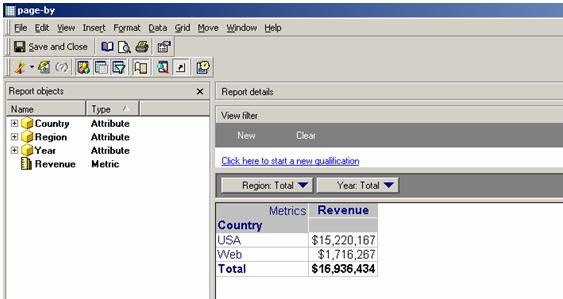
  • Save and close the report and then execute it. The report will look like the following:
ka02R000000kXcHQAU_0EM440000002FSp.jpeg

Comment

0 comments

Details

Knowledge Article

Published:

June 14, 2017

Last Updated:

June 14, 2017