EducationSoftwareStrategy.com
StrategyCommunity

Knowledge Base

Product

Community

Knowledge Base

TopicsBrowse ArticlesDeveloper Zone

Product

Download SoftwareProduct DocumentationSecurity Hub

Education

Tutorial VideosSolution GalleryEducation courses

Community

GuidelinesGrandmastersEvents
x_social-icon_white.svglinkedin_social-icon_white.svg
Strategy logoCommunity

© Strategy Inc. All Rights Reserved.

LegalTerms of UsePrivacy Policy
  1. Home
  2. Topics

KB14287: How to create a custom subtotal that calculates different subtotals for each metric in MicroStrategy Desktop


Stefan Zepeda

Salesforce Solutions Architect • Strategy


Article outlines how to create a custom subtotal that calculates different subtotals for each metric in MicroStrategy Desktop

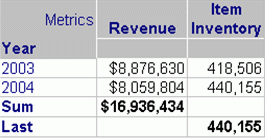
When a user has different subtotals applied to each metric, the report displays a separate row for each subtotal in Strategy Desktop, as shown below:
 

ka02R000000kY8hQAE_0EM440000002FSJ.gif

 
If, for example, the user wants to create one custom subtotal on one line called 'End totals' which calculates the sum for Revenue but takes the last value for Item Inventory, the user must create a custom subtotal inside the report.
 
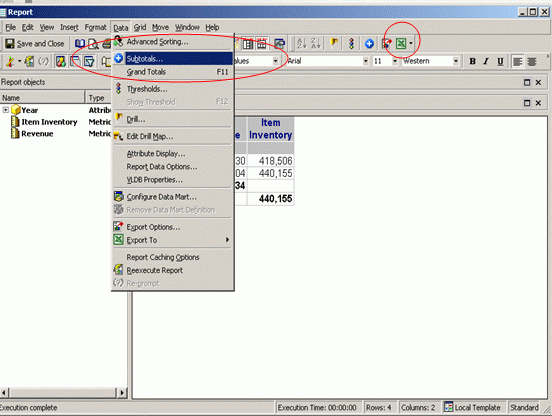
In the report, go to the Data menu and click Subtotals or click on the blue Subtotal button located the menu bar, as shown below:
 

ka02R000000kY8hQAE_0EM440000002FSL.gif

 
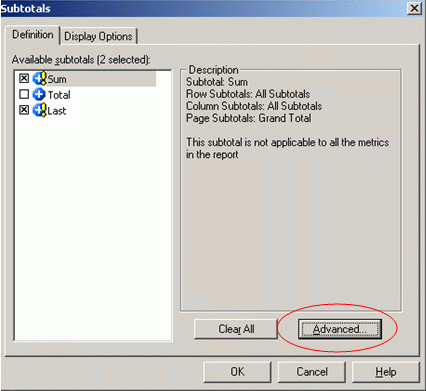
In the Subtotals window under the Definition tab, click on the 'Advanced' button, as shown below:
 

ka02R000000kY8hQAE_0EM440000002FSP.gif

 
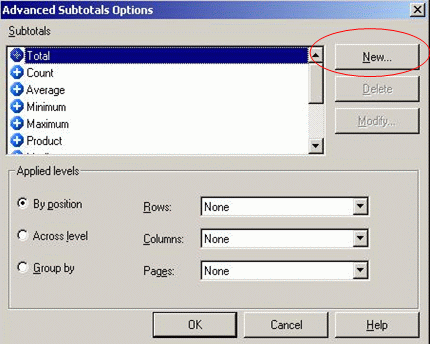
In the Advanced Subtotals Options window click on the 'New' button, as shown below:
 

ka02R000000kY8hQAE_0EM440000002FSN.gif

 
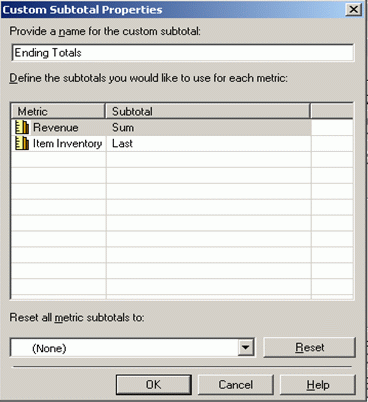
Provide a name for thesubtotal, choose the appropriate subtotals for each metric, and click OK twice, as shown below:
 

ka02R000000kY8hQAE_0EM440000002FSR.gif

 
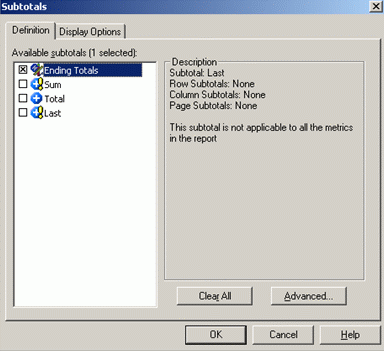
Choose only the custom subtotal that was just created and click OK, as shown below:
 

ka02R000000kY8hQAE_0EM440000002FSD.gif

 
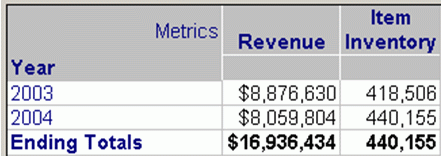
There is now one subtotal that is calculated differently for each metric. Revenue's 'Ending Total' is a sum of both years, but Item Inventory's 'Ending Total' is the ending value of the two years, as shown below:
 

ka02R000000kY8hQAE_0EM440000002FSF.gif


Comment

0 comments

Details

Knowledge Article

Published:

June 10, 2017

Last Updated:

June 10, 2017