EducationSoftwareStrategy.com
StrategyCommunity

Knowledge Base

Product

Community

Knowledge Base

TopicsBrowse ArticlesDeveloper Zone

Product

Download SoftwareProduct DocumentationSecurity Hub

Education

Tutorial VideosSolution GalleryEducation courses

Community

GuidelinesGrandmastersEvents
x_social-icon_white.svglinkedin_social-icon_white.svg
Strategy logoCommunity

© Strategy Inc. All Rights Reserved.

LegalTerms of UsePrivacy Policy
  1. Home
  2. Topics

KB14547: How to expand all page-by fields in an HTML document for MicroStrategy Narrowcast Server 9.x - 10.x


Community Admin

• Strategy


This article describes how to expand all page-by fields in an HTML document for MicroStrategy Narrowcast Server.

In Strategy Developer, it is possible to export a report with page-by attributes to HTML and have all of those page-by attributes expanded. This is done by editing the export options for HTML and checking the 'Expand all page fields when exporting data' option. In Strategy Narrowcast Server, it is not possible to use a linked document to select a report and set the file type as HTML. Further, when using a Strategy Narrowcast Server HTML document, there is no option to expand all page-by fields in the information object.
 
In order to simulate the behavior of the export from Strategy Developer, follow the steps below when setting up the Strategy Narrowcast Server service:
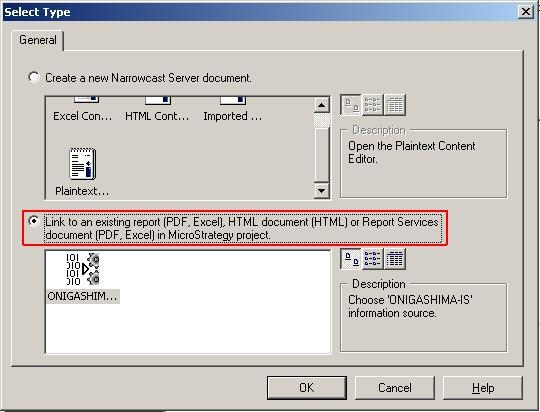
  • Use a linked document when selecting the report, as shown below:
ka04W000000OhEQQA0_0EM440000002BZg.jpeg
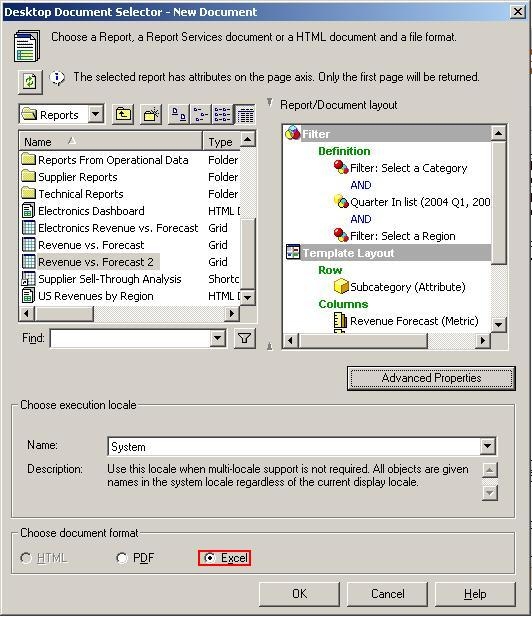
  • After selecting the report, make sure to set the document format as Excel, as shown below:
ka04W000000OhEQQA0_0EM440000002BZf.jpeg
  • Click on 'Advanced Properties.'
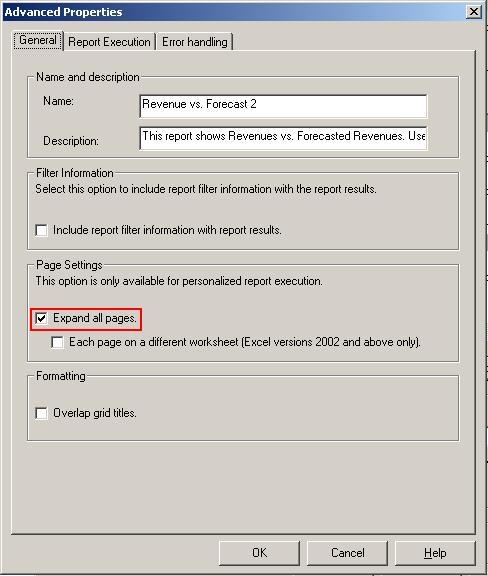
  • Make sure 'Expand all pages' is selected, as shown below:
ka04W000000OhEQQA0_0EM440000002BZQ.jpeg
  • Click OK.
  • Click OK again.
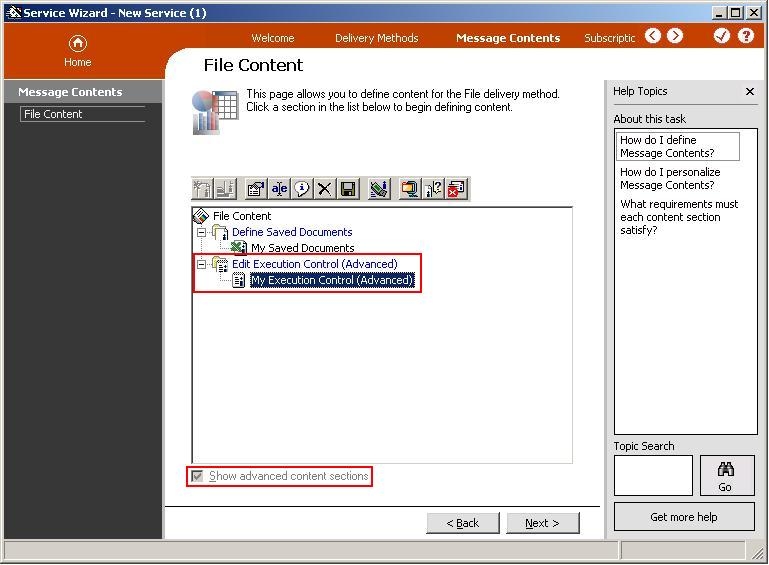
  • Use a Strategy Narrowcast Server control document to rename the file type from Excel to HTML, as shown below:
ka04W000000OhEQQA0_0EM440000002BZn.jpeg
  • Use the appropriate syntax for renaming the file/attachment inside the control document, as shown below:
    File Syntax:
    
    SaveDocumentAs='OLD_NAME.EXT=NEW_NAME.EXT'

    Email Syntax:
    
    ChangeAttachmentName='OLD_NAME.EXT=NEW_NAME.EXT'
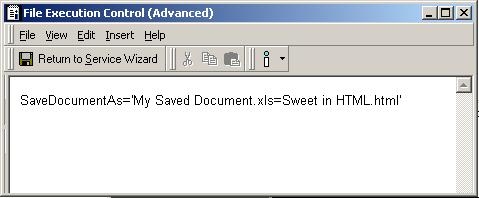
     
ka04W000000OhEQQA0_0EM440000002BZo.jpeg

NOTE: The above example is for the File Information Transmitter, but the same steps can be followed for other Information Transmitters. The syntax of the control document must be changed for the appropriate information transmitter. More information on control documents can be found in the Help section of the control document editor.


Comment

0 comments

Details

Knowledge Article

Published:

May 30, 2017

Last Updated:

May 30, 2017