EducationSoftwareStrategy.com
StrategyCommunity

Knowledge Base

Product

Community

Knowledge Base

TopicsBrowse ArticlesDeveloper Zone

Product

Download SoftwareProduct DocumentationSecurity Hub

Education

Tutorial VideosSolution GalleryEducation courses

Community

GuidelinesGrandmastersEvents
x_social-icon_white.svglinkedin_social-icon_white.svg
Strategy logoCommunity

© Strategy Inc. All Rights Reserved.

LegalTerms of UsePrivacy Policy
  1. Home
  2. Topics

KB14671: How to remove duplicated profile folders that appear in a project after duplicating the project from one environment to another in MicroStrategy Developer 10.x


Stefan Zepeda

Salesforce Solutions Architect • Strategy


Consider a project in 'Environment 1' with the following profile folders:
 

  • A
  • B
  • C
  • D
  • E
  • F

In 'Environment 2', the profile folders are as follows:
 

  • A
  • B
  • C

When duplicating a project from 'Environment 1' to 'Environment 2', the following profile folders are in the target project after duplication:
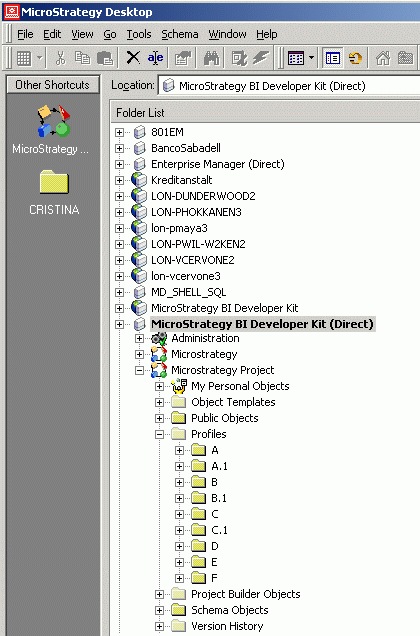
 

ka02R000000kbxWQAQ_0EM440000002FOB.gif

 
In order to see which of the duplicated folders are being used by the users and remove the unused ones, follow the steps below:
 

  1. Log in to the target project (the project with the superfluous folders) as a given user whose profile folder has been added to the project.
  2. As that user, create a report and save it under the Personal reports folder.
  3. Log out.
  4. Log in as the Administrator and check in which profile folder the report has been stored.
  5. The other profile folder for that user may be deleted. This will also establish a pattern for the 'User.1' profile folders so that the administrator can delete or retain these as appropriate.

Comment

0 comments

Details

Knowledge Article

Published:

June 5, 2017

Last Updated:

June 5, 2017