EducationSoftwareStrategy.com
StrategyCommunity

Knowledge Base

Product

Community

Knowledge Base

TopicsBrowse ArticlesDeveloper Zone

Product

Download SoftwareProduct DocumentationSecurity Hub

Education

Tutorial VideosSolution GalleryEducation courses

Community

GuidelinesGrandmastersEvents
x_social-icon_white.svglinkedin_social-icon_white.svg
Strategy logoCommunity

© Strategy Inc. All Rights Reserved.

LegalTerms of UsePrivacy Policy
  1. Home
  2. Topics

KB14675: How to include the service name in the notification email for file or print deliveries in MicroStrategy Narrowcast Server 9.x


Community Admin

• Strategy


This article explains how to include the service name in the notification email for file or print deliveries in MicroStrategy Narrowcast Server 9.x

The default email sent to a subscriber who has elected to receive an email notification for a service delivering content to a file or print the email received is formatted with a generic email subject 'Delivery Notification'. Even though the body of the email contains the name of the service, it is sometimes desired to have this reflected in the subject. The default email for file delivery notification looks as follows:
 
From: Narrowcast E-mail (SMTP) Sender
Sent: Wednesday, September 06, 2006 9:32 AM
To: Cook, Dane
Subject: Delivery Notification
 
Dear sir /madam,
 
The following file delivery was successfully completed.
 

  • Service name: Standup Performance Service
  • Execution date: 09/06/2006
  • Execution time: 09:31:57
  • Delivery address: C:
  • content delivered:
    C:\Performance2006-09-06 09.31.57.215.pdf
  • content details:


The default email for print delivery notification looks as follows:
 
From: Narrowcast E-mail (SMTP) Sender
Sent: Thursday, September 07, 2006 11:51 AM
To: Cook, Dane
Subject: Delivery Notification
 
Dear sir/madam,
 
The following print delivery was successfully completed.
 

  • Service name: Standup Performance Service
  • Execution date: 09/07/2006
  • Execution time: 11:50:56
  • Delivery address: \\COMEDY-CENTRAL\ID-FUNNY
  • content delivered:
    CookPerformance.html
  • content details:


To add the service name to the subject of the notification email, follow the steps below:
 

  • In the Strategy Narrowcast Server Administrator console, navigate to the 'Service for notification of file deliveries' service (default location: Applications/Services for Notification/File Subscriptions) as shown below:
ka04W000000Odo0QAC_0EM440000002BZb.jpeg
  • Edit the 'Service for notification of file deliveries' service using the Service Wizard.
  • Click Next to view the Message contents page.
  • Edit the Subject (called 'File DN Subject') as shown below:
ka04W000000Odo0QAC_0EM440000002BZR.jpeg
  • To add the service name, go to the Insert -> Delivery Notification IS -> Service Name, as shown below:
ka04W000000Odo0QAC_0EM440000002BZV.jpeg
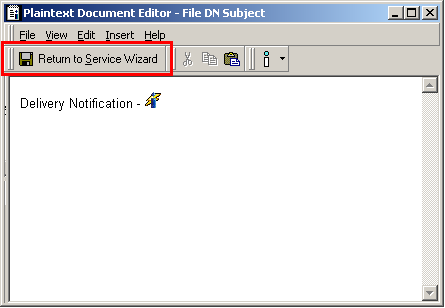
  • Click 'Return to Service Wizard' to save the changes, as shown below:
ka04W000000Odo0QAC_0EM440000002BZS.jpeg
  • Finish the Service Wizard to save the changes.

The email should now be delivered with the service name as part of the subject, as shown below:
From: Narrowcast E-mail (SMTP) Sender
Sent: Wednesday, September 06, 2006 9:32 AM
To: Cook, Dane
Subject: Delivery Notification - Standup Performance Service
 
Dear sir /madam,
 
The following file delivery was successfully completed.
 

  • Service name: Standup Performance Service
  • Execution date: 09/06/2006
  • Execution time: 09:31:57
  • Delivery address: C:
  • content delivered:
    C:\Performance2006-09-06 09.31.57.215.pdf
  • content details:


NOTE: The date, time, delivery address, and the status of the delivery can also be added to the email subject.


Comment

0 comments

Details

Knowledge Article

Published:

June 15, 2017

Last Updated:

June 15, 2017