EducationSoftwareStrategy.com
StrategyCommunity

Knowledge Base

Product

Community

Knowledge Base

TopicsBrowse ArticlesDeveloper Zone

Product

Download SoftwareProduct DocumentationSecurity Hub

Education

Tutorial VideosSolution GalleryEducation courses

Community

GuidelinesGrandmastersEvents
x_social-icon_white.svglinkedin_social-icon_white.svg
Strategy logoCommunity

© Strategy Inc. All Rights Reserved.

LegalTerms of UsePrivacy Policy
  1. Home
  2. Topics

KB14762: How to display a list of users that are currently enabled in the MicroStrategy metadata using MicroStrategy Enterprise Manager


Community Admin

• Strategy


How to display a list of users that are currently enabled in the MicroStrategy metadata using MicroStrategy Enterprise Manager

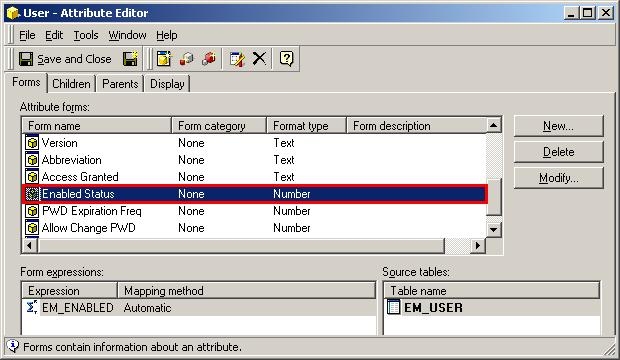
In Strategy Enterprise Manager 9.x, an attribute form called 'Enabled Status' has been added to the 'User' attribute, as shown below:
 

ka04W000000Oh3xQAC_0EM440000002BaY.jpeg

 
The 'Enabled Status' form is a flag that has been added to the EM_USER table in the Strategy Enterprise Manager warehouse. The value of '1' means that the user is enabled. If the value is '0', then the user is disabled. Thus, it is possible to get a list of users that which are enabled by adding a filter to the report with 'Enabled Status = 1.'
 
In order to create such a report, follow the steps below:
 

  • Create a report with attribute 'User' on the template.
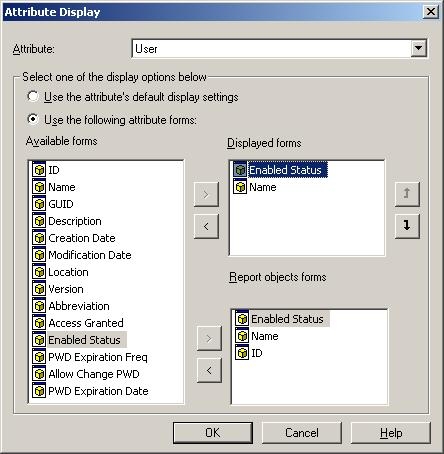
  • Right-click on the 'User' attribute and select the 'Enabled Status' form to be a displayed form as well as report objects form, as shown below:
ka04W000000Oh3xQAC_0EM440000002BaZ.jpeg
  • Now create a filter in the report using 'User' attribute such that Enabled Status = 1.
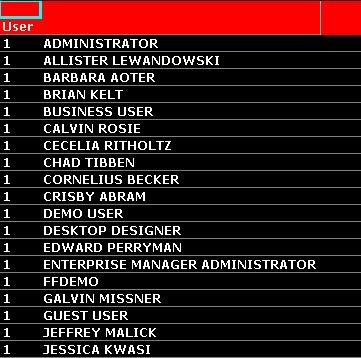
  • Execute this report and all the users that are enabled in the metadata are displayed in this report, as shown below:
ka04W000000Oh3xQAC_0EM440000002BaW.jpeg

Comment

0 comments

Details

Knowledge Article

Published:

June 5, 2017

Last Updated:

June 5, 2017