For troubleshooting purposes, it is possible to record all API calls at the web objects layer in Strategy Web. To configure these diagnostics, load the Strategy Web Administration page and select the 'Configuration' link under the Diagnostics section. Next, follow the steps for the appropriate version:
Under 'Enable logging for multiple/other package(s)', specify the package (com.Strategy.web.objects) full name (filter on a specific user), pattern, and trace level, as shown below:
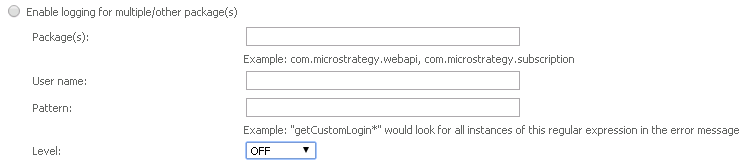
Once the information has been specified, save the changes. By default, the logs are stored in the directory with a name similar to AdvMSTRLogweb_objects12345678_1.log. Note: All the information has to be specified for the changes to be saved, if one of the filed is not specified the log details will not be saved.
It is also possible to create a custom diagnostics setup file. To achieve this, open Notepad and create a new file named 'logger-webobjects.properties' and paste the following contents to the file:
level=SEVERE
fileH.pattern=C\:/Program Files/MicroStrategy/Web ASPx/WEB-INF/log/MSTRLog%systemdate%.log
fileH.class=com.Strategy.utils.log.DatedFileHandler
consoleH.level=SEVERE
fileH.formatter=com.Strategy.web.app.XMLFormatterEx
handlers=consoleH,fileH
consoleH.formatter=com.Strategy.utils.log.ExtendedFormatter
fileH.level=ALL
consoleH.class=com.Strategy.utils.log.ConsoleHandler
# Web Objects
com.Strategy.web.objects.Log.AdvancedLoggerHandler.class=com.Strategy.utils.log.DatedFileHandler
com.Strategy.web.objects.Log.level=ALL
com.Strategy.web.objects.Log.AdvancedLoggerHandler.filter.trace=false
com.Strategy.web.objects.Log.AdvancedLoggerHandler.formatter=com.Strategy.web.app.XMLTracingFormatter
com.Strategy.web.objects.Log.AdvancedLoggerHandler.pattern=C\:/Program Files/MicroStrategy/Web ASPx/WEB-INF/log/WebObj%systemdate%.log
com.Strategy.web.objects.Log.AdvancedLoggerHandler.level=ALL
com.Strategy.web.objects.Log.handlers=AdvancedLoggerHandler
NOTE: The 'pattern' property must be modified to point to the correct location if Strategy was not installed in the default location.
Once the file is saved, specify the path to this file in the 'Custom Diagnostic setup' section of the Web Administration Page (e.g. C:/Program Files/MicroStrategy/Web ASPx/WEB-INF/log/logger-webobjects.properties) and click 'Save', as shown below:

NOTE: Tracing should be enabled for specific troubleshooting purposes. Do not to leave tracing enabled for extended periods of time because doing so will adversely affect performance.
