EducationSoftwareStrategy.com
StrategyCommunity

Knowledge Base

Product

Community

Knowledge Base

TopicsBrowse ArticlesDeveloper Zone

Product

Download SoftwareProduct DocumentationSecurity Hub

Education

Tutorial VideosSolution GalleryEducation courses

Community

GuidelinesGrandmastersEvents
x_social-icon_white.svglinkedin_social-icon_white.svg
Strategy logoCommunity

© Strategy Inc. All Rights Reserved.

LegalTerms of UsePrivacy Policy
  1. Home
  2. Topics

KB14939: How to create a page header that does not appear on the cover page of a Report Services document in MicroStrategy Developer 9.x and 10.x


Stefan Zepeda

Salesforce Solutions Architect • Strategy


KB14939: How to create a page header that does not appear on the cover page of a Report Services document in MicroStrategy Developer 9.x and 10.x

If a user uses the Page Header section to include page header text, it will appear on all pages in Strategy Desktop 8.1.x. However, a user may not want the page header text in the document cover page. In this case, a user can use the Document Header section to include the page header text after the cover page by following the steps below:
 

  • Insert a section break line in the Document Header by choosing the 'Insert Section Below' option from the Insert menu, as shown below:
ka02R000000kXIRQA2_0EM440000002FLP.jpeg
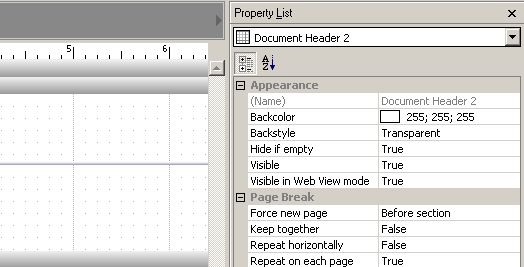
  • Highlight the second section and set the 'Page Break' property 'Force new page' to 'Before section' and set 'Repeat on each page' property to 'True,' as shown below:
ka02R000000kXIRQA2_0EM440000002FLT.jpeg
  • Design the cover page in the first section and place the Page Header text in the second section in the Document Header, as shown below:
ka02R000000kXIRQA2_0EM440000002FLV.jpeg
  • As a result, the document's cover page will not have the page header text, but it will start repeating after the cover page, as shown below:
ka02R000000kXIRQA2_0EM440000002FLR.jpeg

Comment

0 comments

Details

Knowledge Article

Published:

June 19, 2017

Last Updated:

June 19, 2017