EducationSoftwareStrategy.com
StrategyCommunity

Knowledge Base

Product

Community

Knowledge Base

TopicsBrowse ArticlesDeveloper Zone

Product

Download SoftwareProduct DocumentationSecurity Hub

Education

Tutorial VideosSolution GalleryEducation courses

Community

GuidelinesGrandmastersEvents
x_social-icon_white.svglinkedin_social-icon_white.svg
Strategy logoCommunity

© Strategy Inc. All Rights Reserved.

LegalTerms of UsePrivacy Policy
  1. Home
  2. Topics

KB15046: How to separate MicroStrategy Enterprise Manager 9.x Warehouse and Statistics from the MicroStrategy 9.x metadata when they reside in the same database location


Community Admin

• Strategy


This technical note will provide the general steps for the MicroStrategy recommended method to separate the MicroStrategy 9.x metadata tables from the MicroStrategy Enterprise Manager 9.x warehouse and statistics tables when they reside in the same database location.

This technical note will provide the general steps for the Strategy recommended method to separate the Strategy 9.x metadata tables from the Strategy Enterprise Manager 9.x warehouse and statistics tables when they reside in the same database location.
 
While it is simpler from a general design standpoint to house the Strategy 9.x metadata and the Strategy Enterprise Manager 9.x warehouse and statistics in the same database (logical) location, it opens up the potential for resource contention.
 
It may seem simpler to simply change the location of the Strategy 9.x metadata as opposed to following the steps below. While this is true, and in most cases will not cause any problems with this situation, it is not recommended by Strategy. Strategy's recommendation when moving Strategy 9.x metadata is to first create an empty Strategy 9.x metadata shell in the new location. Next all projects are to be duplicated into the new shell. It will then be necessary to setup the server definition (i.e. governing settings, connections, etc) and setup the new projects to use statistics.
Additionally, Strategy Enterprise Manager 9.2.x will start showing multiple projects with the same name. This is because the GUID of the duplicated project being different from the original project. However, starting with Strategy version 9.3.1, it is possible to retain the same project GUID when duplicating a project to a different metadata.
The steps below are to separate the Strategy Enterprise Manager Warehouse tables and Metadata tables. The steps below ARE ONLY APPLICABLE when the Enterprise Manager Warehouse tables are being moved to the SAME TYPE OF DATABASE - including the database versio. In other words the database type and version of the source and destination databases should EXACTLY BE THE SAME
 
STEPS:

  • Stop the Strategy Intelligence Server 9.x.
  • Backup the database containing the Strategy 9.x metadata and the Strategy Enterprise Manager 9.x warehouse and statistics tables.
  • Restore the backup from step two into a new database.
  • Create a new Data Source Name on the Strategy Intelligence Server 9.x machine for the new database created in step three by following the steps below (this will be the new statistics and Strategy Enterprise Manager 9.x warehouse database):
     
    • Open the Strategy Connectivity Configuration Wizard:
       
      • On Windows: Start > Programs > Strategy > Tools > Connectivity Configuration Wizard
      • On UNIX: Strategy Control Center > Applications > Connectivity Configuration Wizard
    • Click Next, as shown below:
ka04W000000Ohe4QAC_0EM440000002JIw.jpeg
    • Select the appropriate driver type for the statistics and Strategy Enterprise Manager 9.x database and click Next, as shown below:
ka04W000000Ohe4QAC_0EM440000002JIr.jpeg
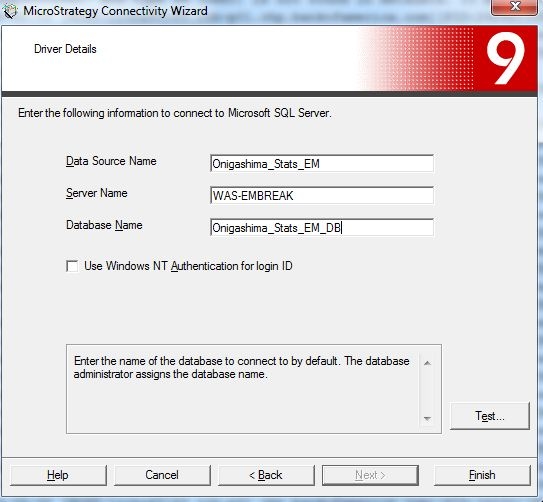
    • Enter a Data Source Name and the appropriate connection information for the database. Remember the Data Source Name must be unique in respect to the Strategy Intelligence Server 9.x machine. Click Finish, as shown below:
ka04W000000Ohe4QAC_0EM440000002JJ0.jpeg
  • Open Strategy Desktop 9.x and connect to a project source pointing to the metadata in 2-tier. This needs to be done with an administrator account.
  • Update the existing Database Instance being used for statistics logging.
     
    • Expand the Administration section under the Project Source.
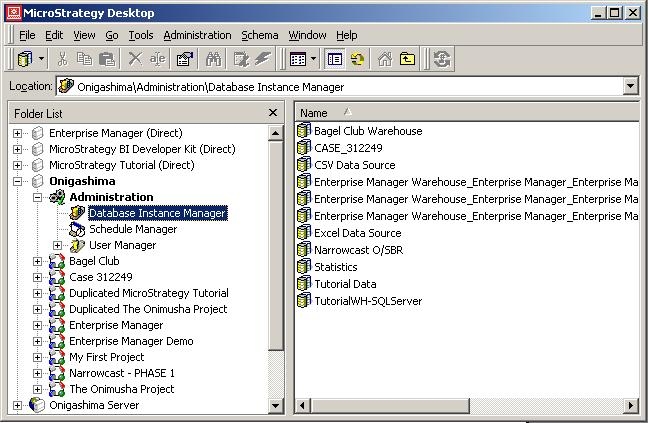
    • Select Database Instance Manager, as shown below:
ka04W000000Ohe4QAC_0EM440000002JJ2.jpeg
    •  
      NOTE: At this time it would be advisable to clean up any unused Database Instances.
       
    • Edit the Database Instance being used for connecting to the statistics tables in the metadata database.
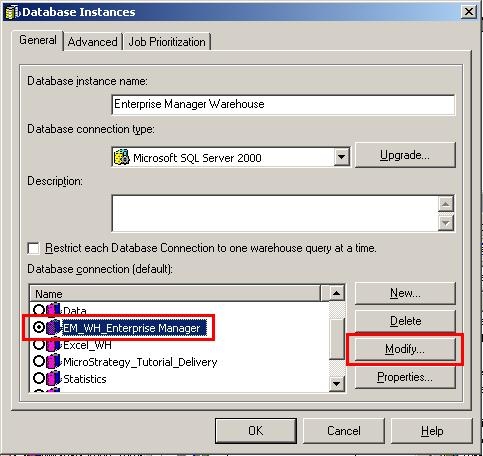
    • Edit the database connection by clicking Modify, as shown below:
ka04W000000Ohe4QAC_0EM440000002JJ4.jpeg
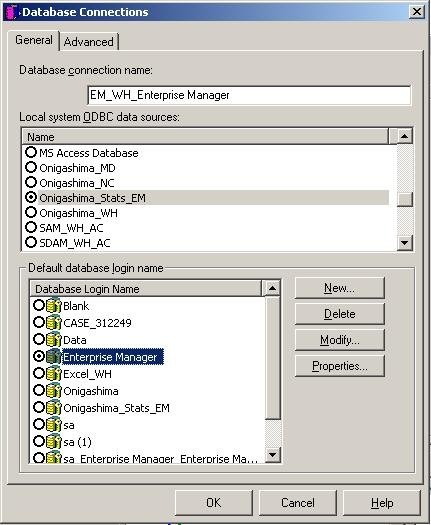
    • Select the new ODBC DSN created in step four. Create a new database login if needed and select it, then click OK, as shown below:
ka04W000000Ohe4QAC_0EM440000002JJ6.jpeg
    • Click OK to save the changes to the statistics database instance.
  • Update the existing Database Instance being used for the Enterprise Manager warehouse (skip this step if the statistics was configured using the same database instance as the Enterprise Manager warehouse).
     
    • Expand the Administration section under the Project Source.
    • Select Database Instance Manager, as shown below:
ka04W000000Ohe4QAC_0EM440000002JJ1.jpeg
    • Edit the Database Instance being used for connecting to the Enterprise Manager Warehouse tables in the metadata database.
    • Edit the database connection by clicking Modify, as shown below:
ka04W000000Ohe4QAC_0EM440000002JJ7.jpeg
    • Select the new ODBC DSN created in step four. Create a new database login if needed and select it, then click OK, as shown below:
ka04W000000Ohe4QAC_0EM440000002JIx.jpeg
    • Click OK to save the changes to the Enterprise Manager Warehouse database instance.
  • Update the Strategy Enterprise Manager 9.x settings.
     
    • Open Strategy Enterprise Manager 9.x by going to Start > Programs > Strategy > Administrator > Enterprise Manager Console.
    • Go to the Tools menu and then select Options.
    • Select the DSN tab, as shown below:
ka04W000000Ohe4QAC_0EM440000002JJ3.jpeg
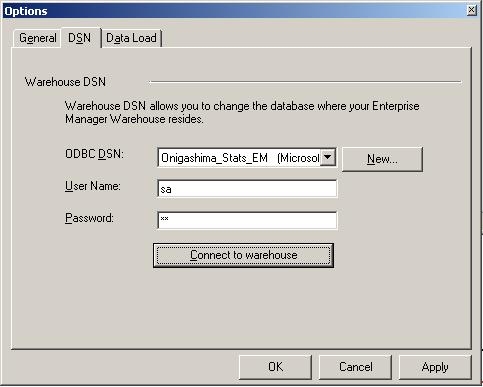
    • Select the new Data Source Name created in step four from the ODBC DSN drop down menu. Enter the corresponding username and password, as shown below:
ka04W000000Ohe4QAC_0EM440000002JIq.jpeg
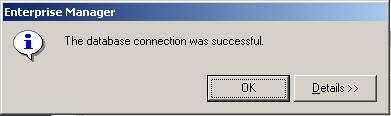
    • Click 'Connect to warehouse' to test the connection. A successful connection should be reported, as shown below:
ka04W000000Ohe4QAC_0EM440000002JIy.jpeg
    •  
      The database connection was successful.
    • Click OK.
    • Click OK again to save the new Data Source Name.
    • Exit the Strategy Enterprise Manager 9.x Console.
  • Start the Strategy Intelligence Server 9.x.
  • Open Strategy Desktop 9.x and connect to the Strategy Intelligence Server 9.x.
  • Connect to the Enterprise Manager project.
  • Execute a report to verify that the warehouse is able to connect successfully.
  • Once it has been verified that the Strategy Enterprise Manager 9.x warehouse and statistics are running as expected, the databases can be cleaned up.
  • Stop Strategy Intelligence Server 9.x (this is simply a precautionary measure to make sure no inconsistencies are introduced.)
  • Contact Strategy Technical Support to complete this step. Drop the Strategy 9.x metadata tables from the database holding the Strategy Enterprise Manager warehouse and statistics.
  • Contact Strategy Technical Support to complete this step. Drop the Strategy Enterprise Manager warehouse and statistics tables from the database holding the Strategy 9.x metadata.
  • Start the Strategy Intelligence Server 9.x.

Refer to the following Strategy Knowledge Base technical notes for more information:
 

  • KB7880- How to change the location of the Strategy Enterprise Manager warehouse
  • KB10622  - How to update Database Instances after moving the Data Warehouse to a new server in Strategy

Metadata Modification:
WARNING:
Manually editing values in the Strategy Metadata incorrectly may cause serious, project-wide problems that may make your project unusable. Since these are user-initiated changes, they are not covered by any Strategy warranty. Users are strongly encouraged to backup Metadata prior to any alteration.


Comment

0 comments

Details

Knowledge Article

Published:

May 4, 2017

Last Updated:

May 4, 2017