EducationSoftwareStrategy.com
StrategyCommunity

Knowledge Base

Product

Community

Knowledge Base

TopicsBrowse ArticlesDeveloper Zone

Product

Download SoftwareProduct DocumentationSecurity Hub

Education

Tutorial VideosSolution GalleryEducation courses

Community

GuidelinesGrandmastersEvents
x_social-icon_white.svglinkedin_social-icon_white.svg
Strategy logoCommunity

© Strategy Inc. All Rights Reserved.

LegalTerms of UsePrivacy Policy
  1. Home
  2. Topics

KB15075: How to create a subtotal to sum the metric values for each rank of the N-tile metric in MicroStrategy Developer 9.4.x-10.x


Stefan Zepeda

Salesforce Solutions Architect • Strategy


When using the subtotal feature to sum the metric values for the N-tile metric, the user cannot select to apply the subtotal to calculate across the N-tile metric level to show the total value for each of the rank in MicroStrategy Developer 9.4.x-10.x.

SYMPTOM:
When using the subtotal feature to sum the metric values for the N-tile metric, the user cannot select to apply the subtotal to calculate across the N-tile metric level to show the total value for each of the rank in Strategy Developer 9.4.x-10.x.
 
STEPS TO REPRODUCE:
Follow the steps below to reproduce the issue in the Strategy Tutorial project:
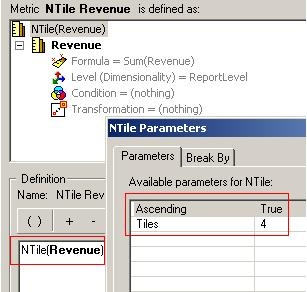
  • Create a metric as NTile(Revenue), with the Parameters set as Ascending 'True' and Tile '4'. Save and close the metric as 'Ntile Revenue' as shown below:
ka02R000000kaR2QAI_0EM440000002FKK.jpeg
  • Create a report with the attribute 'Region' and the metrics 'Revenue' and 'NTile Revenue'.
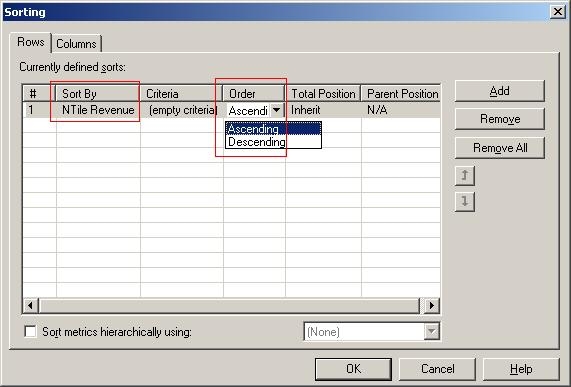
  • Go to Data > Advanced Sorting, add new sorting criteria to the rows section, and select to sort by NTile Revenue metric with ascending order, as shown below:
ka02R000000kaR2QAI_0EM440000002FKI.jpeg
  • Go to Data > Subtotals > Total, and click on the advanced tab. Notice the only level available under the 'Across level' option is the attribute 'Region'. Select 'Region' and click OK.
  • Save and close the report as 'Test Nile'. Execute the report and notice the report only shows the subtotal of the attribute Region, as illustrated below:
ka02R000000kaR2QAI_0EM440000002FKO.jpeg

ACTION:
In order to apply the subtotal to calculate across theN-tile metric level, follow the steps below:

  • Create a custom group with four elements as set qualification on the metric 'Ntile Revenue', each element (Tile) as `Set of Region where (NTile Revenue Exactly `Tile number`) respectively. Save and close as 'Region Ntile rank' as shown below:
ka02R000000kaR2QAI_0EM440000002FKP.jpeg
  • Edit the report 'Test Ntile' to remove the metric 'NTile Revenue' and add in the custom group 'Region Ntile rank'.
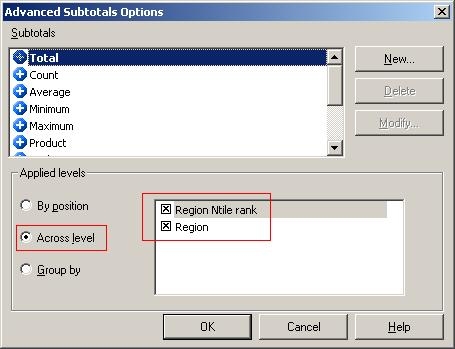
  • Go to Data > Subtotals > Total, click on the advanced tab, and select across level 'Region' and 'Region Ntile rank' as shown below:
ka02R000000kaR2QAI_0EM440000002FKG.jpeg
  • Execute the report, and notice it now show the subtotals for each Region rank, and the total for all Regions, as shown below:
ka02R000000kaR2QAI_0EM440000002FKL.jpeg

Comment

0 comments

Details

Knowledge Article

Published:

April 24, 2017

Last Updated:

April 24, 2017