EducationSoftwareStrategy.com
StrategyCommunity

Knowledge Base

Product

Community

Knowledge Base

TopicsBrowse ArticlesDeveloper Zone

Product

Download SoftwareProduct DocumentationSecurity Hub

Education

Tutorial VideosSolution GalleryEducation courses

Community

GuidelinesGrandmastersEvents
x_social-icon_white.svglinkedin_social-icon_white.svg
Strategy logoCommunity

© Strategy Inc. All Rights Reserved.

LegalTerms of UsePrivacy Policy
  1. Home
  2. Topics

KB15335: How to define and properly segment Freeform SQL Subscription Information Objects in MicroStrategy Narrowcast Server 8.1.x


Community Admin

• Strategy


A Subscription Information Object is used in Dynamic Subscription Services. It is a report or set of SQL that defines a subscription set and its preferences. There are two possibilities for locations of Dynamic Subscription Information:
 

  1. Dynamic Subscription information is gathered from the Data Warehouse used by a Strategy project.
  2. Some Dynamic Subscription Information is gathered from the Data Warehouse used by a Strategy project and some Dynamic Subscription Information is gathered from another data source.

The first scenario is the most common in which Subscription Information Object reports are regular (non-free form SQL) Strategy reports and are segmented by Strategy Narrowcast Server.
The second scenario uses a Freeform SQL report. A subscription information object that is based off a Freeform SQL report can have only one form of segmentation: segment using segmentation prompts defined in the report. Also, to properly segment this type of Subscription Information Object, it is necessary to create a Segmentation Information Object as described in the following Strategy Knowledge Base technical note:
 
KB7936 (KB6200-072-0457) - How to create a Segment Information Object for a Strategy Narrowcast Server 7.2.x, 7.5.x, and 8.0.x system?
 
For the second scenario, to be able to carry out correct segmentation using prompts, follow the steps below:
 

  • Create Segmentation prompts
    1. Create a Numeric> value prompt called min_value:
      • Make sure that this prompt has a default value of 1.
      • Do not specify minimum or maximum values.
      • Do not select the prompt answer required check box.
    2. Create a Numeric value prompt called max_value.
      • Make sure that this prompt has a default value 'greater than the number of subscriptions' in the subscription set.
      • Do not specify minimum or maximum values.
      • Do not select the prompt answer required check box.
  • Modify the Freeform SQL report WHERE clause
    • The where clause of the freeform SQL report that is being used for segmentation must be modifed to include the prompts created step one above. For example:
    • NOTE: Sub_id is column used to represent the subscription ID.

ka04W000000OgoRQAS_0EM440000002BYH.jpeg
  • Modify the Subscription Information Object definition
    • Edit the subscription information object. Notice that now the report contains prompts.
    • In the Segmentation Prompts slide, select the Segment start and Segment end prompts by selecting:
      • Segment start = min_value
      • Segment end = max_value
ka04W000000OgoRQAS_0EM440000002BYF.jpeg
  • Create a Dynamic Subscription Set with a Segmentation Information Object.
    • Create a Segmentation Information per the instructions listed in KB7936 (KB6200-072-0457).
    • Add the Subscription Information Object created in steps 1-3. Make sure the Advanced Option is selected before proceeding to the next screen, as shown below:
ka04W000000OgoRQAS_0EM440000002BYK.jpeg
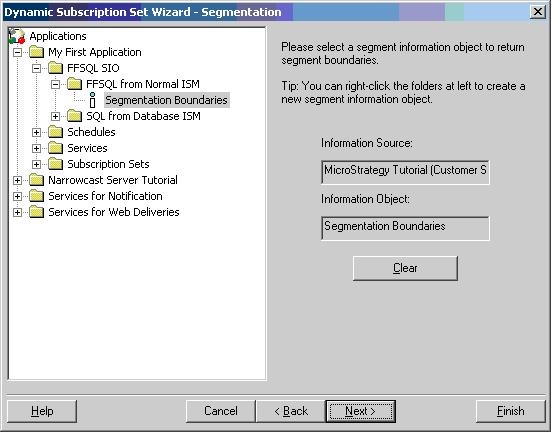
    • Add the Segmentation Information Object created in part A of this section, as shown below:
ka04W000000OgoRQAS_0EM440000002BYC.jpeg
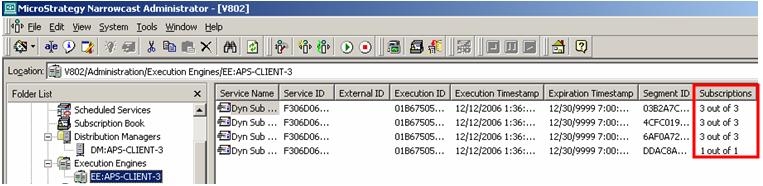
  • Attach this Subscription Set to a Service with a Segment Size of three and run the Service. The segmentation will appear when selecting the Execution Engine from the Administration List in the Folder List, as shown below:
ka04W000000OgoRQAS_0EM440000002BYJ.jpeg

Comment

0 comments

Details

Knowledge Article

Published:

June 8, 2017

Last Updated:

June 8, 2017