EducationSoftwareStrategy.com
StrategyCommunity

Knowledge Base

Product

Community

Knowledge Base

TopicsBrowse ArticlesDeveloper Zone

Product

Download SoftwareProduct DocumentationSecurity Hub

Education

Tutorial VideosSolution GalleryEducation courses

Community

GuidelinesGrandmastersEvents
x_social-icon_white.svglinkedin_social-icon_white.svg
Strategy logoCommunity

© Strategy Inc. All Rights Reserved.

LegalTerms of UsePrivacy Policy
  1. Home
  2. Topics

KB15425: How to create an email hyperlink in a footer section in MicroStrategy Web 9.4.x


Community Admin

• Strategy


How to create an email hyperlink in a footer section in MicroStrategy Web.

When customizing various pages in Strategy Web 8.1.2, users may wish to include an email hyperlink so that end users can contact the Strategy Administrators or the corporate help desk.
 
Follow the steps below to create an email hyperlink:
 

  • Create a new plugin in the Web Customization Editor (WCE).
  • Within the JSP or asp directories, depending on the web installation, create a new .jsp or .ascx file.
  • Within the newly created file, create an HREF tag similar to the one below:
    <a href="mailto:support@Strategy.com?subject=test%20subject%20line">Email Hyperlink</a>
  • Save the file with any name. In this example, the file has been saved as Email_Footer.jsp.
  • In the WCE, navigate to a page of choice. In this scenario, the login(Login) page will be used.
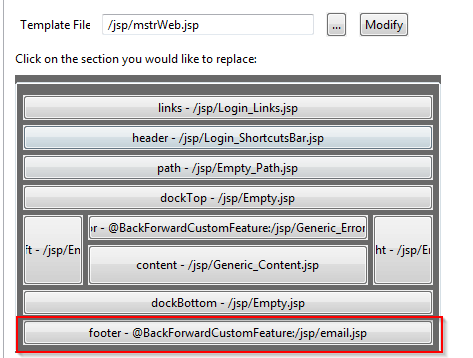
  • Open the page in the editor and go to Template Properties > Footer and point the jsp or asp file their to the one created in step 4 as shown below:
ka04W000000Odk7QAC_0EM440000002Gzy.png
  • Repeat step six for any other pages where the email link is desired.
  • Restart the application server to load the changes.
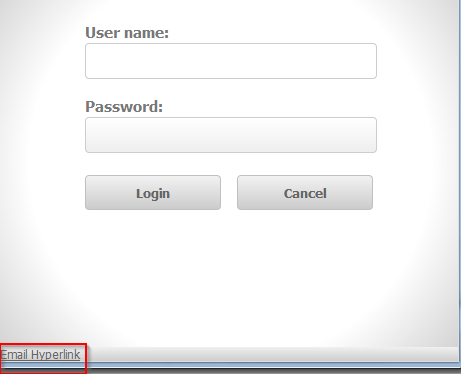
  • The modified pages will now display the email hyperlink, as shown below:
ka04W000000Odk7QAC_0EM440000002H03.png
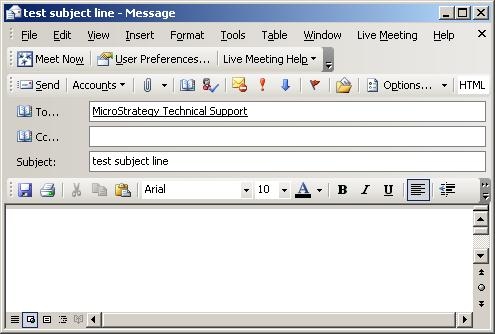
  • When the hyperlink is clicked, a new message is created with the To field populated with the specified email listed address. Due to the additional parameter in the HREF tag, the subject line is also populated, as shown below:
ka04W000000Odk7QAC_0EM440000002H01.jpeg
  •  
    NOTE: Refer to http://support.microsoft.com/kb/q188019/ for an example on how use additional mailto parameters to pre-populate the cc, bcc, and body fields.

Customization Warning:
This customization is provided as a convenience to Strategy users and is only directly applicable to the version stated. While this code may apply to other releases directly, Strategy Technical Support makes no guarantees that the code provided will apply to any future or previous builds. In the event of a code change in future builds, Strategy Technical Support makes no guarantee that an updated version of this particular customization will be provided. If further assistance is needed please contact Strategy Consulting team.


Comment

0 comments

Details

Knowledge Article

Published:

June 19, 2017

Last Updated:

June 19, 2017