EducationSoftwareStrategy.com
StrategyCommunity

Knowledge Base

Product

Community

Knowledge Base

TopicsBrowse ArticlesDeveloper Zone

Product

Download SoftwareProduct DocumentationSecurity Hub

Education

Tutorial VideosSolution GalleryEducation courses

Community

GuidelinesGrandmastersEvents
x_social-icon_white.svglinkedin_social-icon_white.svg
Strategy logoCommunity

© Strategy Inc. All Rights Reserved.

LegalTerms of UsePrivacy Policy
  1. Home
  2. Topics

KB15505: Tables available in the warehouse are not displayed in the Warehouse Catalog and the section is grayed out in MicroStrategy Developer 10.x


Stefan Zepeda

Salesforce Solutions Architect • Strategy


This tech note explains why when accessing the Warehouse Catalog in MicroStrategy Developer 10.x, the tables available in the warehouse may not be displayed in the left pane and the section is greyed out

SYMPTOM:
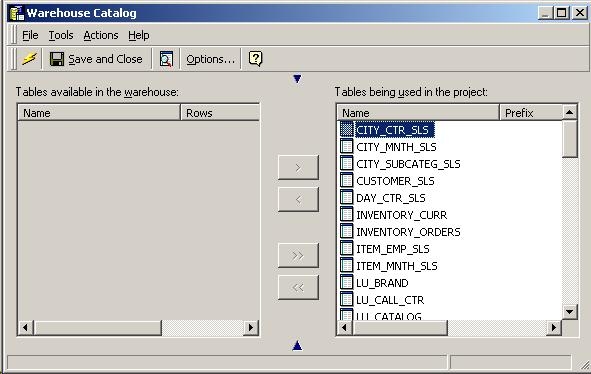
When accessing the Warehouse Catalog in Strategy Developer 10.x, the tables available in the warehouse are not displayed in the left pane and the section is greyed out, as shown below:
ka02R000000kcjFQAQ_0EM440000002FIA.jpeg

CAUSE:
The read mode for Warehouse Catalog is set to Manual. This means that the Catalog tables will only be read when the read Catalog action is selected.
ACTION:
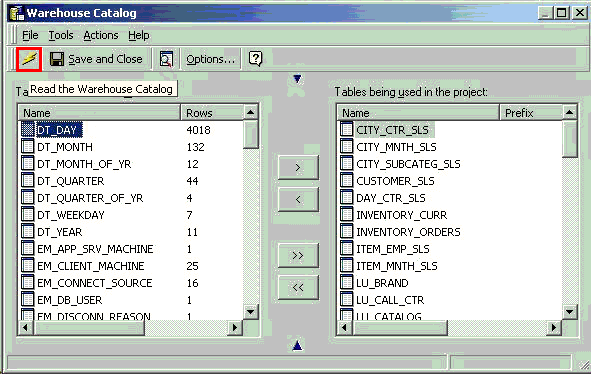
In order to read the Catalog tables from the warehouse, select the Read Catalog action, as shown below:
ka02R000000kcjFQAQ_0EM440000002FI8.gif

In order to view the tables available in the warehouse automatically after accessing the Warehouse Catalog, the read mode setting should be changed to 'Automatic'. Follow the steps below to change this setting:
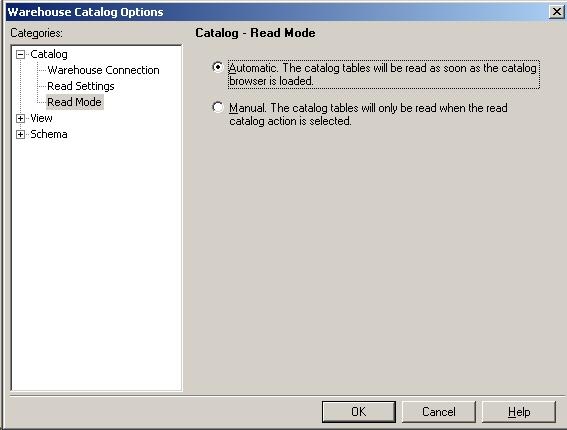
  • Open the Warehouse Catalog and select Options.
  • Go to Catalog > Read Mode.
  • Select Automatic. This will ensure that the Catalog tables are read as soon as the Catalog browser is loaded, as shown below:
ka02R000000kcjFQAQ_0EM440000002FIO.jpeg

Comment

0 comments

Details

Knowledge Article

Published:

April 3, 2017

Last Updated:

April 3, 2017