Users may want to create a custom group from scratch with two elements using the Strategy Intelligence Server 9.x API. Below is the type of custom group users want to create:
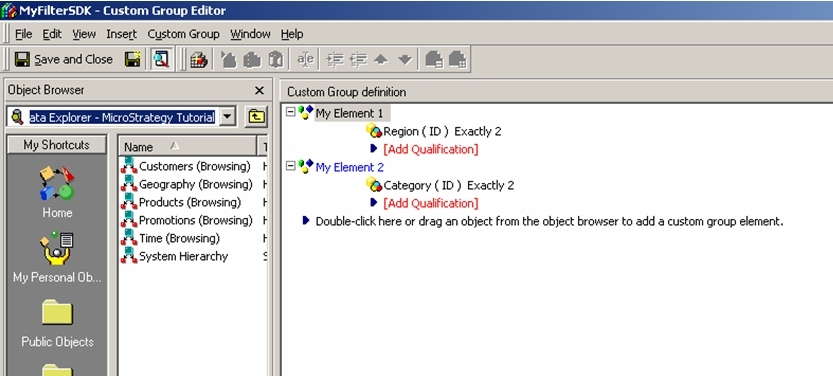
The tree structure users need to follow in order to create a valid custom group expression is as follows:
Root Element (Function OR)
First Branch (Function =)
Condition Left Side (Region@ID)
Condition Right Side (Constant 2)
Second Branch (Function =)
Condition Left Side (Category@ID)
Condition Right Side (Constant 2)
The above translates into the following code:
Create Filter Object of type Custom Group
'Create a new filter object
Dim newFilter As IDSSFilter
Set newFilter = objSource.NewObject(DssTypeFilter)
'Convert filter to custom group
newFilter.FilterType = DssCustomGroup
Root Element (Function OR)
'Create rootnode
Dim rootNode As IDSSOperator
Set rootNode = newFilter.Expression.AddRoot(DssNodeOperator)
rootNode.Node.ExpressionType = DSSFilterBranchQual
rootNode.FunctionType = DssFunctionOr
rootNode.Node.DimensionalityType = DssNodeDimtyNone
rootNode.Node.IsSpliced = True
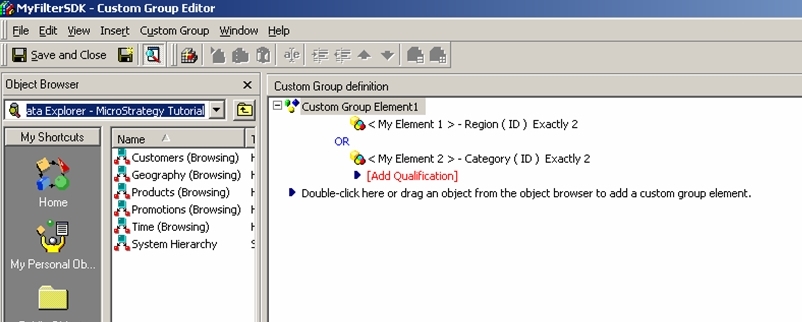
Note that users need to set IsSpliced = true, otherwise the two branches do not split into two elements but are branches of the same element, as shown below:
First Branch (Function =)
'Create first filter node
Dim filterA As IDSSOperator
Dim filterAOperator As IDSSOperator
Set filterA = rootNode.Node.Add(DssNodeOperator)
'Get operator interface of root node
filterA.Node.ExpressionType = DSSFilterSingleBaseFormQual
filterA.Node.Name = "My Element 1"
Set filterAOperator = filterA
'Set operator function type
filterAOperator.FunctionType = DssFunctionEquals
Condition Left Side (Region@ID)
'Add a form shortcut child node
Dim FormShortCut As IDSSFormShortcut
Set FormShortCut = filterA.Node.Add(DssNodeFormShortcut)
'Select attribute region and region@ID
Dim attributeRegion As IDSSAttribute
Dim attributeRegionID As IDSSAttributeForm
Set attributeRegion = objSource.FindObject("8D679D4B11D3E4981000E787EC6DE8A4", DssTypeAttribute)
Set attributeRegionID = attributeRegion.Forms.Item(1)
'Set the attribute of form shortcut
Set FormShortCut.Attribute = attributeRegion
'Set the attribute form of form shortcut
Set FormShortCut.Form = attributeRegionID
Condition Right Side (Constant 2)
'Add a constant child node
Dim Constant As IDSSConstant
Set Constant = filterA.Node.Add(DssNodeConstant)
'Set contant value
Constant.Value = 2
Second Branch (Function =)
(Same as above but for a different attribute)
'Create second filter node
Dim filterB As IDSSOperator
Dim filterBOperator As IDSSOperator
Set filterB = rootNode.Node.Add(DssNodeOperator)
'Get operator interface of root node
filterB.Node.ExpressionType = DSSFilterSingleBaseFormQual
filterB.Node.Name = "My Element 2"
Set filterBOperator = filterB
'Set operator function type
filterBOperator.FunctionType = DssFunctionEquals
Condition Left Side (Category@ID)
'Add a form shortcut child node
Dim FormShortCutB As IDSSFormShortcut
Set FormShortCutB = filterB.Node.Add(DssNodeFormShortcut)
'Select attribute region and region@ID
Dim attributeCategory As IDSSAttribute
Dim attributeCategoryID As IDSSAttributeForm
Set attributeCategory = objSource.FindObject("8D679D3711D3E4981000E787EC6DE8A4", DssTypeAttribute)
Set attributeCategoryID = attributeCategory.Forms.Item(1)
'Set the attribute of form shortcut
Set FormShortCutB.Attribute = attributeCategory
'Set the attribute form of form shortcut
Set FormShortCutB.Form = attributeCategoryID
Condition Right Side (Constant 2)
'Add a constant child node
Dim ConstantB As IDSSConstant
Set ConstantB = filterB.Node.Add(DssNodeConstant)
'Set contant value
ConstantB.Value = 2
Save everything into the metadata under the custom group's folder
'Save the filter definition
newFilter.Info.Name = "MyFilterSDK"
'find Custom group Folder
Dim filtersFolder As IDSSFolder
Set filtersFolder = objSource.FindObject("8D678D6911D3E4981000E787EC6DE8A4", DssTypeFolder)
Set newFilter.Info.Parent = filtersFolder
newFilter.Info.Save
WARNING MESSAGES:
Customization Code Warning:
This customization is provided as a convenience to Strategy users and is only directly applicable to the version stated. While this code may apply to other releases directly, Strategy Technical Support makes no guarantees that the code provided will apply to any future or previous builds. In the event of a code change in future builds, Strategy may not be able to provide additional code on this matter even though this customization is provided at this time for this specific build
KB15713
