EducationSoftwareStrategy.com
StrategyCommunity

Knowledge Base

Product

Community

Knowledge Base

TopicsBrowse ArticlesDeveloper Zone

Product

Download SoftwareProduct DocumentationSecurity Hub

Education

Tutorial VideosSolution GalleryEducation courses

Community

GuidelinesGrandmastersEvents
x_social-icon_white.svglinkedin_social-icon_white.svg
Strategy logoCommunity

© Strategy Inc. All Rights Reserved.

LegalTerms of UsePrivacy Policy
  1. Home
  2. Topics

KB15742: How to create a joint element list filter in order to choose different criteria for two different attributes in MicroStrategy Developer 9.4.x - 10.x


Stefan Zepeda

Salesforce Solutions Architect • Strategy


This technical note explains how to create a joint element list filter in order to choose different criteria for two different attributes in MicroStrategy Developer 9.4.x - 10.x.

If a user creates a report with two attributes, for example Country and Warehouse, the user may want to create a joint element list filter in order to choose different criteria between the attribute elements. To do this, follow the steps below:
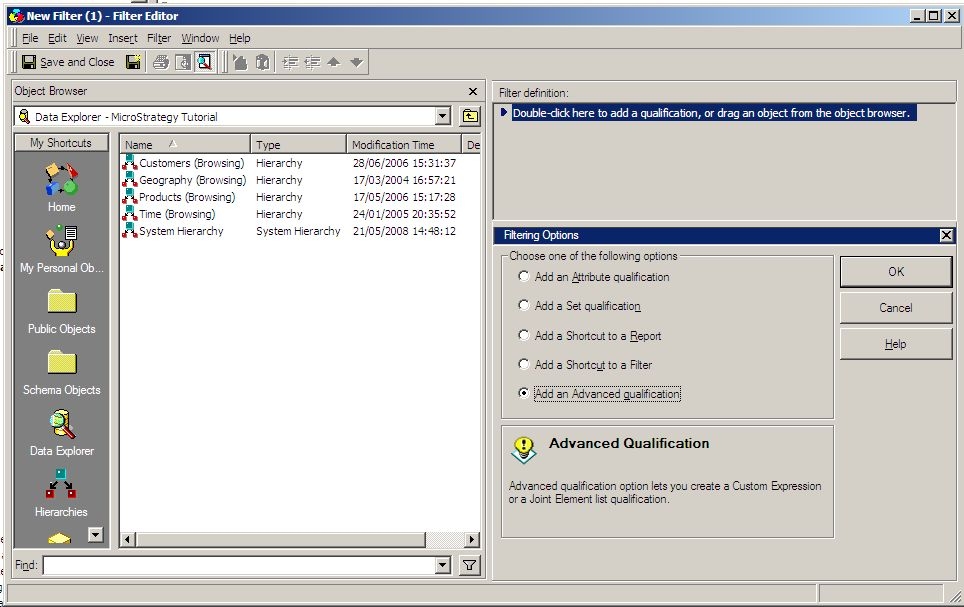
  • Create a new filter.
  • Select 'Advanced Qualification', as shown below:
ka02R000000kaRDQAY_0EM440000002Eqz.jpeg
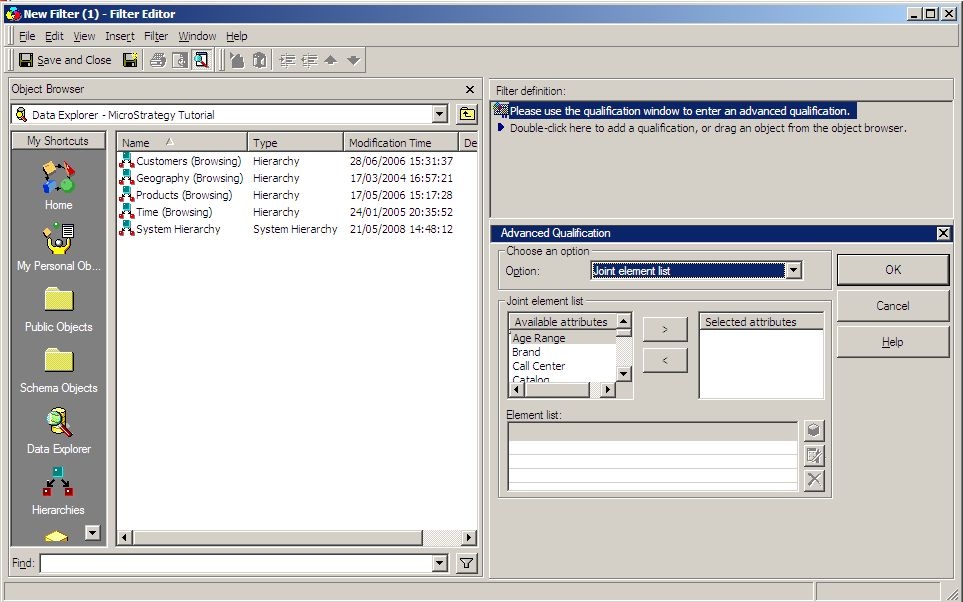
  • Select Joint Element List from the drop down list, as shown below:
ka02R000000kaRDQAY_0EM440000002Er1.jpeg
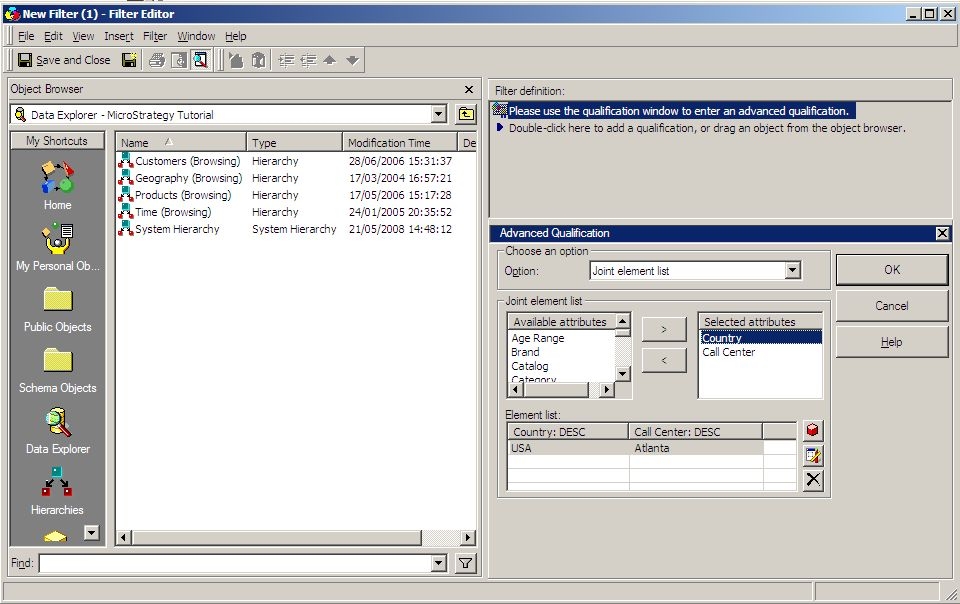
  • Add the two related attributes (Country and Call Center), as shown below:
ka02R000000kaRDQAY_0EM440000002ErI.jpeg
  • Pair both attributes with their corresponding element(s).

A second option would be to create a custom group, but take into consideration that it would create a larger amount of SQL passes at run time, making it less efficient than the joint element list filter.


Comment

0 comments

Details

Knowledge Article

Published:

April 24, 2017

Last Updated:

April 24, 2017