EducationSoftwareStrategy.com
StrategyCommunity

Knowledge Base

Product

Community

Knowledge Base

TopicsBrowse ArticlesDeveloper Zone

Product

Download SoftwareProduct DocumentationSecurity Hub

Education

Tutorial VideosSolution GalleryEducation courses

Community

GuidelinesGrandmastersEvents
x_social-icon_white.svglinkedin_social-icon_white.svg
Strategy logoCommunity

© Strategy Inc. All Rights Reserved.

LegalTerms of UsePrivacy Policy
  1. Home
  2. Topics

KB15750: When creating a Logical View, typed names are not recognized as existing columns in MicroStrategy Developer 9.x


Stefan Zepeda

Salesforce Solutions Architect • Strategy


KB15750: When creating a Logical View, typed names are not recognized as existing columns in MicroStrategy Developer 9.x

SYMPTOM:
When typing a column name into the Logical Table Editor, if the name is the same as an existing column, a new column is created instead of matching the columns in Strategy Developer 9.x.
 
STEPS TO REPRODUCE:
Follow the steps below to reproduce the issue in the Strategy Tutorial project:
 

  1. Create a new logical table with the definition as follows:
    select REGION_ID from LU_REGION
  2. Type 'REGION_ID' in the Column pane.
  3. Save this table as LU_REGION_VIEW.
  4. Update the project's Schema.
  5. Open the Region attribute and edit the ID Attribute Form. Notice the LU_REGION_VIEW is not available as a source table.

CAUSE:
This is a known issue in Strategy Desktop 9.x. This issue occurs because these columns are stored differently than they are displayed. In the above example the columns are displayed in the Attribute Editor and Logical Table Editor as 'REGION_ID', as shown below:
 

ka02R000000kbsIQAQ_0EM440000002FGx.jpeg

 
However, when viewing the available columns in the Logical Table Editor the name appears as 'REGION_ID (1)', as shown below:
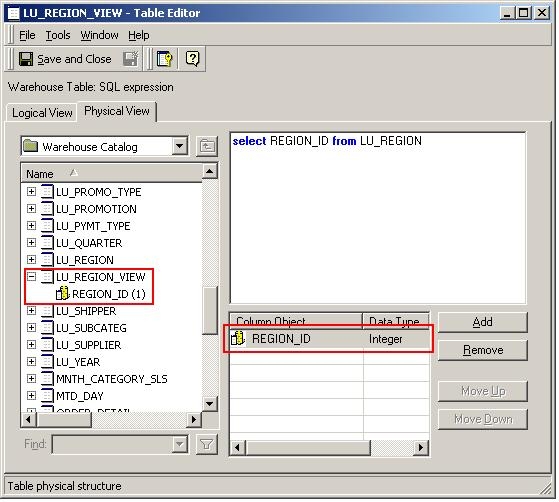
 

ka02R000000kbsIQAQ_0EM440000002FH1.jpeg

 
ACTION:
Contact Strategy Technical Support for an update on this issue.
 
WORKAROUND:
To workaround this issue, use Heterogenous mapping or drag an existing column object from the columns pane.


Comment

0 comments

Details

Knowledge Article

Published:

June 7, 2017

Last Updated:

June 7, 2017