EducationSoftwareStrategy.com
StrategyCommunity

Knowledge Base

Product

Community

Knowledge Base

TopicsBrowse ArticlesDeveloper Zone

Product

Download SoftwareProduct DocumentationSecurity Hub

Education

Tutorial VideosSolution GalleryEducation courses

Community

GuidelinesGrandmastersEvents
x_social-icon_white.svglinkedin_social-icon_white.svg
Strategy logoCommunity

© Strategy Inc. All Rights Reserved.

LegalTerms of UsePrivacy Policy
  1. Home
  2. Topics

KB15853: How to prompt for a metric to rank on in MicroStrategy Developer 9.x - 10.x


Stefan Zepeda

Salesforce Solutions Architect • Strategy


The following procedure describes how to prompt on a particular metric which is being ranked on within a pre-defined set of metrics contained in the prompt and still display the other pre-defined set of metrics on a report in Strategy Developer 9.x - 10.x.
 
This can be achieved in two ways:
 

  1. Using a metric qualification filter.
  2. Using a custom group.

Perform the following procedure using a metric qualification filter:
 

  • Create a new report in Strategy Developer.
  • Add the desired attributes to the report definition template.
  • Add the desired pre-defined set of metrics to the report definition template as shown below:
ka02R000000kWLHQA2_0EM440000002V4Y.jpeg
  • In the report filter definition pane add a set qualification.
  • In the set qualification definition pane, click on the prompt icon for the metric.
  • Select `use a predefined list of objects`, click on the add button and browse to the location where the user has the pre-defined metrics that are located on the user's report definition template and select them, as shown below:
ka02R000000kWLHQA2_0EM440000002V4Q.jpeg
  • In the next window pane, the user can select a default prompt answer and also establish the minimum and maximum number of prompt answers allowed, which in this case would be `1` for both minimum and maximum, so that only one of the pre-defined metrics can be selected to be the candidate for the rank, as shown below:
ka02R000000kWLHQA2_0EM440000002V4X.jpeg
  • Title the prompt and hit finish.
  • Back at the set qualification definition pane, in the parameters textbox, choose rank as the function, as shown below:
ka02R000000kWLHQA2_0EM440000002V4G.jpeg
  • Save and close the report.

Perform the following procedure to run the report:
 

  • Run the report previously created.
  • At the prompt, select the metric that will be ranked on within that pre-defined set of metrics, as shown below:
ka02R000000kWLHQA2_0EM440000002V4R.jpeg
  • The report will display ranking on the metric selected in the prompt and will also display the other metrics within the pre-defined set of metrics list, as shown below:
ka02R000000kWLHQA2_0EM440000002V4U.jpeg

Perform the following procedure using a custom group:
 

  • Create a new custom group in Strategy Developer
  • Establish the first element as the type of rank that is being performed.
  • Add a set qualification.
  • In the set qualification definition pane, click on the prompt icon for the metric.
  • Select `use a predefined list of objects`, click on the add button and browse to the location where the user has the pre-defined metrics that are located on the user's report definition template and select them, as shown below:
ka02R000000kWLHQA2_0EM440000002V4Q.jpeg
  • In the next window pane, the user can select a default prompt answer and also establish the minimum and maximum number of prompt answers allowed, which in this case would be `1` for both minimum and maximum, so that only one of the pre-defined metrics can be selected to be the candidate for the rank, as shown below:
ka02R000000kWLHQA2_0EM440000002V4X.jpeg
  • Title your prompt and hit finish.
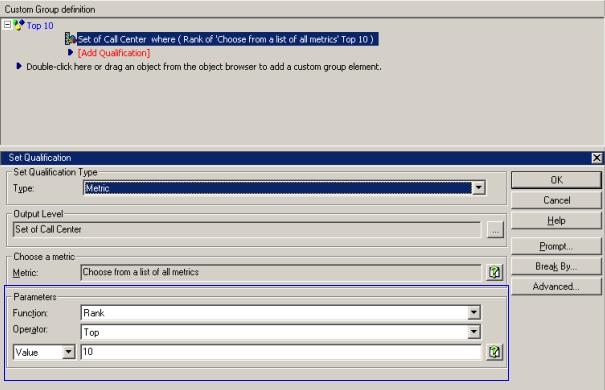
  • Back at the set qualification definition pane, in the parameters textbox, choose rank as the function, as shown below:
ka02R000000kWLHQA2_0EM440000002V4S.jpeg
  • Select the according 'Output Level' for the custom group.
  • Save and close the custom group.
  • Create a new report in Strategy Developer.
  • Add the desired attributes to the report definition template.
  • Add the custom group previously created.
  • Add the desired pre-defined set of metrics to the report definition template, as shown below:
ka02R000000kWLHQA2_0EM440000002V4F.jpeg
  • Save and close the report.

Perform the following procedure to run the report:
 

  • Run the report previously created.
  • At the prompt, select the metric that will be ranked on within that pre-defined set of metrics, as shown below:
ka02R000000kWLHQA2_0EM440000002V4R.jpeg
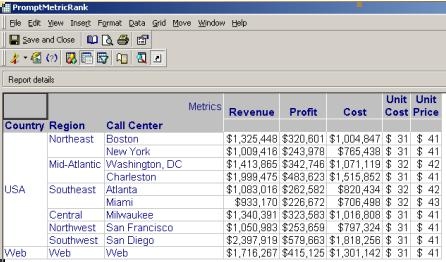
  • The report will display ranking on the metric selected in the prompt and will also display the other metrics within the pre-defined set of metrics list, as shown below:
ka02R000000kWLHQA2_0EM440000002V4Z.jpeg

Comment

0 comments

Details

Knowledge Article

Published:

July 18, 2017

Last Updated:

July 18, 2017