EducationSoftwareStrategy.com
StrategyCommunity

Knowledge Base

Product

Community

Knowledge Base

TopicsBrowse ArticlesDeveloper Zone

Product

Download SoftwareProduct DocumentationSecurity Hub

Education

Tutorial VideosSolution GalleryEducation courses

Community

GuidelinesGrandmastersEvents
x_social-icon_white.svglinkedin_social-icon_white.svg
Strategy logoCommunity

© Strategy Inc. All Rights Reserved.

LegalTerms of UsePrivacy Policy
  1. Home
  2. Topics

KB16071: What is the difference between Absolute and Ignore Filtering for a level metric in MicroStrategy Developer?


Stefan Zepeda

Salesforce Solutions Architect • Strategy


This article explains the difference between the absolute and ignore filter options for metric dimensionality in MicroStrategy.

What is filtering for a level metric?
 
The filtering setting for a level metric governs the relationship between the report filter and the calculation of the metric. The filtering options are:

  1. Standard filtering - allows the report filter to interact as usual in the metric calculation. The metric calculates only for the elements found in the filter definition. The filter criteria for the report is found in the WHERE clause of the SQL statement which calculates the metric in question.
  2. Absolute filtering - changes the filter on descendents of the target. It raises it to the level of the target, if possible.
    • If the attribute in the metric filter is a parent of the attribute in the report filter, calculations are performed only on elements to which the report filter applies.
    • If the attribute in the metric filter is of the same level or a child of the attribute in the report filter, calculations occur as specified by the report filter. Absolute filtering influences what is displayed on the report, not its calculations. It includes the report criteria in a subquery rather than in the WHERE clause itself.
  3. Ignore filtering - omits filtering criteria based on the attribute in the target and its related attributes (parents and children). The report filter does not appear anywhere in the SQL for a metric with this setting.
  4. None - can be summarized as unspecified-the filtering behavior for the target is not determined by this component. Instead, the target and group components of this level unit define the filter.
    • If the report includes an attribute in the same hierarchy as that indicated by the metric filter, aggregation takes place at the level of that attribute.
    • If the report does not include other attributes in the same hierarchy as that indicated by the metric filter, aggregation defaults to the "Absolute" option.

How Absolute and Ignore Filtering modify the results of the report:
 
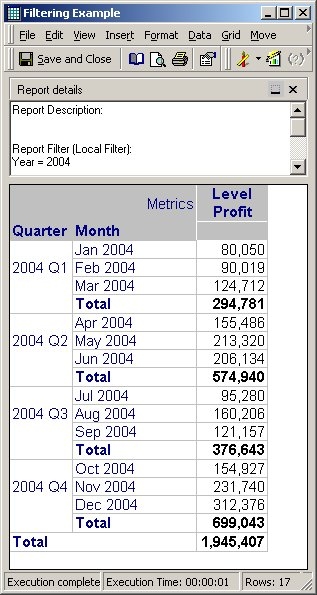
Take for example the following report and metric:
Report Filter: Year = 2004
Attributes: Quarter & Month
Metric: Level Profit
ka04W000001IwKaQAK_0EM440000002FEO.jpeg

Because the Filtering is currently set to standard, then the report filter will interact with the metric calculation normally and apply the filter to the metric.
Now if the Filtering is changed to absolute, then again, nothing will change. Because the target is set at the Report Level, then the level of the target is not raised and the results remain unchanged.
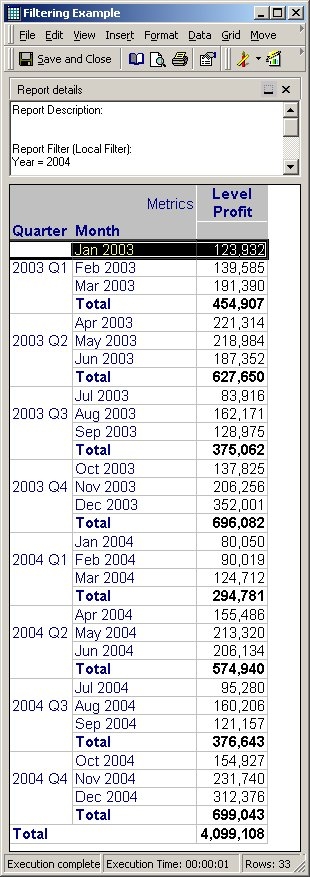
However, if the Filtering is set to Ignore, then the Report Filter is ignored and additional 2003 data is displayed for the Level Profit as shown below:
ka04W000001IwKaQAK_0EM440000002FEM.jpeg

This is because ignore Filtering will remove any report filters that are related to the target (parent or child). Because the Target is Report Level, which is the Month & Quarter, and Year is a parent of both of those, it is removed.
For more examples regarding Level Metrics, refer to the 'Level Metrics' section of the Advanced Reporting Guide.


Comment

0 comments

Details

Knowledge Article

Published:

April 5, 2017

Last Updated:

August 24, 2022