EducationSoftwareStrategy.com
StrategyCommunity

Knowledge Base

Product

Community

Knowledge Base

TopicsBrowse ArticlesDeveloper Zone

Product

Download SoftwareProduct DocumentationSecurity Hub

Education

Tutorial VideosSolution GalleryEducation courses

Community

GuidelinesGrandmastersEvents
x_social-icon_white.svglinkedin_social-icon_white.svg
Strategy logoCommunity

© Strategy Inc. All Rights Reserved.

LegalTerms of UsePrivacy Policy
  1. Home
  2. Topics

KB16082: How to verify SAP BW query results using the MDX Test Editor tool in the SAP Front End application


Community Admin

• Strategy


This article covers how to use the SAP front end to test MDX

In cases where report results from SAP BW systems display incorrectly in Strategy, or in case of a query execution error, it is valuable for troubleshooting to execute the query directly against the SAP BW system without Strategy involvement. This helps determine whether the problem is intrinsic to Strategy or if it needs to be addressed in the SAP BW system.
The SAP Front End application includes an MDX Test Editor utility. It executes an MDX query against the system using the same programmatic interface that Strategy uses to connect to SAP; thus, it parallels Strategy's manner of execution while ruling out Strategy code.
To perform this test, it is assumed that the SAP Front End is already installed and configured to connect to the desired SAP system. The Front End may be obtained from the SAP Service Marketplace, under SAP Support Portal > Downloads > Installations and Upgrades > Entry by Application Group > SAP Frontend Components.
NOTE: The Front End exists in Windows and UNIX versions. This article describes how to use the MDX Test Editor in Windows; the steps should be very similar in UNIX environments.
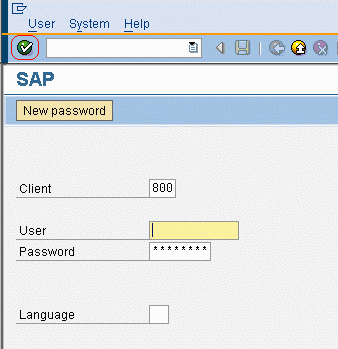
 

  • Go to the Start menu > Programs > SAP Front End > SAP Logon. Choose the desired system and click 'Log on.' Enter the user credentials and click the green checkmark to complete the login, as shown below:
ka04W000000OfF7QAK_0EM440000002FF7.gif
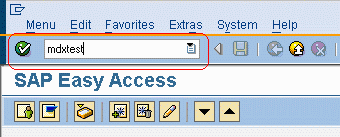
  • In the search box at top left, type 'mdxtest.' Press the enter key or click the green checkmark, as shown below:
ka04W000000OfF7QAK_0EM440000002FF4.gif
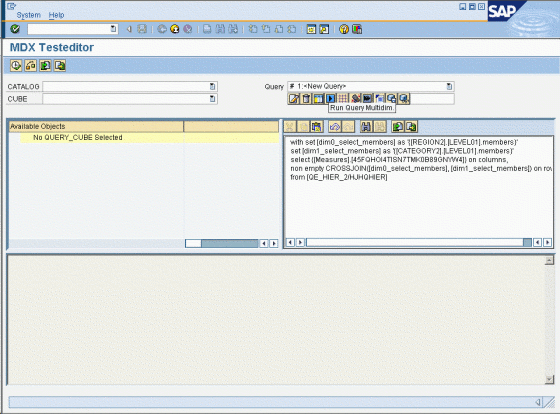
  • When the MDX Test Editor screen loads, paste the Strategy query into the empty text box at right. The query text should be obtained by right-clicking on the report in Strategy Developer and choosing 'View SQL/MDX' or by running the report and viewing the MDX after execution, as shown below:
ka04W000000OfF7QAK_0EM440000002FFB.gif
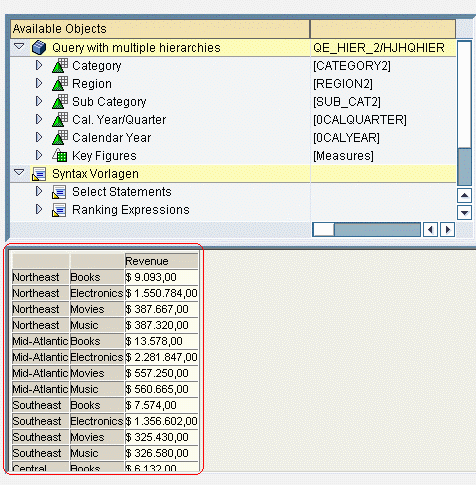
  • There is a row of icons just under the 'Query' drop-down menu. Fourth from the left is right-facing arrowhead with a blue background. This button will execute the query. Results appear in the bottom panel, as shown below:
ka04W000000OfF7QAK_0EM440000002FF6.gif

If there is an error in MDX execution, the MDX Test Editor interface will disappear and be replaced by the ABAP debugger. The precise nature of the exception may not be evident in the SAP interface.
 
Auto-generated MDX
 
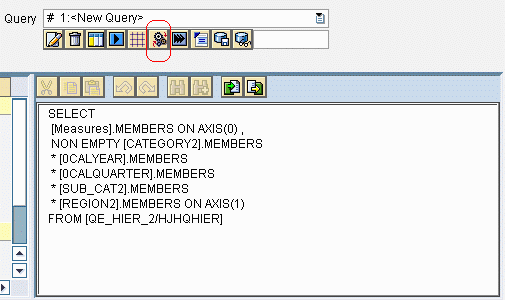
Very near the 'Execute Multidim' command that runs the MDX, there is an icon with a set of gears. This icon will generate a default MDX statement for the chosen cube. This is a way to test query execution in general, bypassing Strategy's MDX generation.
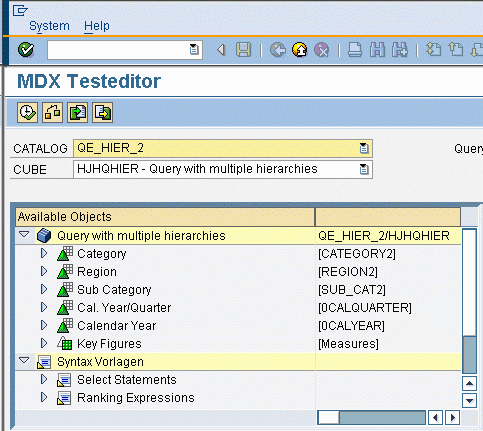
 

  • Choose the catalog and cube from the drop-down menus at left. When the cube is chosen, its structure will appear in the 'available objects' window, as shown below:
ka04W000000OfF7QAK_0EM440000002FFC.gif
  • Click the 'Default MDX' icon, as shown below:
ka04W000000OfF7QAK_0EM440000002FF5.gif
  • The query may then be executed.

Third Party Software Installation:
The third-party product(s) discussed in this article is manufactured by vendors independent of Strategy. Strategy makes no warranty, express, implied or otherwise, regarding this product, including its performance or reliability.


Comment

0 comments

Details

Knowledge Article

Published:

May 5, 2017

Last Updated:

May 5, 2017