Filtering an individual metric in OLAP Cube data sources using custom metric formulas requires awareness of whether the filtering attribute is required on the template, or should be omitted.
In MDX, attributes may not be used in the SELECT and WHERE clauses simultaneously. Only attributes in the WHERE clause are considered true filters, in the sense that they restrict the data set prior to producing the aggregated data. For instance, to execute a SQL report with Category on the template, but filtering on Quarter, the database must exclude all fact-level data that do not meet the Quarter condition, and then aggregate the remaining data to the Category level. This is handled similarly in MDX.
A SQL report that filters on Quarter and also includes Quarter on the template uses a similar execution flow. MDX handles this situation very differently, however. The use of Quarter on the template means that Quarter cannot also go in the WHERE clause. To render the Quarter filter, the specific attribute elements are placed into the SELECT clause. OLAP cube databases execute this query by choosing the metric values only for the specified elements, and no others. The end result is the same, but the methodology is entirely different.
The difference in methodology means that there are separate MDX formulas to restrict metric results for the scenario of the filtering attribute being present on, or absent from, the template. The two syntaxes are not interchangeable. Using a formula incompatible with the template design will produce unexpected results, or errors from the OLAP Cube data source.
Filtering a Metric When the Filtering attribute is Not on the Template
The general syntax to filter a metric when the filtering attribute is not used on the template is to place the metric and the attribute element together in parentheses:
(Metric technical name, Element ID)
For example, to filter the Revenue metric based on the Northeast region, the metric formula should be:
"([Measures].[REVENUE2], [REGION2].[01])"
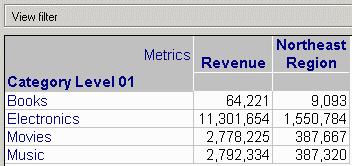
If multiple attribute elements need to be used in the filter, a different formula should be used. This formula will work equally well with a single element, making it suitable for required element list prompts.
Non-prompted:
"Aggregate({[CATEGORY2].[3], [CATEGORY2].[4]}, [Measures].[REVENUE2])"

 ApplySimple("Aggregate({[CATEGORY2].[3], [CATEGORY2].[4]}, #0)", Revenue)
ApplySimple ("Aggregate({#0}, #1)" ?[Category Prompt], Revenue)
ApplySimple("IIf([Department].[Departments].CurrentMember IS [Department].[Departments].&[2], #0, NULL)", Amount)
Not all OLAP cube data sources support the use of IS in this context. Microsoft Analysis Services supports it; SAP BW has returned errors in Strategy's testing. For SAP BW, the following syntax may be used.
"IIf([REGION2].CurrentMember.Name = [REGION2].[01].Name, [Measures].[REVENUE2], NULL)"
