EducationSoftwareStrategy.com
StrategyCommunity

Knowledge Base

Product

Community

Knowledge Base

TopicsBrowse ArticlesDeveloper Zone

Product

Download SoftwareProduct DocumentationSecurity Hub

Education

Tutorial VideosSolution GalleryEducation courses

Community

GuidelinesGrandmastersEvents
x_social-icon_white.svglinkedin_social-icon_white.svg
Strategy logoCommunity

© Strategy Inc. All Rights Reserved.

LegalTerms of UsePrivacy Policy
  1. Home
  2. Topics

KB16135: How to enable the guest user account in MicroStrategy Web 9.3.x and above.


Community Admin

• Strategy


How to enable the guest user account in MicroStrategy Web 9.3.x and above

The guest user account is an invisible user that exists by default and resides in the Public / Guest group. To enable the guest user login, ensure that access is granted at the following levels in Strategy by following the steps below:
 
Server Definition Level:
  • Log into Desktop/Developer as the administrator into the project source which points to the Strategy Intelligence Server 9.x where the guest user account will be used.
  • Right-click on the project source and go to Configure Strategy Intelligence Server.
  • Under Server Definition > General > Properties, hit Modify. The Properties window should appear.
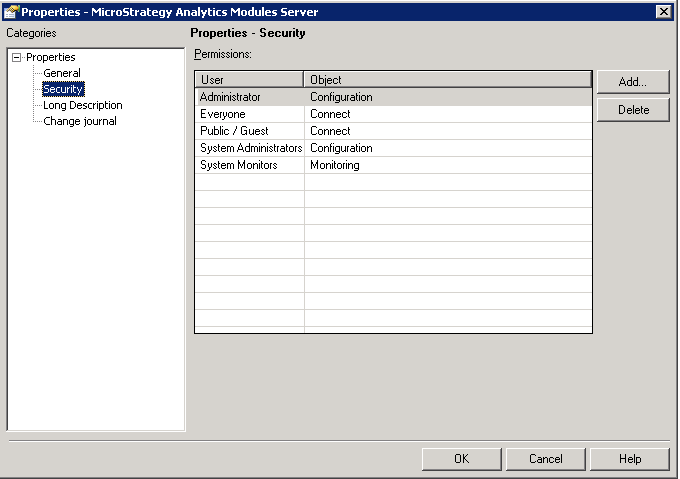
  • Under General > Security, add the Public/Guest Group, and grant it Connect permissions, as shown below
ka04W000000OhPGQA0_0EM4400000028lq.jpeg

Project Level:

  • Log in as the administrator into the project source which points to the Strategy Intelligence Server 9.x where the guest user account will be used.
  • Right-click on the project and select Project Configuration.
  • Go to Project access > General.
  • Click on View, followed by selecting New to create a new security role just for the Guest Users.
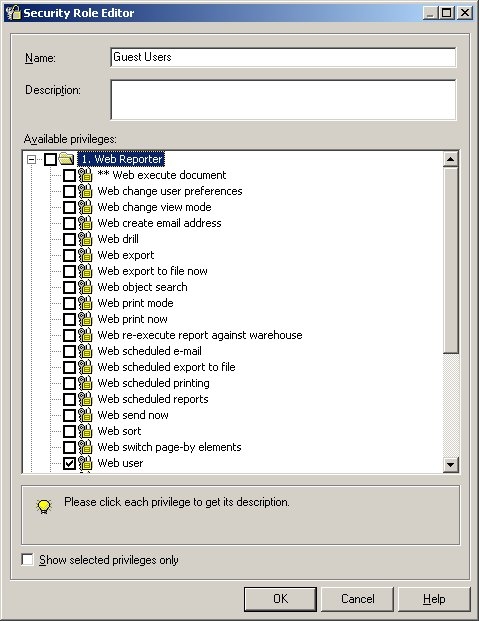
  • Grant all privileges that will enable the guest user to have, with the minimum of 'Web User' under the Web Reporter privilege group, as shown below:
ka04W000000OhPGQA0_0EM4400000028lk.jpeg
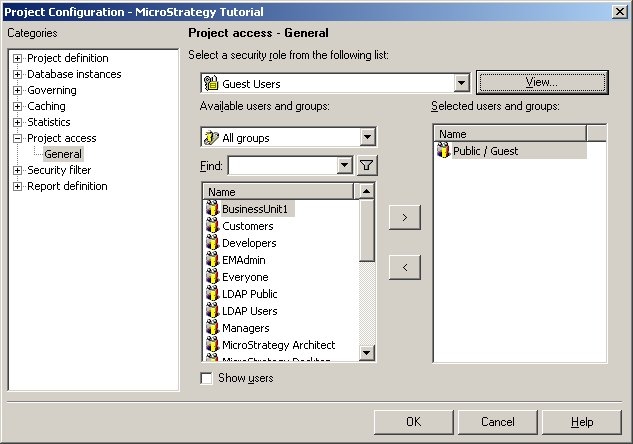
  • Add the Public / Guest group to that newly created security role, as shown below:
ka04W000000OhPGQA0_0EM4400000028lo.jpeg

Object Level:

  1. Expand the project(s) that the guest user will have access to. Browse to the Public Objects folder and right-click and select Properties. Select the Security tab.
  2. Add the Public / Guest group with View access and grant View access. Make sure Recursively is selected to have the changes apply to all child objects.

Web Level:

  • Connect to the Web Administration page - Admin.aspx for ASP.NET users and mstrWebAdmin for Universal users.
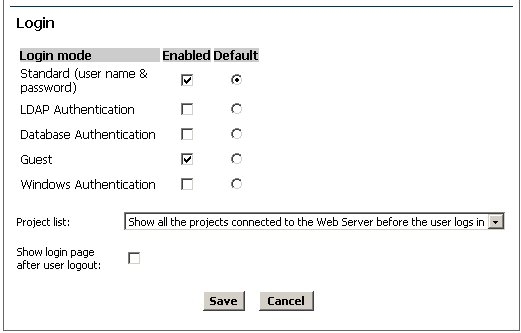
  • Select Default properties and select the checkbox for 'Guest' as a login option, as shown below:
ka04W000000OhPGQA0_0EM4400000028li.jpeg

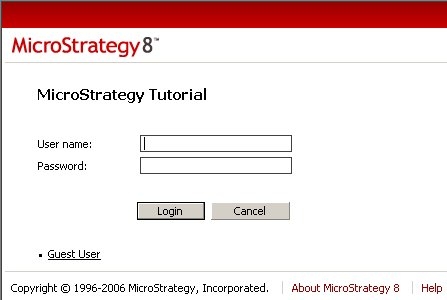
Now, when users log into Strategy Web 8.x, they will see an option for 'Guest User' login on the Authentication page, as shown below:
 

ka04W000000OhPGQA0_0EM4400000028lm.jpeg


Comment

0 comments

Details

Knowledge Article

Published:

May 23, 2017

Last Updated:

May 23, 2017