EducationSoftwareStrategy.com
StrategyCommunity

Knowledge Base

Product

Community

Knowledge Base

TopicsBrowse ArticlesDeveloper Zone

Product

Download SoftwareProduct DocumentationSecurity Hub

Education

Tutorial VideosSolution GalleryEducation courses

Community

GuidelinesGrandmastersEvents
x_social-icon_white.svglinkedin_social-icon_white.svg
Strategy logoCommunity

© Strategy Inc. All Rights Reserved.

LegalTerms of UsePrivacy Policy
  1. Home
  2. Topics

KB16366: Scheduled data load does not start in MicroStrategy Enterprise Manager 9.x


Community Admin

• Strategy


This technote details an issue involving the data loader on MicroStrategy 9.x

SYMPTOM:

Unlike custom time window data load and 'Manual' data load, scheduled data load does not start in Strategy Enterprise Manager.
 

CAUSE:

The user who runs Strategy Enterprise Manager Data Loader service does not have the required DCOM permission.
 
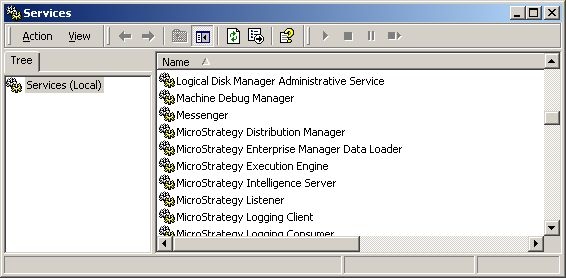
Note: The Strategy Enterprise Manager Data Loader Service can be found in Services, as shown below:
ka04W000000OhBBQA0_0EM440000002BU7.jpeg


ACTION:

Follow the steps below to set DCOM permission:
 
For a Windows 2003 machine, do the following:

  • Log onto the Windows 2003 machine.
  • Click Start > Run and enter dcomcnfg.exe. Click OK.
  • In the Component Services window, expand Component Services > Computers.
  • Right-click on 'My Computer' and select Properties.
  • Select the Default COM Security tab.
  • Under Access Permissions, select Edit Default.
  • On the Access Permissions window, click Add and add the account that will administer Strategy Enterprise Manager 9.x if it is not already there.
  • Click OK and verify that the account is added and that it has Allow Access permissions.
  • Under Launch Permissions, click Edit Default to open the Launch Permission window.
  • Click Add and add the account, if it is not there.
  • Click OK and verify that the account is added and that it has Allow Launch permissions.
  • Click OK and choose File > Exit to close the Component Services window, as shown below:
ka04W000000OhBBQA0_0EM440000002BUD.jpeg

 
For Windows Server 2008, do the following:
 

  • Log onto the Windows 2008 machine.
  • Click Start > Run and enter dcomcnfg.exe. Click OK.
  • In the Component Services window, expand Component Services > Computers.
  • Right-click on 'My Computer' and select Properties.
  • Click the 'Default Properties' tab
  • Make sure that DCOM is enabled on the machine as shown below.

ka04W000000OhBBQA0_0EM440000002BUB.jpeg


  • Also, the user running the Strategy Enterprise Manager Data Loader service should be part of the user group 'Distributed COM Users', as shown below.

ka04W000000OhBBQA0_0EM440000002BU9.jpeg

Comment

0 comments

Details

Knowledge Article

Published:

June 1, 2017

Last Updated:

June 1, 2017