EducationSoftwareStrategy.com
StrategyCommunity

Knowledge Base

Product

Community

Knowledge Base

TopicsBrowse ArticlesDeveloper Zone

Product

Download SoftwareProduct DocumentationSecurity Hub

Education

Tutorial VideosSolution GalleryEducation courses

Community

GuidelinesGrandmastersEvents
x_social-icon_white.svglinkedin_social-icon_white.svg
Strategy logoCommunity

© Strategy Inc. All Rights Reserved.

LegalTerms of UsePrivacy Policy
  1. Home
  2. Topics

KB16428: Grid reports in dashboards do not automatically expand to fit to contents in Flash mode for MicroStrategy Web 9,x


Community Admin

• Strategy


SYMPTOM:
Users designing Flash dashboards in Strategy Web 9.x may notice that in Flash mode, grid reports do not expand, while they do in Interactive mode.
 
STEPS TO REPRODUCE:
Follow the steps below to reproduce this issue:
 

  • In Design view, add a grid to the template of a dashboard.
  • Right-click the grid, choose Properties, and click on the Layout tab.
  • Ensure that the width and height of the graph are set to fit to contents, as shown below::
ka04W000000OdwrQAC_0EM4400000028kp.jpeg
  • Execute the dashboard in Interactive mode. Notice that the grid expands to display all the data, as shown below:
ka04W000000OdwrQAC_0EM4400000028km.jpeg
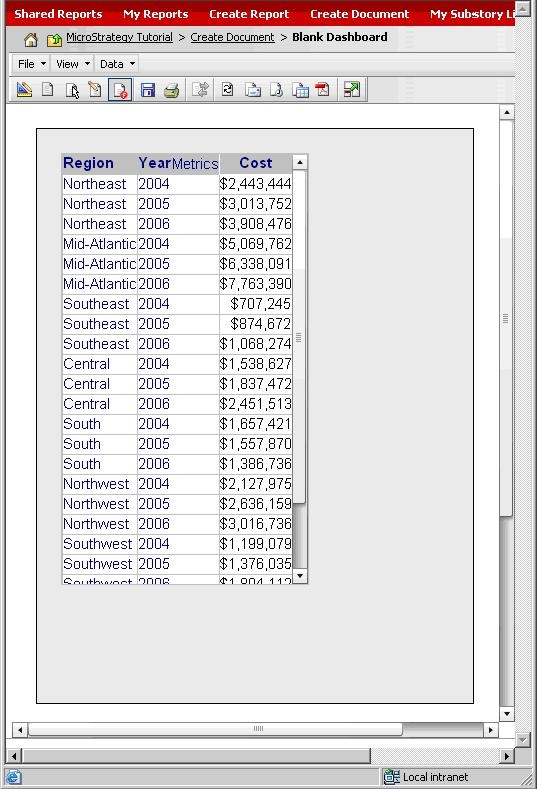
  • Switch to Flash mode. Notice that the grid is in a minimized state, as shown below:
ka04W000000OdwrQAC_0EM4400000028kx.jpeg

CAUSE:
This is working as designed. Due to performance considerations with large grid reports, Flash mode has a restriction on it that prevents grid reports from growing automatically.
 
ACTION:
There are several different actions users can take to rectify this issue:
 

  • As there is no restriction on the shrinking of grid reports, users can manually click and drag to increase the size of grid, i.e. set a fixed width and height, and then change the properties to fit to content, as shown below:
ka04W000000OdwrQAC_0EM4400000028kj.jpeg
  •  
    Once the size is increased, in Flash mode the grid will shrink as necessary to the dimensions of the content, as shown below:
     
ka04W000000OdwrQAC_0EM4400000028kk.jpeg
  • A more permanent solution is the increase the default grid size in the template definition, which starts at 1"x0.5". To do this, perform the following:
     
     
    • Edit a document template used by users in Strategy Desktop > Object Templates > Templates.
    • Create a grid with the desired size dimensions.
    • Right-click on the grid and choose 'Set Control Defaults'.
    • Delete the grid, then save the template. All future documents created from this template will now use the new grid dimensions by default.
  • A final alternative is to use the dashboard template for building new documents, which defaults grids to a fixed size, not fit to contents.
     

Comment

0 comments

Details

Knowledge Article

Published:

June 14, 2017

Last Updated:

June 14, 2017