EducationSoftwareStrategy.com
StrategyCommunity

Knowledge Base

Product

Community

Knowledge Base

TopicsBrowse ArticlesDeveloper Zone

Product

Download SoftwareProduct DocumentationSecurity Hub

Education

Tutorial VideosSolution GalleryEducation courses

Community

GuidelinesGrandmastersEvents
x_social-icon_white.svglinkedin_social-icon_white.svg
Strategy logoCommunity

© Strategy Inc. All Rights Reserved.

LegalTerms of UsePrivacy Policy
  1. Home
  2. Topics

KB16433: A user is prompted for a Microsoft Windows login and password even though MicroStrategy is configured to use Standard Authentication in MicroStrategy Web


Community Admin

• Strategy


A user is prompted for a Microsoft Windows login and password even though MicroStrategy is configured to use Standard Authentication in MicroStrategy Web.

SYMPTOM:
When a user logs into Strategy Web 9.4.1 the user is prompted for a Microsoft Windows login and password even though Strategy is configured to use Standard authentication in Strategy Web .
 
CAUSE:
Within Microsoft Internet Information Services (IIS), the Strategy Web virtual directory is configured to use 'Integrated Windows authentication'.
 
ACTION:
Follow the steps below to resolve this issue:
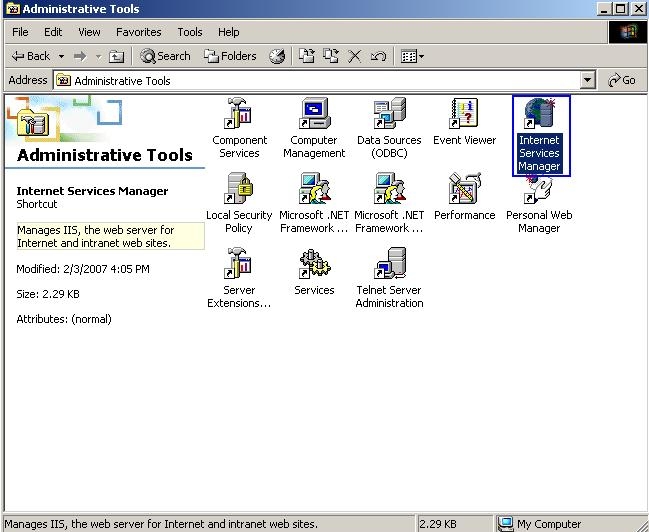
 

  • Go to the 'Internet Services Manager',located at Start > Settings > Control Panel > Administrative Tools, as shown below:
ka04W000000Oe8dQAC_0EM4400000028kh.jpeg
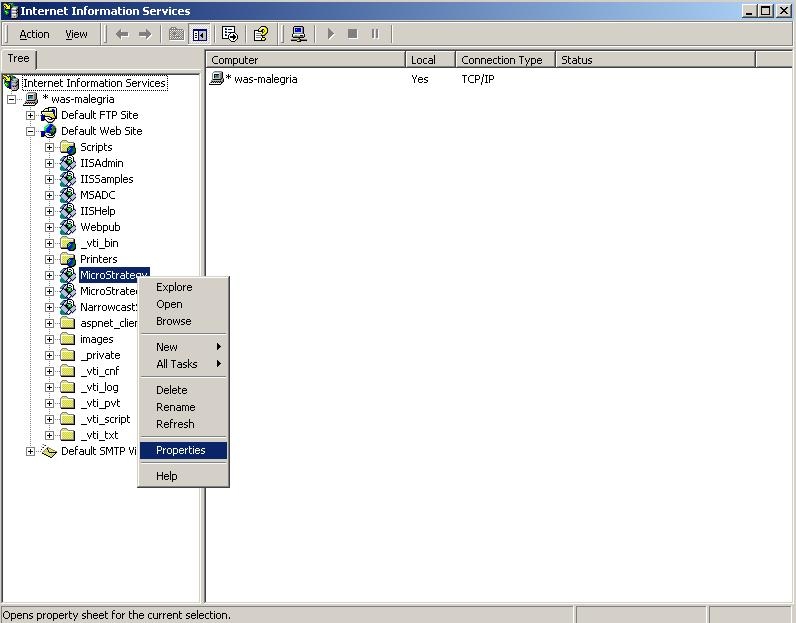
  • Within the 'Internet Services Manager', browse to the 'Strategy' virtual directory. Once there, right-click and select 'Properties', as shown below:
ka04W000000Oe8dQAC_0EM4400000028kf.jpeg
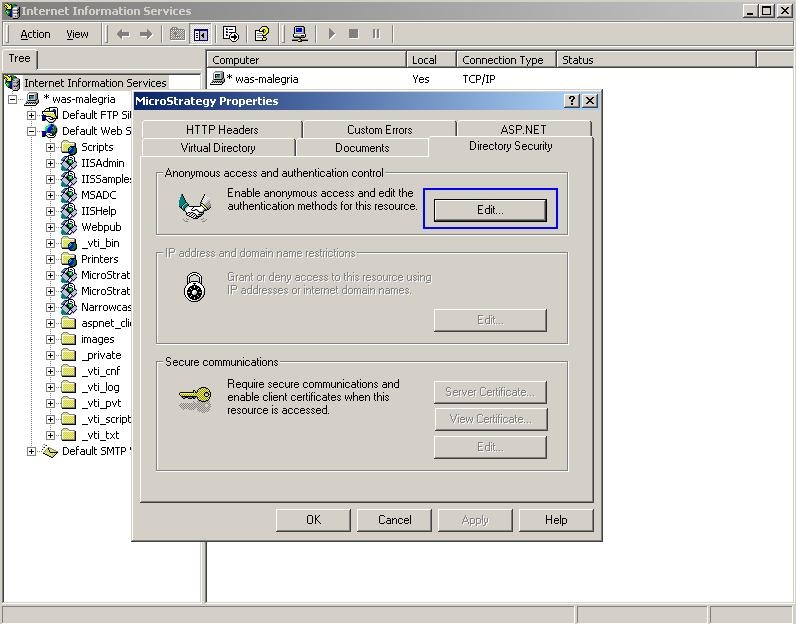
  • Within the 'Strategy Properties' virtual directory properties window, click on the 'Directory Security' tab, and under 'Anonymous access and authentication control' click on the 'Edit' button, as shown below:
ka04W000000Oe8dQAC_0EM4400000028l2.jpeg
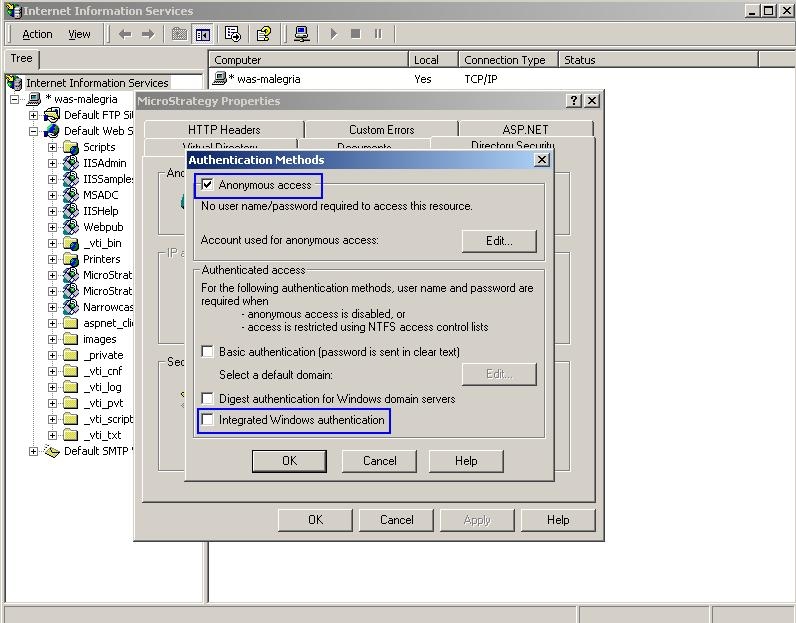
  • Within the 'Authentication Methods' window, the user must uncheck the 'Integrated Windows authentication' and make sure that only the 'Anonymous access' check box is enabled, as shown below:
ka04W000000Oe8dQAC_0EM4400000028ki.jpeg
  • Click on 'Ok' in the 'Authentication Methods' window and click 'Ok' in the 'Strategy Properties' virtual directory properties window to apply the changes. The user will now only be prompted for Standard authentication.

Note:Aside from the steps previously provided, the user must also make sure that the Microsoft Windows user account (e.g. the Microsoft Windows IUSR account) used by the Web server (e.g. Microsoft Internet Information Services) has the appropriate ACL settings and permissions to the 'WebASPx' folder, along with it's subfolders and contents, located at Drive:\Program Files\Strategy.


Comment

0 comments

Details

Knowledge Article

Published:

June 13, 2017

Last Updated:

June 13, 2017