SYMPTOM:
When accessing the Strategy Web 9.x or Administrator page, users may see an error page displayed similar to the one below:
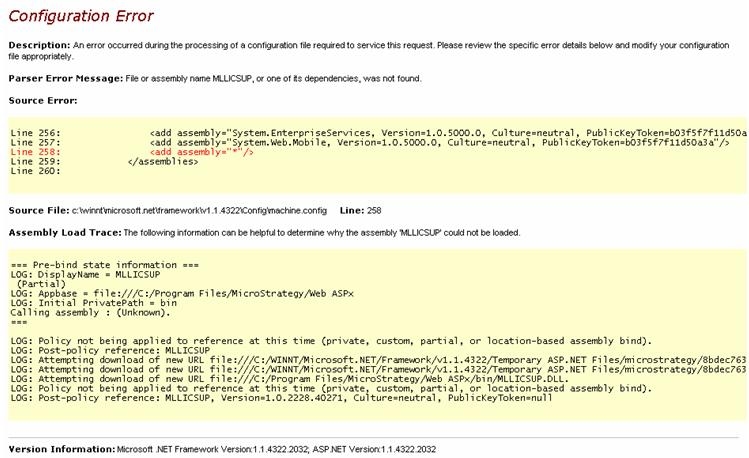
Configuration Error:
Description: An error occurred during the processing of a configuration file required to service this request. Please review the specific error details below and modify your configuration file appropriately.
Parser Error Message: File or assembly name MLLICSUP, or one of its dependencies, was not found.
CAUSE:
One reason why this error can occur is because MLLICSUP.dll does not have the correct environment variables to point to the location of commonly used files. This will cause the error above. The environment variable that MLLICSUP.dll uses is the PATH variable; this allows the MLLICSUP.dll to have access to important files. In a Windows environment, the PATH variable needs to have a reference to Program Files/Common Files/Strategy. To check to see what is referenced by the PATH variable, open up the command prompt and type the following:
echo %PATH%
This will display the references that the path variables hold, which are separated by semi-colons. If there is no reference to Program Files/Common Files/Strategy, this may be the underlying issue that is causing this error. Note that there are other reasons why this error can occur.
ACTION:
Set the PATH environment variables as follows:
Note that each reference is separated by a semi-colon, and there is no semi-colon at the end of the last reference.
