EducationSoftwareStrategy.com
StrategyCommunity

Knowledge Base

Product

Community

Knowledge Base

TopicsBrowse ArticlesDeveloper Zone

Product

Download SoftwareProduct DocumentationSecurity Hub

Education

Tutorial VideosSolution GalleryEducation courses

Community

GuidelinesGrandmastersEvents
x_social-icon_white.svglinkedin_social-icon_white.svg
Strategy logoCommunity

© Strategy Inc. All Rights Reserved.

LegalTerms of UsePrivacy Policy
  1. Home
  2. Topics

KB16565: How to disable automatic starting of applications in a WebSphere Application Server.


Community Admin

• Strategy


How to disable automatic starting of applications in a WebSphere Application Server.

When an application is installed in WebSphere Application Server (WAS), by default it is configured to start automatically whenever WAS starts. This document provides instructions on how to disable applications from automatically starting up when WAS starts up. Disabling application from automatically starting up accelerates the initial server startup.
 
From the Administrative Console:
  1. Navigate to Applications > Enterprise Applications
  2. Choose the application to disable automatic starting
  3. Navigate to Additional Properties > Target mappings
  4. Choose the Target (server 1 by default)
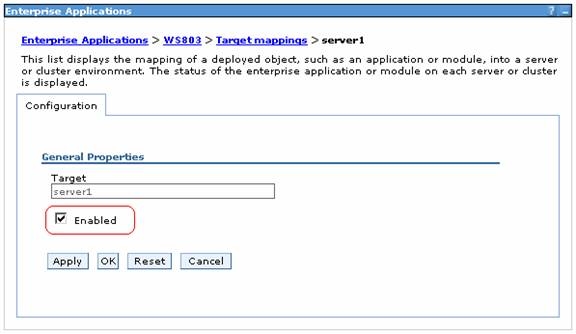
  5. Uncheck the "Enabled" check box (illustrated below)
ka04W000000OgIfQAK_0EM4400000028kW.jpeg

 
From WSAdmin (Jacl):
 
Set appName Strategy
puts "Disabling auto load for $appName"
set deployments
set deploymentObject
set targetMappings 0]
$AdminConfig modify $targetMappings {{enable false}}
puts "Saving all the changes to master configuration of WebSphere..."
$AdminConfig save
Note: The script can be expanded to disable all applications through via and a loop. For more information on WSAdmin, refer to the following IBM WebSphere v6r0 document:
 
http://publib.boulder.ibm.com/infocenter/wasinfo/v6r0/topic/com.ibm.websphere.express.doc/info/exp/ae/txml_scriptingep.html


Comment

0 comments

Details

Knowledge Article

Published:

June 15, 2017

Last Updated:

June 15, 2017