EducationSoftwareStrategy.com
StrategyCommunity

Knowledge Base

Product

Community

Knowledge Base

TopicsBrowse ArticlesDeveloper Zone

Product

Download SoftwareProduct DocumentationSecurity Hub

Education

Tutorial VideosSolution GalleryEducation courses

Community

GuidelinesGrandmastersEvents
x_social-icon_white.svglinkedin_social-icon_white.svg
Strategy logoCommunity

© Strategy Inc. All Rights Reserved.

LegalTerms of UsePrivacy Policy
  1. Home
  2. Topics

KB16696: Drilling option does not display if the object drilled to is hidden in Microstrategy Developer 9.x and 10.x


Stefan Zepeda

Salesforce Solutions Architect • Strategy


Drilling option does not display if the object drilled to is hidden in Microstrategy Developer 9.x and 10.x

SYMPTOM:
The user is unable to drill to an object even though it is the destination of a specified drill path in Strategy Developer 9.x and 10.x..
 
STEPS TO REPRODUCE:
Follow the steps below to reproduce this issue in the Strategy Tutorial project:
 

  • The object (in this case the 'Customer Analysis' template) must be hidden. This is done in Strategy Tutorial by following the path Public Objects > Templates > Customer Analysis. Right-click the 'Customer Analysis' template and select 'Properties'. On the bottom left corner, select 'Hidden'.
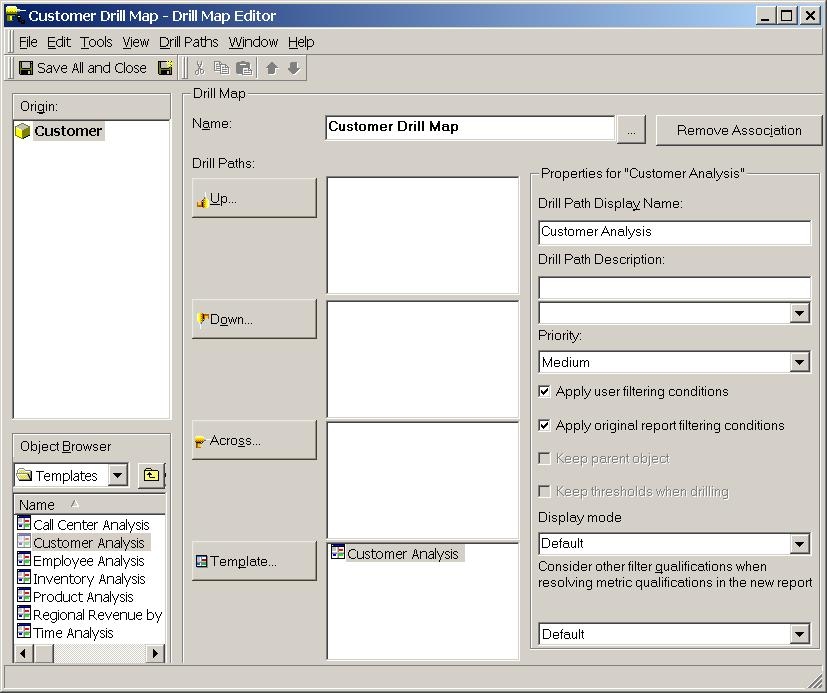
  • Create a drill map to associate the 'Customer' Attribute to the 'Customer Analysis' template, as shown below:
ka02R000000kVbXQAU_0EM440000002F9e.jpeg
  • Execute a report with the attribute 'Customer'.
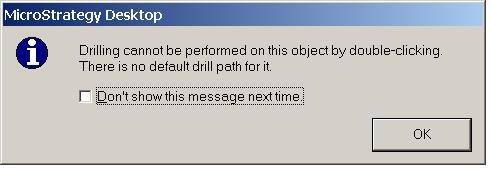
  • When a user attempts to drill from this report, the following error occurs:
ka02R000000kVbXQAU_0EM440000002F9k.jpeg
  •  
    Drilling cannot be performed on this object by double-clicking. There is no default drill path for it.

CAUSE:
A hidden object, by definition, is an object that can't be seen by end users. If the object being drilled to is hidden, it cannot be seen as an option for drilling.
 
ACTION:
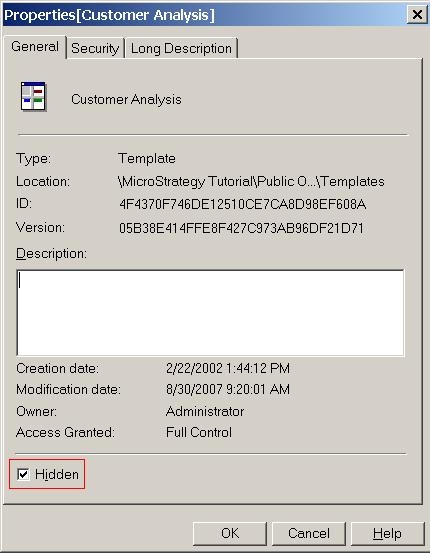
To resolve this issue, uncheck the 'Hidden' property of the drill destination object.
 
The 'Hidden' property is found by right-clicking the object (in this case 'Customer Analysis' Template) and select 'Properties'. On the bottom left corner, deselect 'Hidden', as shown below:
 

ka02R000000kVbXQAU_0EM440000002F9j.jpeg


Users will now be able to see the template as a drill option.


Comment

0 comments

Details

Knowledge Article

Published:

May 31, 2017

Last Updated:

May 31, 2017