EducationSoftwareStrategy.com
StrategyCommunity

Knowledge Base

Product

Community

Knowledge Base

TopicsBrowse ArticlesDeveloper Zone

Product

Download SoftwareProduct DocumentationSecurity Hub

Education

Tutorial VideosSolution GalleryEducation courses

Community

GuidelinesGrandmastersEvents
x_social-icon_white.svglinkedin_social-icon_white.svg
Strategy logoCommunity

© Strategy Inc. All Rights Reserved.

LegalTerms of UsePrivacy Policy
  1. Home
  2. Topics

KB16922: How to update license keys in MicroStrategy 10.x using MicroStrategy License Manager or Add/Remove Programs in Microsoft Windows


Stefan Zepeda

Salesforce Solutions Architect • Strategy


In general, there are two situations in which license key updates are required

In general, there are two situations in which license key updates are required:

  1. Additional named user licenses have been purchased or need to be removed
  2. Additional components have been purchased or relinquished (such as the addition of Strategy Narrowcast Server 9.4.x -10.x or Report Services)

As such, there are also two ways in which license keys can be updated in Strategy 9.4.x -10.x with respect to whether the new key adds/removes named users licenses or adds/removes components:

  1. If adding or removing named user licenses, the key can be updated through Strategy License Manager.
  2. If adding or removing additional components, the key should be updated through Add/Remove Programs.

If named user licenses are being added or removed, follow the steps below for updating the license key in Strategy License Manager:
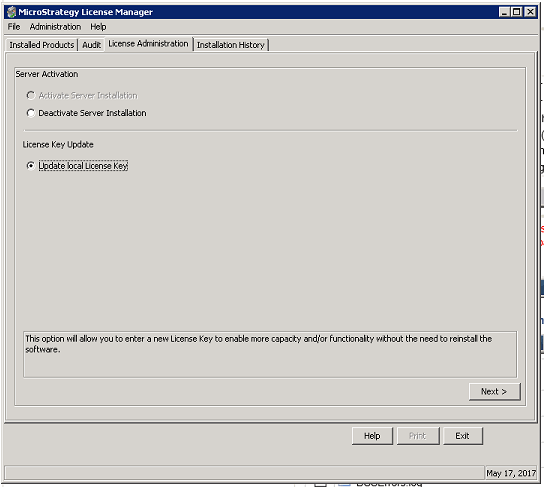
  • Navigate to Start > Programs > Strategy Tools > License Manager.
  • From there navigate to the License Administration tab.
  • From the License Administration tab, select the radio button for 'Update local License Key' and click Next, as shown below:
ka02R000000kVoZQAU_0EM440000002Lxd.png
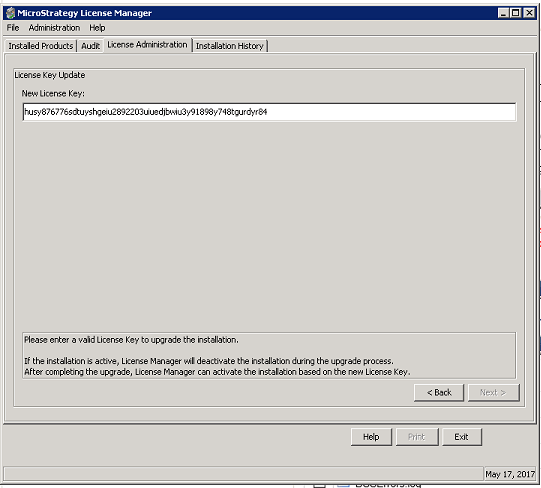
  • Type in or copy/paste the new license key in the 'New License Key' field. The license key is case-sensitive, so enter the license key carefully. The license key must be more recent than the license key used previously to activate the installation. Click Next, as shown below:
ka02R000000kVoZQAU_0EM440000002Lxi.png
  • The server installation is first deactivated if this was not done manually beforehand, then upgraded, and finally reactivated. The licenses are upgraded accordingly and the results are displayed in the Upgrade Results box.
  • Strategy License Manager can automatically request an Activation Code for the license after the update.
  • If the license key was updated for compliance issues, Strategy Intelligence Server 9.4.x-10.x should be restarted.
  • If for any reason an error was encountered while trying to update the license key or a message was received indicating that certain components would need to be uninstalled for the update to proceed, follow the instructions below for updating the license key from Add/Remove Programs.

If additional components are being added or removed and as a result the license key needs to be updated, follow the steps outlined below:
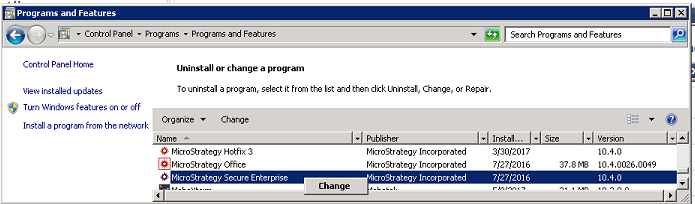
  • Navigate to Start > Control Panel > Uninstall or change a Program.
  • Click on Strategy Secure Enterprise and then click on Change, as shown below.
ka02R000000kVoZQAU_0EM440000002Lxn.png
  • On the following screen, be sure that the radio button next to 'Modify' is selected and click Next.
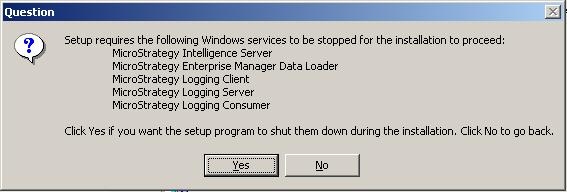
  • Certain Windows services will need to be stopped for the installation to proceed as illustrated below. Click Yes.
ka02R000000kVoZQAU_0EM440000002F53.jpeg
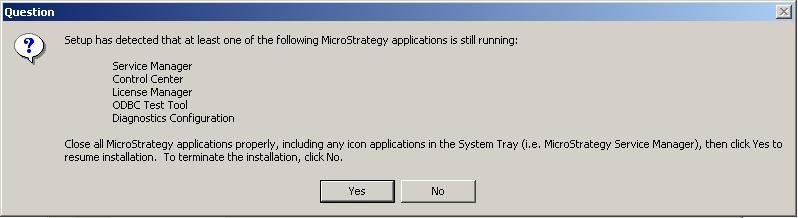
  • Setup may determine that additional Strategy applications need to be stopped as illustrated in the image below:
ka02R000000kVoZQAU_0EM440000002F51.jpeg
  • This usually implies that the user needs to exit the Strategy Service Manager which is generally displayed in the lower right of the desktop. Simply right-click and exit the Strategy Service Manager, then click Yes.
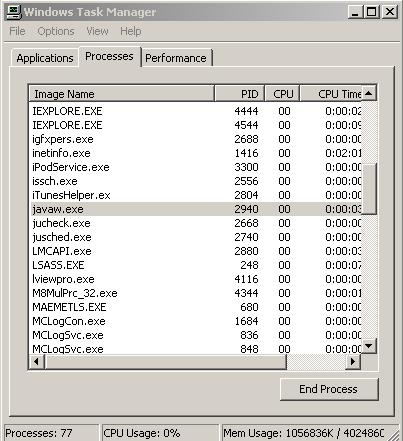
  • If the Question box still reappears after exiting the Strategy Service Manager, enter Windows Task Manager and end the javaw.exe process, as shown below:
ka02R000000kVoZQAU_0EM440000002F5D.jpeg
  • Accept the terms of the license agreement and click Next.
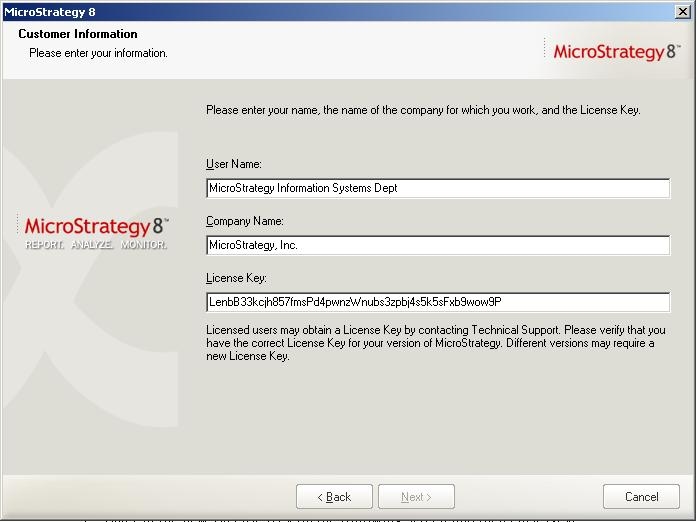
  • Enter in the new License Key on the following screen and then click Next.
ka02R000000kVoZQAU_0EM440000002F55.jpeg
  • Using a Typical or Advanced setup, click Next.
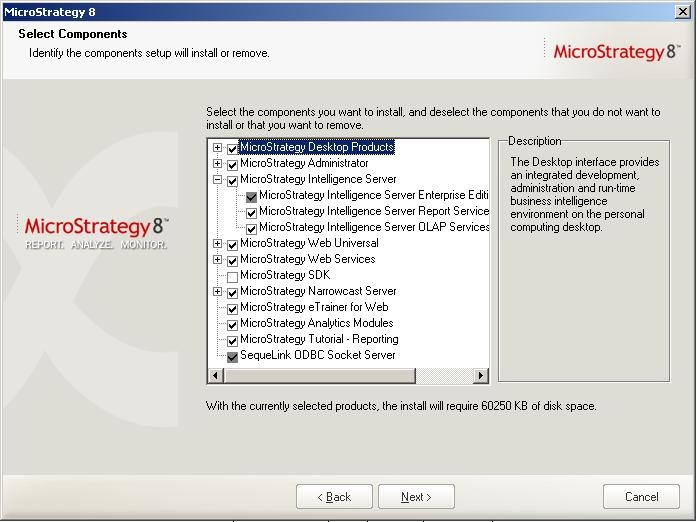
  • On the Select Components screen, verify that any new components to be added are selected. Be sure to expand any product groups to ensure nothing is missed. Click Next when done.
ka02R000000kVoZQAU_0EM440000002F4v.jpeg
  • Another Question box may appear requiring that a Strategy Web Server or Strategy Intelligence Server 9.x be stopped. The service will automatically start again once setup has completed. Click Yes.
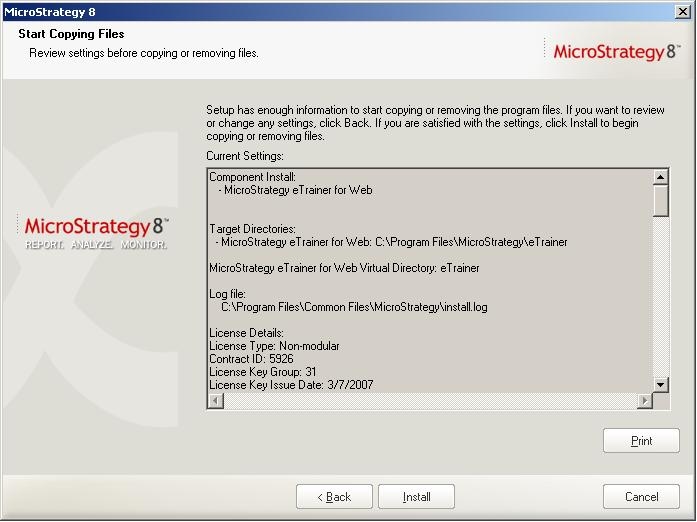
  • On the final screen, review the Current Settings and click Install, as shown below:
ka02R000000kVoZQAU_0EM440000002F4u.jpeg
  • If prompted to reboot the computer after installation has completed, do so.

Comment

0 comments

Details

Knowledge Article

Published:

May 23, 2017

Last Updated:

May 23, 2017