EducationSoftwareStrategy.com
StrategyCommunity

Knowledge Base

Product

Community

Knowledge Base

TopicsBrowse ArticlesDeveloper Zone

Product

Download SoftwareProduct DocumentationSecurity Hub

Education

Tutorial VideosSolution GalleryEducation courses

Community

GuidelinesGrandmastersEvents
x_social-icon_white.svglinkedin_social-icon_white.svg
Strategy logoCommunity

© Strategy Inc. All Rights Reserved.

LegalTerms of UsePrivacy Policy
  1. Home
  2. Topics

KB16924: Metric values are not displayed on a report even though the user has Execute permissions for it in MicroStrategy Developer 10.x


Stefan Zepeda

Salesforce Solutions Architect • Strategy


A specific user is not able to see the values of a metric in a report in MicroStrategy Desktop 8.x. The following example shows a view of the report:

SYMPTOM:
A specific user is not able to see the values of a metric in a report in Strategy Developer 10.x. The following example shows a view of the report:
 

ka02R000000kb7yQAA_0EM440000002F5V.jpeg

 
Specifically, the following conditions exist:
 

  • The user has 'Use Desktop' permission.
  • The user has 'View' permission for the 'Units Received' metric.
  • The user has 'View' permission for the 'Unit Tracking by Supplier' report and all the elements that are part of it.
  • The issue repeats in all the computers.
  • The issue is particular to that user.

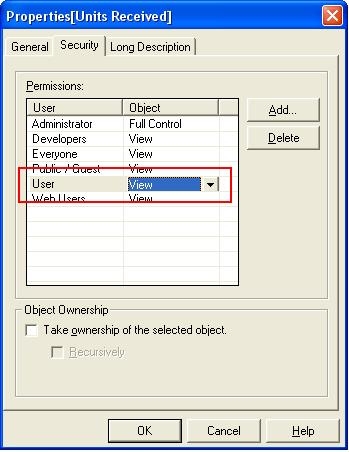
The 'Units Received' metric ACL defines 'View' permissions for that user as it is shown in the following screenshot:
 

ka02R000000kb7yQAA_0EM440000002F5W.jpeg

 
CAUSE:
The fact associated with the 'Units Received' metric does not have 'View' permissions for the user.
 
ACTION:
Follow the steps below as the Administrator or an Architect to resolve this issue:
 

  • Open the Metric Editor for the 'Units Received' metric and check the facts that compose it. For this example, the fact that composes the metric is called 'Units Received' it is shown in the following picture:
ka02R000000kb7yQAA_0EM440000002F5a.jpeg
  • Open the ACL properties of every fact that compose the metric and add 'View' permissions for the specific user. An example of this is shown with the 'Units Received' fact in the following screenshot:
ka02R000000kb7yQAA_0EM440000002F5d.jpeg
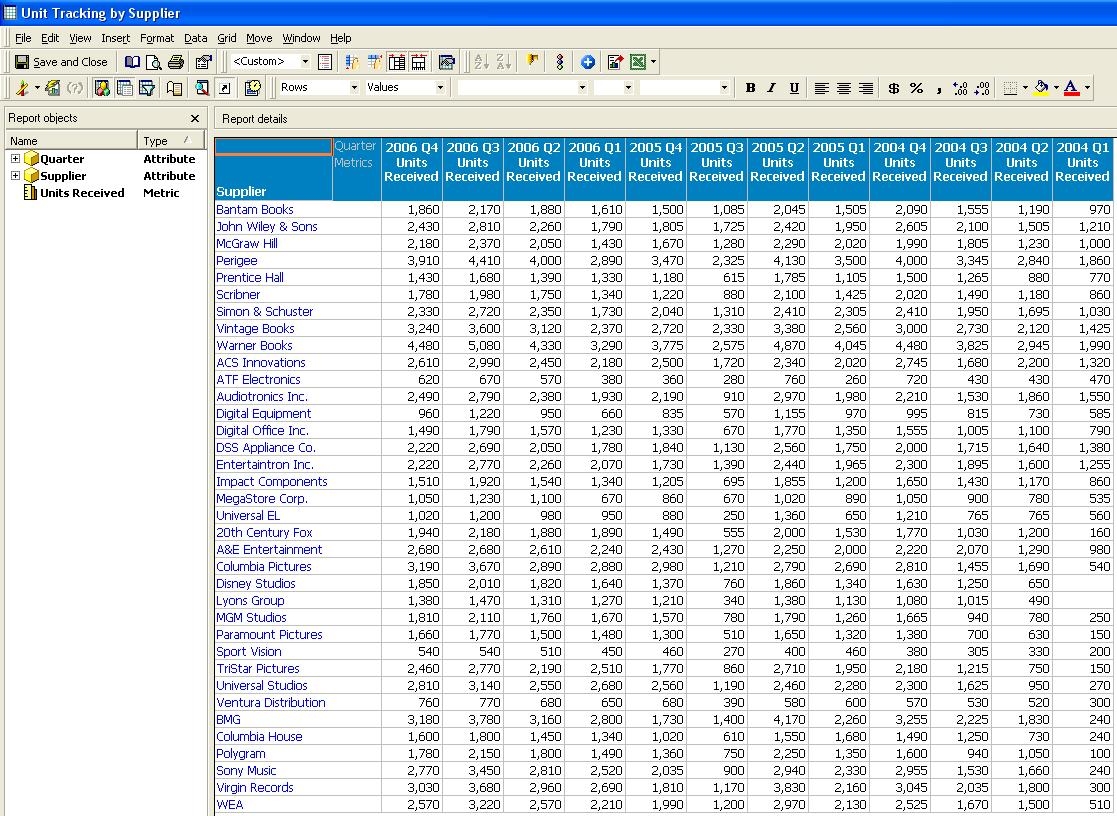
  • Log back in Strategy Developer 10.x as the user and run the report. It should look like the following:
ka02R000000kb7yQAA_0EM440000002F5c.jpeg

16924


Comment

0 comments

Details

Knowledge Article

Published:

June 9, 2017

Last Updated:

May 23, 2018