SYMPTOM:
The Strategy Narrowcast DELogs show timestamps that are different based on component. The Distribution Manager (DM) component has the correct time setting, while the others do not.
CAUSE:
When the settings are made to change the time zone in Strategy Narrowcast Administrator, the settings are not applied until the Logging Client is restarted. Each component has a different Logging Client that sends messages to the Logging Consumer, so if one of those components is restarted, the new time zone setting will go into effect for that user. If the system is stopped and started through the Administrator, then only the logging client for the Distribution Manager is restarted.
The Time Zone setting is found in the System Message Viewer in Narrowcast Administrator by choosing the Options menu and selecting Logging Format.
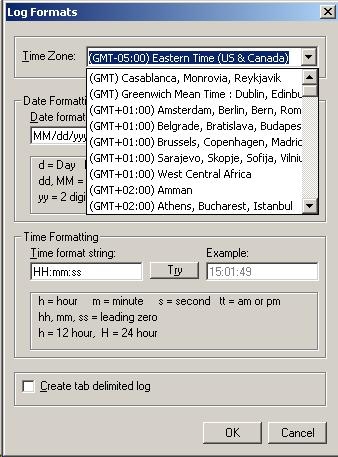
When making changes to this setting, the following warning will be generated:
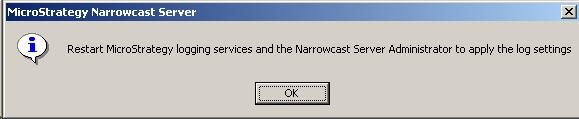
If only the system is stopped and restarted then the Distribution Manager will be the only component logging in the new time format, resulting in the issue.
ACTION:
Restart the Strategy Logging Client. This will restart all logging clients so that the new Time Zone setting is applied.
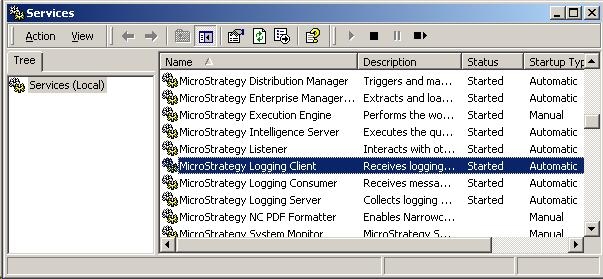
From the Start menu, choose run and type 'Services.msc' to bring up this window. Right-click on Strategy Logging Client and select restart. This causes the system to be restarted during the process.
