EducationSoftwareStrategy.com
StrategyCommunity

Knowledge Base

Product

Community

Knowledge Base

TopicsBrowse ArticlesDeveloper Zone

Product

Download SoftwareProduct DocumentationSecurity Hub

Education

Tutorial VideosSolution GalleryEducation courses

Community

GuidelinesGrandmastersEvents
x_social-icon_white.svglinkedin_social-icon_white.svg
Strategy logoCommunity

© Strategy Inc. All Rights Reserved.

LegalTerms of UsePrivacy Policy
  1. Home
  2. Topics

KB17103: When performing a mouse over action on an attribute description that contains special characters, the attribute description appears as an HTML entity representation instead of the underlying data representation in MicroStrategy Web 9.x


Community Admin

• Strategy


This article explains why the attribute description appears as an HTML entity representation instead of the underlying data representation when performing a mouse over action on an attribute description that contains special characters, in MicroStrategy Web 9.x

SYMPTOM:
When a user performs a mouse over action (hovers) on an attribute description that contains special characters, the attribute description appears as an HTML entity representation instead of the underlying data representation, in Strategy Web
STEPS TO REPRODUCE:
Follow the steps below to reproduce this issue in the Strategy Tutorial project:
In Strategy Developer:

  • Create a grid report with one attribute, e.g. the 'Category' attribute and one metric, e.g. the 'Revenue' metric, as shown below:
ka04W000000OdulQAC_0EM4400000028h7.jpeg
  • Browse to Schema Objects\Attributes\Products and right-click on the 'Category' attribute and select 'Properties', as shown below:
ka04W000000OdulQAC_0EM4400000028hB.jpeg
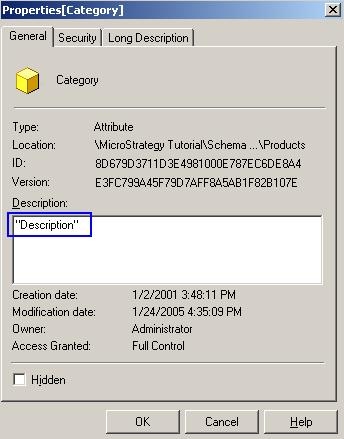
  • Change the description for the 'Category' attribute to include a sentence using double quotes, e.g. '(double quote) test (double quote)', as shown below:
ka04W000000OdulQAC_0EM4400000028hF.jpeg
  • Click on 'OK' to save the changes.
  • Update the schema.

In Strategy Web:

  • Log into the Strategy Web Administrator page.
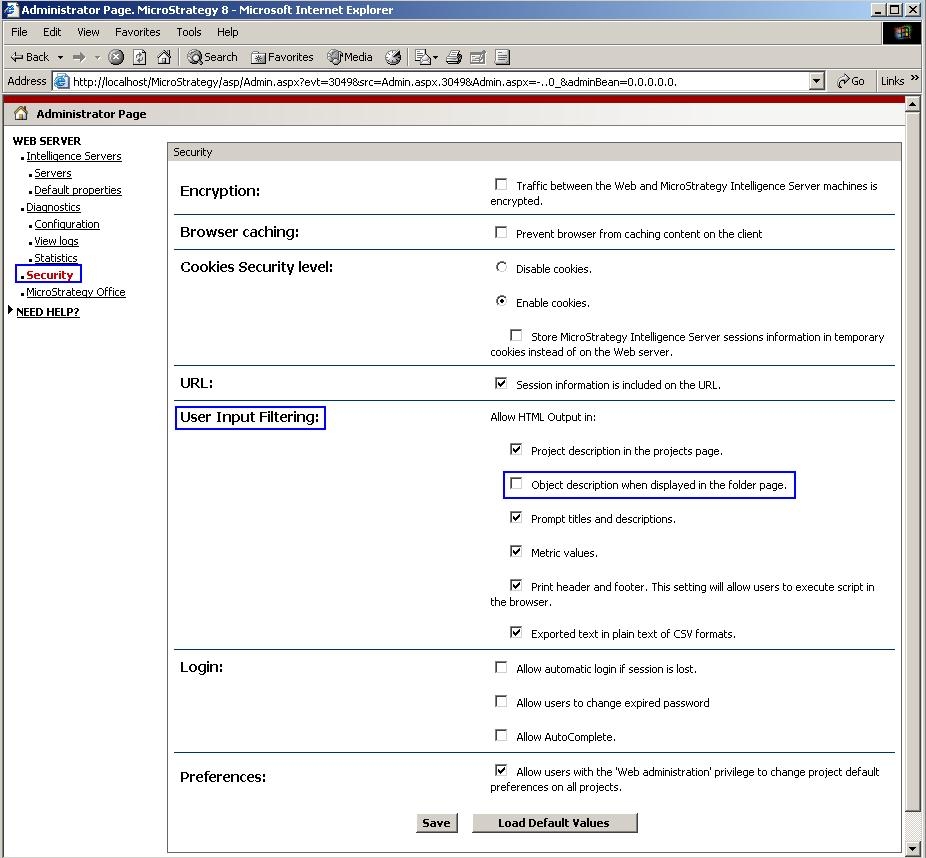
  • On the left hand side under 'Web Server' select 'Security'.
  • On the right hand side under 'User Input Filtering' disable the checkbox for 'Object description when displayed in the folder page', as shown below:
ka04W000000OdulQAC_0EM4400000028h9.jpeg
  • Click on 'Save' to save the changes.
  • Go to the Strategy Web Home page, log into the Strategy Tutorial project and browse to the location of the report previously created in Strategy Developer.
  • Run the report and make sure the 'Report Objects' window is enabled by going to the 'View' menu and selecting 'Object browser', as shown below:
ka04W000000OdulQAC_0EM4400000028hJ.jpeg
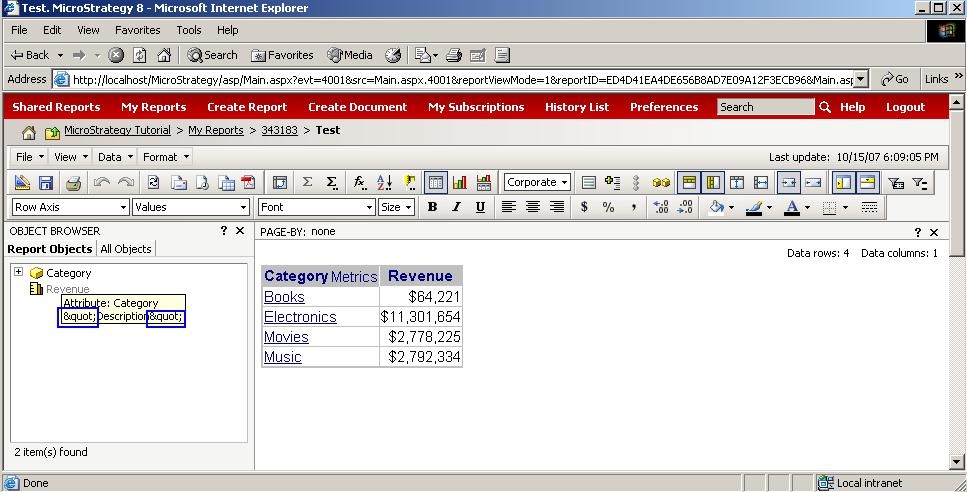
  • Hover the mouse over the 'Category' attribute in the 'Report Objects' window and notice that the double quotes for the attribute's description are changed for '"' instead, as shown below:
ka04W000000OdulQAC_0EM4400000028hH.jpeg
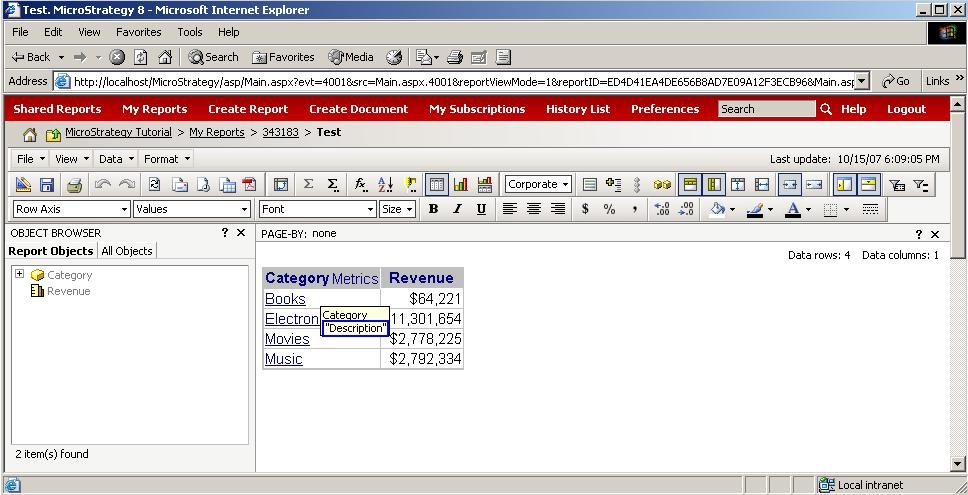
  • Hover the mouse over the 'Category' attribute on the report template (grid) and notice that the attribute's description is displayed accordingly; the double quotes appear normal, as shown below:
ka04W000000OdulQAC_0EM4400000028hD.jpeg

CAUSE:
The 'Object description when displayed in the folder page' checkbox is not enabled for the 'User Input Filtering' setting under 'Security' in the Strategy Web Administrator page. By disabling this checkbox, the 'HTML entity' representation of the special character is displayed instead since the security setting restricts the HTML output display.
 
ACTION:
To resolve this issue, the user needs to enable the 'Object description when displayed in the folder page' checkbox for the 'User Input Filtering' setting under 'Security' in the Strategy Web Administrator page, as shown below:
 

ka04W000000OdulQAC_0EM4400000028hM.jpeg


Comment

0 comments

Details

Knowledge Article

Published:

June 14, 2017

Last Updated:

June 14, 2017