In Strategy Web it is possible to pass an attribute value as the answer to a text prompt in another Report Services document or report. To accomplish this, follow the steps below:
[1] First Create a Text Prompt in Strategy Web:
a. In Select, click the 'Create' button on the left-side navigation
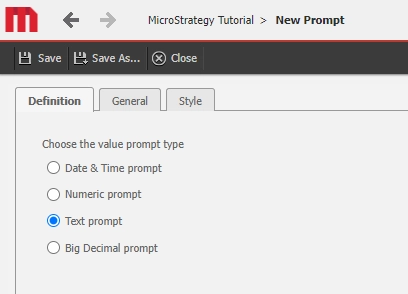
b. Select 'New Prompt' > 'Value Prompt'
c. In the Prompt Creation Window, select the "Text Prompt" radio button
d. Save
[2] Create a Report and add the prompt to the report
a. Create a new Report (Report A)
b. Add the attribute 'Category' and a metric to the Report
c. In the Report Objects, Right click the 'Category' attribute and select "Add to Filter"
d. In the All Objects, Find the Prompt that was created, and drag it to the report filter
e. Click 'Apply' in the report filter, and Save and close the report.

[3] Get the Share Link for the Prompted Report (Report A)
a. In Web, navigate to the folder where Report A was saved.
b. Right click the Report and select "Share"
c. Record the 'Share Link' URL for Report A

[4] Create a Document that includes the 'Category' Attribute
a. In the Document, insert a Text box and add the dynamic text for the attribute {Category}
b. Right click the text box and select 'Properties and Formatting'
c. In the navigation section enable the checkbox "Is Hyperlink"
e. Append the following parameter to the previously recorded report Share Link:
&valuePromptAnswers={Category@DESC}
https://servername/MicroStrategy/servlet/mstrWeb?evt=4001&src=mstrWeb.4001&visMode=0&reportViewMode=1&reportID=EB150BBB4FF3A4FB40C7AEB6B37AC83C&Server=SERVER&Project=Strategy%20Tutorial&Port=0&share=1&valuePromptAnswers={Category@DESC}
[5] Execute the Document and click on the Text box
The text box will navigate to Report A and automatically answer the Text Prompt with the attribute element value from the Document.

