EducationSoftwareStrategy.com
StrategyCommunity

Knowledge Base

Product

Community

Knowledge Base

TopicsBrowse ArticlesDeveloper Zone

Product

Download SoftwareProduct DocumentationSecurity Hub

Education

Tutorial VideosSolution GalleryEducation courses

Community

GuidelinesGrandmastersEvents
x_social-icon_white.svglinkedin_social-icon_white.svg
Strategy logoCommunity

© Strategy Inc. All Rights Reserved.

LegalTerms of UsePrivacy Policy
  1. Home
  2. Topics

KB17125: How to map MDX Cube attributes onto normal project attributes in MicroStrategy Developer


Stefan Zepeda

Salesforce Solutions Architect • Strategy


This article explains how to map MDX attributes to normal schema attributes in MicroStrategy

Introduction
"Mapping" MDX Cube attributes onto attributes in the project's primary, relational schema supports some advanced features in the Strategy platform, such as combining MDX Cube and SQL reports in the same Report Services document, and (with some restrictions) security filtering.
Note: The following procedure assumes that there is a column in the MDX Cube for the attribute ID (a 'display attribute,' in SAP terminology, or 'member property' in Microsoft Analysis Services) that contains the same ID data for the same attribute elements as exists in the relational data warehouse.
 
Attribute mapping procedure for Strategy
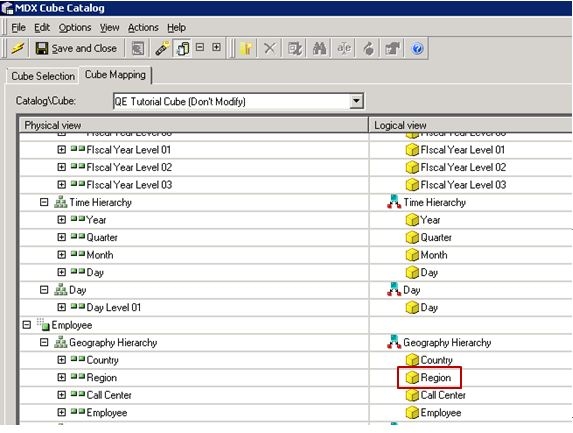
After importing a cube from, for example, SAP BW, the objects belonging to that cube are visible in the Cube Mapping tab of the MDX Cube Catalog, as illustrated below:
ka02R000000kcQFQAY_0EM440000002F7y.jpeg

 
Following are the steps to map the 'Region' attribute onto the Strategy Tutorial's normal Region attribute.
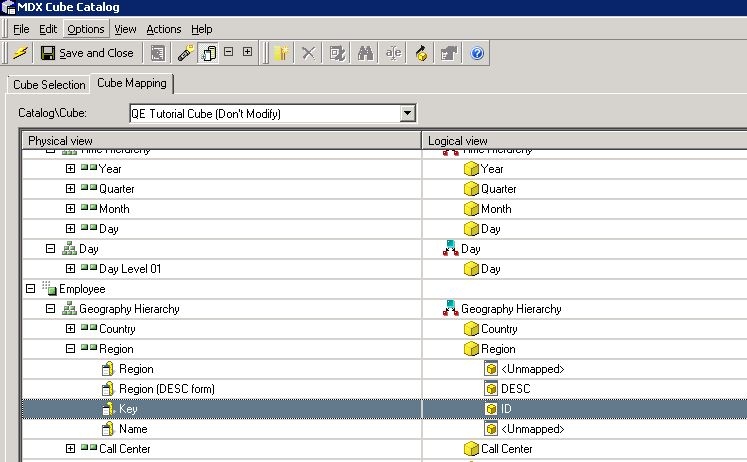
  • Right-click on the 'Region' attribute and choose the 'Map' option. An alert may be presented stating that the attribute might be used in reports. Click 'Yes' to proceed.
  • Navigate to the corresponding attribute in the primary project schema and select it in this dialog box.
  • Choose the 'Display All Columns' option in the View menu.
  • Expand the columns available for the attribute being mapped.
  • Choose the forms of the primary project attribute that correspond to the properties available in the cube.

    IMPORTANT: The column chosen for the attribute's ID form should be the MDX Cube column (or 'display attribute') matching the data warehouse ID data. In this example, it is the 'Key' column. This may differ in other MDX Cube environments.

    NOTE: It is not possible to map the MDX cube column for description (MEMBER_NAME) to an ID form of the mapped attribute. In other words, the ID form is not an available option (in the drop-down) when trying to map the description column from the MDX cube.

ka02R000000kcQFQAY_0EM440000002F81.jpeg
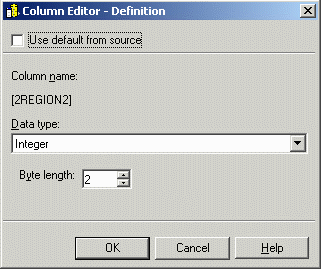
  • If the data warehouse ID form is not text (numbers or dates are preferred for ID forms), the data type must be specified for the column here in the cube mapping panel. Right-click on the attribute form and choose the 'Data Type...' option. Then, ensure that the 'Use default from source' checkbox is disabled, and specify the correct data type and byte length.

    Note: In Strategy Developer, the option is in the right-click menu for the attribute form on the right-hand side.

ka02R000000kcQFQAY_0EM440000002F7z.gif
  • If there are pre-existing MDX Cube reports using the attribute that was just mapped, the reports must be edited to remove the attribute that was initially imported, replacing it with the newly-mapped attribute. If this is not done, the reports will not return correct data.

Comment

0 comments

Details

Knowledge Article

Published:

April 25, 2017

Last Updated:

April 25, 2017