EducationSoftwareStrategy.com
StrategyCommunity

Knowledge Base

Product

Community

Knowledge Base

TopicsBrowse ArticlesDeveloper Zone

Product

Download SoftwareProduct DocumentationSecurity Hub

Education

Tutorial VideosSolution GalleryEducation courses

Community

GuidelinesGrandmastersEvents
x_social-icon_white.svglinkedin_social-icon_white.svg
Strategy logoCommunity

© Strategy Inc. All Rights Reserved.

LegalTerms of UsePrivacy Policy
  1. Home
  2. Topics

KB17217: 'Unable to start Intelligence Server due to logon failure' error is received when attempting to start MicroStrategy Intelligence Server 9.x on Windows.


Community Admin

• Strategy


SYMPTOM
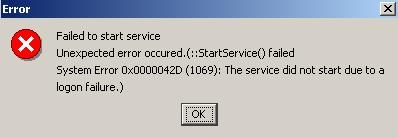
When users attempt to start Strategy Intelligence Server 9.4.x - 10.x through the Service Manager on Windows, the following error message is received:
 

ka0PW0000002xonYAA_0EM440000002BO2.jpeg


Failed to start service

Unexpected error occurred (::StartService() failed

System Error 0x0000042D (1069): The service did not start due to a logon failure.)
 

CAUSE
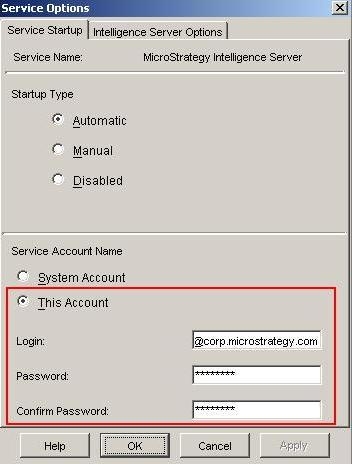
This issue can occur if an incorrect password is used in the Service Manager > Service Startup options. This can typically occur if the password for the windows user account starting the Strategy Intelligence Server 9.4.x - 10.x is changed on the Windows machine. This change is not reflected in the Service Manager because the logon options for the Strategy Intelligence Server logon options explicitly give a specific user and password, as seen below.

ka0PW0000002xonYAA_0EM440000002BO4.jpeg

 
ACTION
One of the following actions can be taken to eliminate this error:
  • The correct password corresponding to the login should be given in the service manager. (OR)
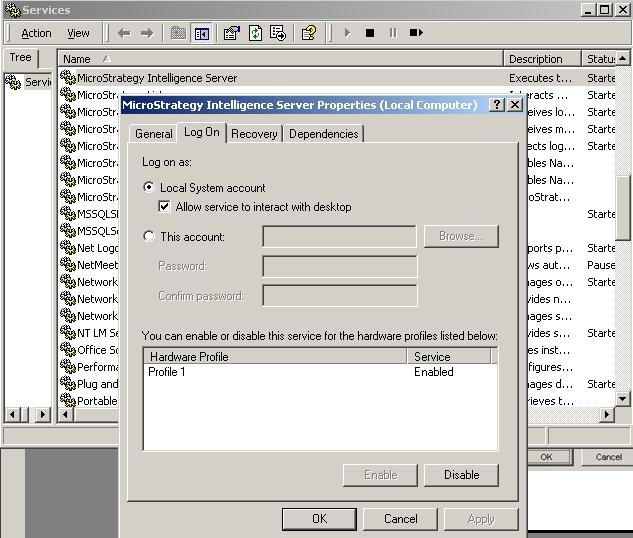
  • The 'Service Account Name' should be modified to 'System Account' so that any changes in the Local System Account (ex. password changes) are reflected here. The Strategy Intelligence Server service startup logon options can also be set in windows services (Control Panel > Settings > Administrative Tools > Services > Strategy Intelligence Server (right-click) > Properties > Log On tab). This setting is shown in the image given below:
ka0PW0000002xonYAA_0EM440000002BO3.jpeg

Note: Users should note that the local system account is local to that machine and does not have access to any other machine on the network. For example, this can be an issue in the case of database authentication where this user needs login access to another database server in order to start the Strategy Intelligence Server 


Comment

0 comments

Details

Knowledge Article

Published:

June 5, 2017

Last Updated:

August 12, 2024