EducationSoftwareStrategy.com
StrategyCommunity

Knowledge Base

Product

Community

Knowledge Base

TopicsBrowse ArticlesDeveloper Zone

Product

Download SoftwareProduct DocumentationSecurity Hub

Education

Tutorial VideosSolution GalleryEducation courses

Community

GuidelinesGrandmastersEvents
x_social-icon_white.svglinkedin_social-icon_white.svg
Strategy logoCommunity

© Strategy Inc. All Rights Reserved.

LegalTerms of UsePrivacy Policy
  1. Home
  2. Topics

KB17255: Element caching is not being used when a user has a security filter defined with a system prompt in MicroStrategy Intelligence Server 9.x - 10.x


Community Admin

• Strategy


After defining security filters for users that is based on a system user prompt, administrators find that element caches do not get utilized. As a result, element browsing (or prompting) on attributes that are affected by security filters will execute SQL against the warehouse.

SYMPTOM:
After defining security filters for users that is based on a system user prompt, administrators find that element caches do not get utilized. As a result, element browsing (or prompting) on attributes that are affected by security filters will execute SQL against the warehouse.
 
STEPS TO REPRODUCE:
Follow the steps below to reproduce this issue in the Strategy Tutorial project:

  • Users will need to enable the following two diagnostics keys using the 'Diagnostics Configuration' tool in Start > Programs > Strategy > Tools:
    • Database Classes > SQL Trace
    • Element Server > Element Source Trace
  • In the Strategy Tutorial project, edit the Year attribute and ensure that the check boxes for 'Apply security filters to element browsing' and 'Enable element Browsing' are checked.
ka04W000000OegfQAC_0EM440000002BQl.jpeg
  • Go into the Security Filter Manager under Administration > Projects > Security Filter Manager. Create a new Security filter called 'Dynamic Security Filter' that looks like the following:
ka04W000000OegfQAC_0EM440000002BQm.jpeg
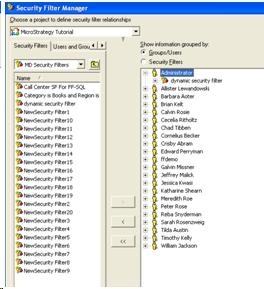
  • Place this security filter under the Administrator user as shown below:
ka04W000000OegfQAC_0EM440000002BQy.jpeg
  • Save and close all editors.
  • Go to Data Explorer and browse for elements of Year.
  • Depending on where the output of the Diagnostics tool is sent to, users should see the following entry (or similar):
    
    Elements not in cache
    Finding Object(Type=Attribute ID=8D679D5111D3E4981000E787EC6DE8A4)
    Found Object(Name="Year" Type=Attribute ID=8D679D5111D3E4981000E787EC6DE8A4 Proj=B19DEDCC11D4E0EFC000EB9495D0F44F Ver=2E30BEB2420B12EEA40206B0DFBC2558 )
    00B39C10200B39C30create table ZZTQO0200S4OT000 ( WJXBFS1 SHORT)
    00B39C10200B39C30insert into ZZTQO0200S4OT000 select distinct a21. AS WJXBFS1 from a21 where a21. in (2005,2006)
    00B39C10200B39C30 select count(*) AS WJXBFS1 from pa21
    00B39C10200B39C30 select a11. AS YEAR_ID from a11 where a11. in (2005,2006) order by 1 asc
    00B39C10200B39C30 drop table ZZTQO0200S4OT000


    Notes: The log entries appear as expected since this is the first time the element request has been sent. Notice that the element source trace says that the elements are not in cache. Furthermore, notice SQL has been logged by the Database Classes component which means SQL has been executed against the warehouse. Users may also see that the system prompt filter does not apply in this SQL. This is to illustrate that the SQL engine will strip out unrelated filters. In this case, the system prompt is based on the Customer attribute which is not related to any attributes in the Time hierarchy.
     
  • Disconnect from the project source and reconnect. Then go to the Year attribute in the Data Explorer and browse for elements again.
  • When viewing the logs this time, the exact messages should appear. The user should see elements are not in cache and sql has been executed against the warehouse.
  • Go back into the Security Filter Editor and remove the system prompt.
  • Run the element browsing again and notice that the cache is still not hit and SQL is executed against the warehouse. This is expected since the security filter definition changed therefore invalidating the element cache.
  • Disconnect and reconnect from the project. Run the element request again. However, this time, notice the following entries in the diagnostics logs that says elements cache has been found. Note further that SQL did not get captured since the element cache was hit.
    
    Found in cache: Elements(Count(Element)=2 Limit=1000 Offset=1 #1=Element(Count(Text/FormID)=1 #1="2005"/0 Attribute="Year"/8D679D5111D3E4981000E787EC6DE8A4) #2=Element(Count(Text/FormID)=1 #1="2006"/0 Attribute="Year"/8D679D5111D3E4981000E787EC6DE8A4) )
    Got Elements(Count(Element)=2 Limit=1000 Offset=1 #1=Element(Count(Text/FormID)=1 #1="2005"/0 Attribute="Year"/8D679D5111D3E4981000E787EC6DE8A4) #2=Element(Count(Text/FormID)=1 #1="2006"/0 Attribute="Year"/8D679D5111D3E4981000E787EC6DE8A4) ) for Object(Type=Attribute ID=8D679D5111D3E4981000E787EC6DE8A4)
    Total Element Requests: 6, Number of Element Cache Hits: 2, Objects in Element Cache: 4


CAUSE:
This is working as designed. System Prompts are driven by database security. Meaning, table entries in the database control what users can or cannot see. Strategy assumes the integrity of security is solely based on these tables and will execute SQL against the warehouse to ensure the security settings are maintained.
 
ACTION:
If performance is an issue, it is recommended that Administrators uncheck the 'Apply Security Filter' option in the attribute editor for those attributes that do not require security filters. An example of this would be a standard date attribute where all users should be able to choose a date. This will help keep database requests at a minimum for element requests.


Comment

0 comments

Details

Knowledge Article

Published:

June 7, 2017

Last Updated:

June 7, 2017