EducationSoftwareStrategy.com
StrategyCommunity

Knowledge Base

Product

Community

Knowledge Base

TopicsBrowse ArticlesDeveloper Zone

Product

Download SoftwareProduct DocumentationSecurity Hub

Education

Tutorial VideosSolution GalleryEducation courses

Community

GuidelinesGrandmastersEvents
x_social-icon_white.svglinkedin_social-icon_white.svg
Strategy logoCommunity

© Strategy Inc. All Rights Reserved.

LegalTerms of UsePrivacy Policy
  1. Home
  2. Topics

KB17355: How to display Hebrew characters in MicroStrategy Desktop and Web 9.x and above


Community Admin

• Strategy


The following are the configuration settings that need to be checked in order to ensure that Hebrew characters are correctly displayed in both Strategy Desktop and Web 9.x and above:
 

  • Regional Settings (example given for Windows XP) - a restart may be required:
     
    • Regional Options tab: Locale Set to Hebrew
ka04W000000OcCfQAK_0EM440000002HWB.jpeg
    • Languages tab: select 'Install files for complex and right-to-left languages'
ka04W000000OcCfQAK_0EM440000002HWH.jpeg
    • Advanced tab: Locale for Non-Unicode programs set to Hebrew
ka04W000000OcCfQAK_0EM440000002HWD.jpeg
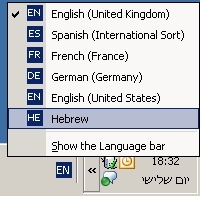
  • After these changes, users should be able to select the Hebrew input Keyboard, as shown below:
ka04W000000OcCfQAK_0EM440000002HWI.jpeg
  • Also, in both reports and Report Services documents, users should ensure that the font used supports Hebrew characters, and that 'Hebrew' is selected at the drop-down menu at the right of the font size, in the Format toolbar (for information, in English environments, this case usually contains 'Western'), as shown below:
ka04W000000OcCfQAK_0EM440000002HWC.jpeg

Refer to the following Strategy Knowledge Base technical note for additional information regarding Hebrew characters and PDF Export:
 
KB17356(KB5700-811-2885): How to export to PDF Hebrew characters in Strategy Desktop and Web 8.1.x and 9.x


Comment

0 comments

Details

Knowledge Article

Published:

May 16, 2017

Last Updated:

May 16, 2017