EducationSoftwareStrategy.com
StrategyCommunity

Knowledge Base

Product

Community

Knowledge Base

TopicsBrowse ArticlesDeveloper Zone

Product

Download SoftwareProduct DocumentationSecurity Hub

Education

Tutorial VideosSolution GalleryEducation courses

Community

GuidelinesGrandmastersEvents
x_social-icon_white.svglinkedin_social-icon_white.svg
Strategy logoCommunity

© Strategy Inc. All Rights Reserved.

LegalTerms of UsePrivacy Policy
  1. Home
  2. Topics

KB17367: How to create a report to get a list of users who are in both group A and B in MicroStrategy Enterprise Manager


Community Admin

• Strategy


INTRODUCTION:
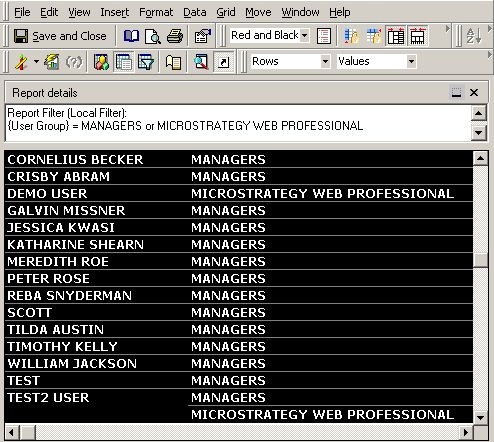
If user A belongs to group A and B at the same time but user B and C belong to only one of groups, a report filter as 'User Group = Group A, B' in a report in Strategy Enterpriser Manager 9.x will not exclusively show the result with user A only but the result will show all users who belong to one of groups, as illustrated below.
 

  • For example, Test2 user is the only user who belongs to both Managers and Strategy Web Professional groups at the same time, as shown below:
ka04W000000OeWGQA0_0EM440000002BP8.jpeg
  • With report filter as 'User Groups = Managers, Strategy Web Professional', the result will show all users who belong to either one of those two groups. This is because multiple elements in one Filter use 'OR' operator in SQL.
     

    For example, a report filter, "User Groups = Managers, Strategy Web Professional", will create following SQL.


  • And the comma translates as 'OR' in this SQL.


    Note: 'AND' operator will show no result because it is not possible to query an element with two ID simultaneously. For example, Group A's ID cannot be 1 and 2 at the same time.


ka04W000000OeWGQA0_0EM440000002BPA.jpeg

Therefore, to get a list of users that belong to both group A and B exclusively, two relationship filters need to be used in Report Filter to rule out users that only belong to one of those groups only.
 
There are two relationship filers is needed.
 
For more details about how to use Relationship filter, refer to the following Strategy Knowledge Base technical note:
 
KB3491 (KB5700-007-0035): What is a Relationship Filter in Strategy Desktop 9.x and how is it used?
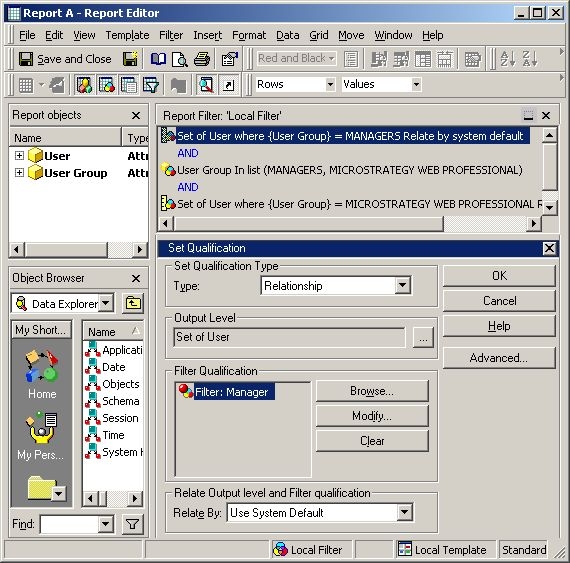
 

  • A relationship filter to rule out users that does not belong to group 'Managers'. Output level is User, and the 'Advanced..' option should be turned off. A filter qualification should be \'User Group = Managers', as shown below:
ka04W000000OeWGQA0_0EM440000002BPE.jpeg
  • A relationship filter to rule out users that does not belong to group 'Strategy Web Professional'. Output level is User, and the 'Advanced..' option should be turned off. A filter qualification should be 'User Group = Strategy Web Professional', as shown below:
ka04W000000OeWGQA0_0EM440000002BPB.jpeg
  • Result now only shows Test2 User, as shown below:
ka04W000000OeWGQA0_0EM440000002BPC.jpeg
  • Report SQL.

Comment

0 comments

Details

Knowledge Article

Published:

June 9, 2017

Last Updated:

June 9, 2017