EducationSoftwareStrategy.com
StrategyCommunity

Knowledge Base

Product

Community

Knowledge Base

TopicsBrowse ArticlesDeveloper Zone

Product

Download SoftwareProduct DocumentationSecurity Hub

Education

Tutorial VideosSolution GalleryEducation courses

Community

GuidelinesGrandmastersEvents
x_social-icon_white.svglinkedin_social-icon_white.svg
Strategy logoCommunity

© Strategy Inc. All Rights Reserved.

LegalTerms of UsePrivacy Policy
  1. Home
  2. Topics

KB17397: How to customize the information displayed for objects when using the Details view option in MicroStrategy Developer


Stefan Zepeda

Salesforce Solutions Architect • Strategy


This article describes the different information that can be displayed for objects when using the Details view and how to customize what information is displayed.

SYMPTOM:
In Strategy Developer, users would like to customize what object information (e.g. Object Ownership) is displayed when browsing folders in 'detail view'.
 
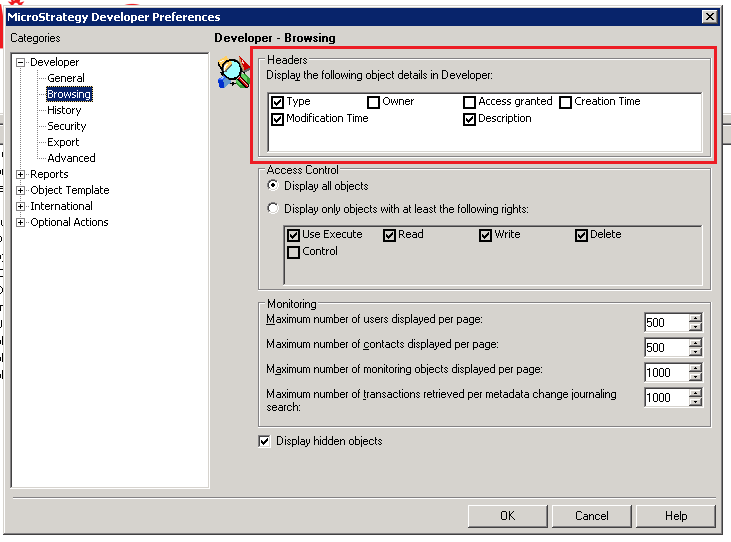
The default details displayed are the ones shown in the image below: Name, Type, Modification Time, and Description.
 
ACTION:
To see the list of details follow these instructions:
  • In Strategy Developer, select Tools menu.
  • Click on Preferences.
  • Navigate to Developer > Browsing.
  • The following window appears with the list of details:
ka02R000000kWRWQA2_0EM440000002XcE.png
  • To enable any of the other three options, just check the box next to it and click OK.
    • 'Owner' will show the user that created the object.
    • 'Access granted' will show the permissions granted to the current user logged into Strategy Developer.
    • 'Creation time' will display the creation time of the object.

Comment

0 comments

Details

Knowledge Article

Published:

July 14, 2017

Last Updated:

July 14, 2017