EducationSoftwareStrategy.com
StrategyCommunity

Knowledge Base

Product

Community

Knowledge Base

TopicsBrowse ArticlesDeveloper Zone

Product

Download SoftwareProduct DocumentationSecurity Hub

Education

Tutorial VideosSolution GalleryEducation courses

Community

GuidelinesGrandmastersEvents
x_social-icon_white.svglinkedin_social-icon_white.svg
Strategy logoCommunity

© Strategy Inc. All Rights Reserved.

LegalTerms of UsePrivacy Policy
  1. Home
  2. Topics

KB17427: How to display the total for a grouping attribute on a graph in a MicroStrategy Developer 9.4.x-10.x Report Services document


Stefan Zepeda

Salesforce Solutions Architect • Strategy


When an attribute is added to the grouping section of a Report Services document and a graph is inserted into the detail header, the total is not displayed in the grouping selection for the graph as it is displayed in a MicroStrategy 9.4.x-10.x report

SYMPTOM:
When an attribute is added to the grouping section of a Report Services document and a graph is inserted into the detail header, the total is not displayed in the grouping selection for the graph as it is displayed in a Strategy 9.4.x-10.x report.
The following image shows how Total is displayed on a report:

ka044000000kIjhAAE_0EM440000002F0k.jpeg

The following image illustrates that Total is not shown in the grouping section on a Report Services document:
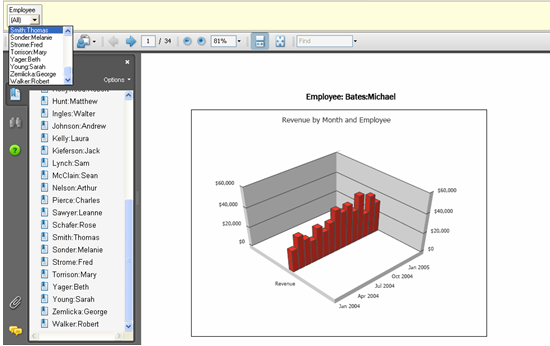
ka044000000kIjhAAE_0EM440000002F0g.jpeg

CAUSE:
This is working as designed.
WORKAROUND:
To work around this issue, follow the steps below:

  • Create a new consolidation that contains one element per attribute element and one more element that contains all the attribute elements called Total as shown in the image below:
ka044000000kIjhAAE_0EM440000002F0i.jpeg
  • Add the consolidation to the Report objects, but not into the grid on the report data set as shown below:
ka044000000kIjhAAE_0EM440000002F0m.jpeg
  • Save and close the report.
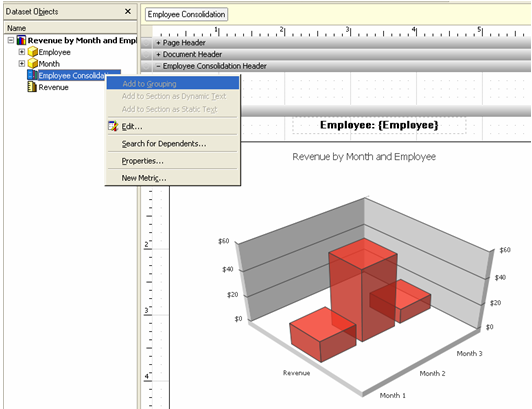
  • Add the new consolidation to grouping on a Report Services document and the grid to the detail header as shown below:
ka044000000kIjhAAE_0EM440000002F0u.jpeg
  • Run the Report Services document and now the total will be displayed as shown below:
ka044000000kIjhAAE_0EM440000002F0o.jpeg

Note: This workaround will work only with static number of attribute elements and can not be used with custom groups.
 
KB17427


Comment

0 comments

Details

Knowledge Article

Published:

April 5, 2017

Last Updated:

December 31, 2018