EducationSoftwareStrategy.com
StrategyCommunity

Knowledge Base

Product

Community

Knowledge Base

TopicsBrowse ArticlesDeveloper Zone

Product

Download SoftwareProduct DocumentationSecurity Hub

Education

Tutorial VideosSolution GalleryEducation courses

Community

GuidelinesGrandmastersEvents
x_social-icon_white.svglinkedin_social-icon_white.svg
Strategy logoCommunity

© Strategy Inc. All Rights Reserved.

LegalTerms of UsePrivacy Policy
  1. Home
  2. Topics

KB17440: How to install Microsoft Internet Information Services (IIS) on a Windows machine


Stefan Zepeda

Salesforce Solutions Architect • Strategy


This technical note lists the steps to install Microsoft Internet Information Services (IIS) on a Windows machine, which is a prerequisite to install MicroStrategy products.

SYMPTOM:
When a user tries to install Strategy products on a Windows machine, the following message may appear:
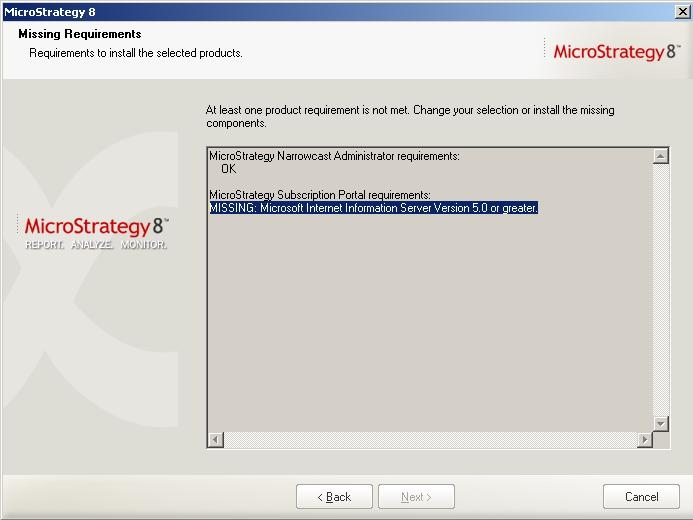
 

ka02R000000kVZGQA2_0EM440000002F07.jpeg


MISSING: Microsoft Internet Server Version 5.0 or greater.
 

CAUSE:
It may be that the Windows machine on which the install was launched does not have the Internet Information Services (or IIS) component installed.
 
ACTION:
Follow the steps below to install IIS on the Windows machine:
 

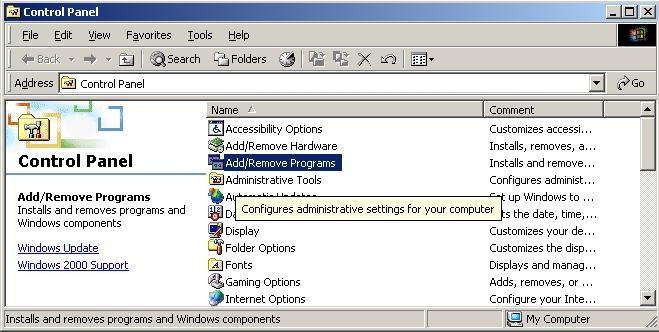
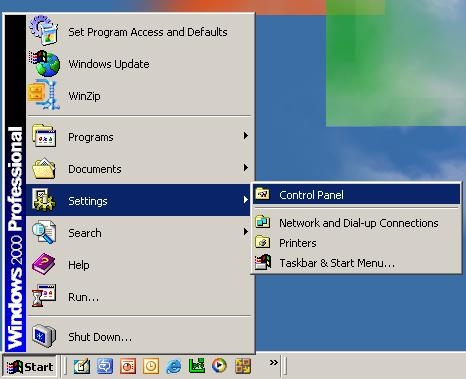
  • Open the Windows Control Panel. Do this by clicking Start > Settings > Control Panel, as shown below:
ka02R000000kVZGQA2_0EM440000002F0B.jpeg
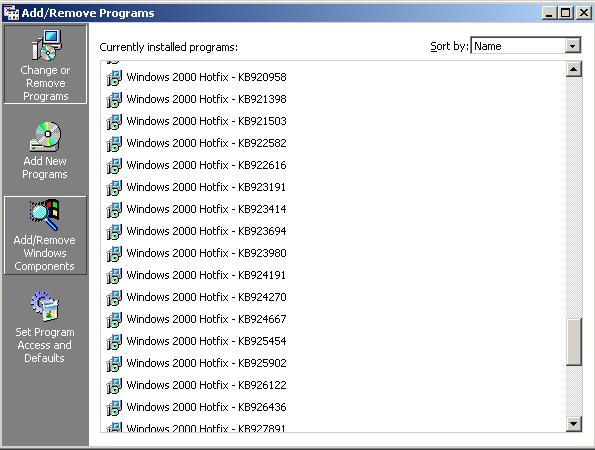
  • Navigate to Add/Remove Programs, and double click to open it, as shown below:
ka02R000000kVZGQA2_0EM440000002Ezw.jpeg
  • In the Add/Remove Programs window, locate the Add/Remove Windows Components button on the left-hand side and click on it, as shown below:
ka02R000000kVZGQA2_0EM440000002F00.jpeg
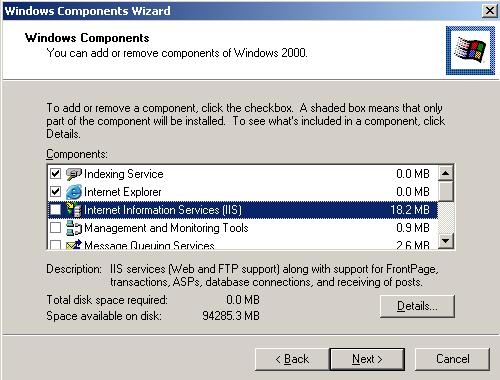
  • In the Windows Components Wizard, locate Internet Information Services in the list, and determine if the checkbox is checked. If the checkbox is checked, IIS is already installed on this machine, and the solution described in this technical note does not apply. Contact Strategy Technical Support.
ka02R000000kVZGQA2_0EM440000002F09.jpeg
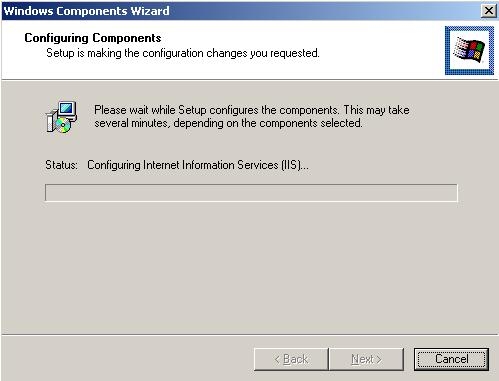
  • Assuming the checkbox is not checked, check the checkbox for Internet Information Services and click Next. Another window should appear, indicating that the necessary components are being configured, as shown below:
ka02R000000kVZGQA2_0EM440000002Ezy.jpeg
  •  
    NOTE: The user may be prompted for files needed for installation of IIS to continue. These files may be found on the Windows installation CD(s) that came with the machine. The user should use their Windows installation CD(s) or contact their IS department to obtain the required file(s).
     
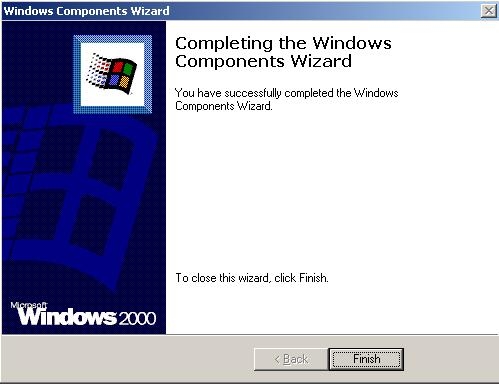
  • When installation is complete, the following dialog appears. Click Finish.
ka02R000000kVZGQA2_0EM440000002F02.jpeg

NOTE: If the IIS module is already installed or this procedure to install IIS does not work, contact Strategy Technical Support.


Comment

0 comments

Details

Knowledge Article

Published:

June 1, 2017

Last Updated:

June 1, 2017