EducationSoftwareStrategy.com
StrategyCommunity

Knowledge Base

Product

Community

Knowledge Base

TopicsBrowse ArticlesDeveloper Zone

Product

Download SoftwareProduct DocumentationSecurity Hub

Education

Tutorial VideosSolution GalleryEducation courses

Community

GuidelinesGrandmastersEvents
x_social-icon_white.svglinkedin_social-icon_white.svg
Strategy logoCommunity

© Strategy Inc. All Rights Reserved.

LegalTerms of UsePrivacy Policy
  1. Home
  2. Topics

KB17503: How to create a time-triggered hourly schedule, which executs at a specified offset from the hour, in MicroStrategy Developer 9.x and 10.x


Stefan Zepeda

Salesforce Solutions Architect • Strategy


How to create a time-triggered hourly schedule, which executs at a specified offset from the hour, in MicroStrategy Developer 9.x and 10.x

In Strategy Developer 9.x and 10.x and newer it is possible to specify an offset value so that a time-triggered schedule can start at some standard time after the hour. For example, a schedule which executes 20 minutes after the hour, every hour.
 
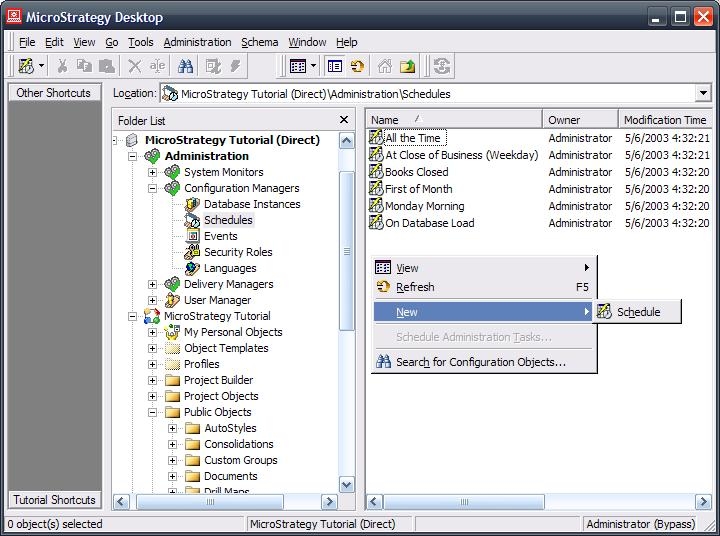
1. In Strategy Developer 9.x and 10.x, expand the Administration, then Configuration Managers, and open Schedules. Right-click and choose New > Schedule :
ka044000000kJQLAA2_0EM440000002EWW.jpeg
  • Click Next on the main screen. Enter a name for the schedule and then click Next.
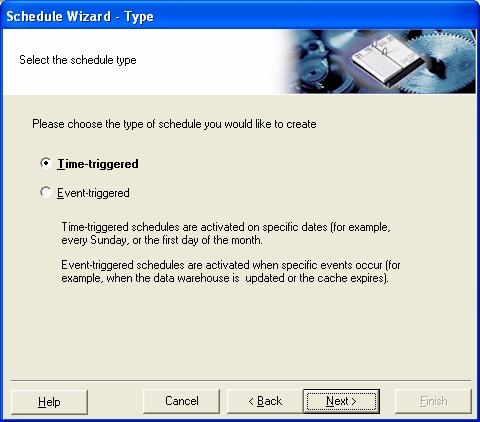
  • When prompted for the type of schedule choose 'Time-Triggered' and then click Next:
ka044000000kJQLAA2_0EM440000002EWc.jpeg
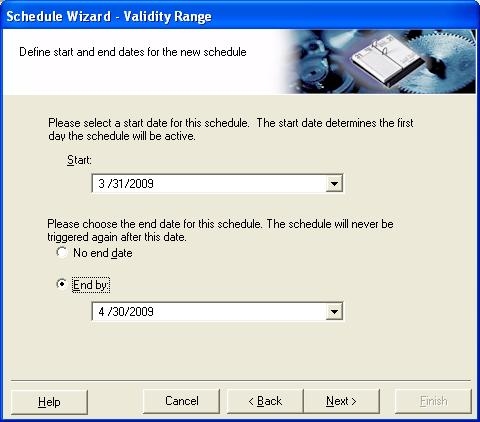
  • Select a start date and an end date if there is one.
ka044000000kJQLAA2_0EM440000002EWM.jpeg
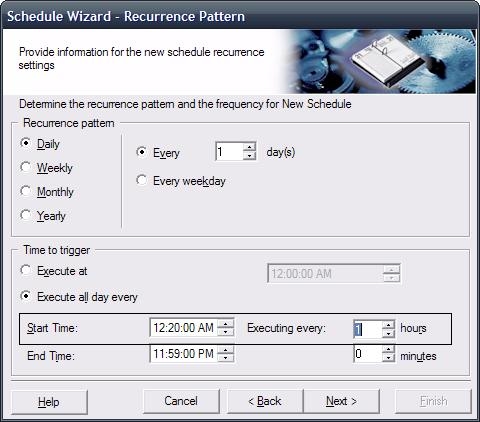
  • In Strategy Developer 9.x and 10.x, still choose to execute 'Daily' and 'Every 1 days' under the Recurrence Pattern but the options under 'Time to trigger' need to be adjusted. Here specify the exact start time, then how often the execution should occur. If it is left as ‘Start Time: 12:00:00 AM’ and ‘Executing every: 1 hour, 20 minutes’ then it will execute at 12:00:00 AM, then 1:20:00 AM, then 2:40:00 AM, then 4:00:00 AM, et cetera.

    Instead specify the ‘Start Time’ as 12:20:00 AM and then only ‘Executing every’ 1 hours.
ka044000000kJQLAA2_0EM440000002EWJ.jpeg
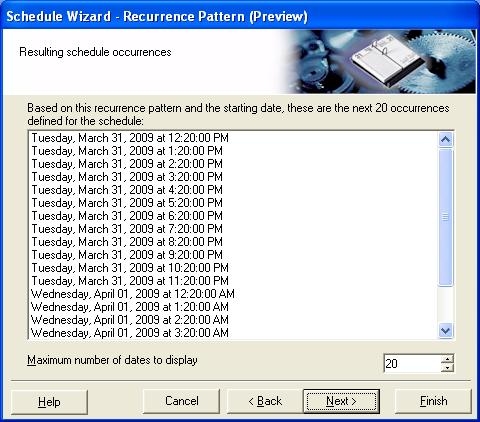
  • Click Next and the below list of schedules will display, then click Finish:
ka044000000kJQLAA2_0EM440000002EWV.jpeg


Article Reference Number:  KB17503


Comment

0 comments

Details

Knowledge Article

Published:

June 6, 2017

Last Updated:

December 31, 2018