EducationSoftwareStrategy.com
StrategyCommunity

Knowledge Base

Product

Community

Knowledge Base

TopicsBrowse ArticlesDeveloper Zone

Product

Download SoftwareProduct DocumentationSecurity Hub

Education

Tutorial VideosSolution GalleryEducation courses

Community

GuidelinesGrandmastersEvents
x_social-icon_white.svglinkedin_social-icon_white.svg
Strategy logoCommunity

© Strategy Inc. All Rights Reserved.

LegalTerms of UsePrivacy Policy
  1. Home
  2. Topics

KB17556: How to remove mappings in OLAP cube data sources from the project attribute in MicroStrategy Developer 9.x


Stefan Zepeda

Salesforce Solutions Architect • Strategy


As described in the following MicroStrategy Technical Notes, attributes imported from an OLAP Cube data source (SAP BW, Microsoft Analysis Services, Hyperion Essbase) may be mapped onto attributes belonging to the project's relational schema. (One reason to do this is to facilitate data joining between relational and multidimensional reports in Report Services documents.)

As described in the following Strategy Technical Notes, attributes imported from an OLAP Cube data source (SAP BW, Microsoft Analysis Services, Hyperion Essbase) may be mapped onto attributes belonging to the project's relational schema. (One reason to do this is to facilitate data joining between relational and multidimensional reports in Report Services documents.)
It may be necessary at some point to remove a mapping to a relational attribute. To do this, perform the following procedure.
 

  • Edit the cube containing the mapped attribute. This may be done from the "Cube Mapping" tab in the OLAP Cube catalog, or by expanding the Data Explorer for the cube database instance, right-clicking on the mapped cube, and choosing "Edit..."
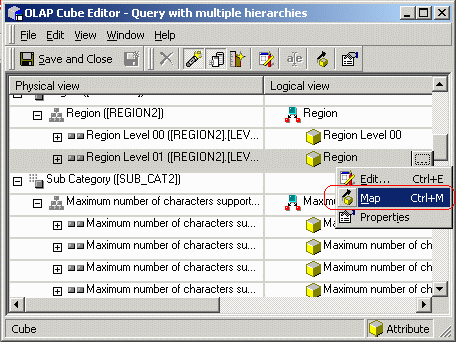
  • Right-click on the attribute whose mapping needs to be removed. Choose the "Map" option.
ka02R000000kbkTQAQ_0EM440000002F35.gif
  •  
    A warning about the attribute's usage in reports may or may not appear.
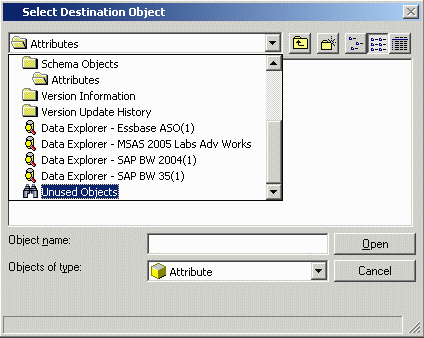
  • An object browser appears, which is normally used to choose the project attribute to which to map the cube attribute.
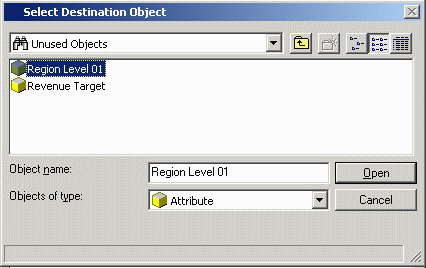
  • In the drop-down menu at the top of this dialog box, there should be an option "Unused Objects" at the end of the list. This option produces a list of imported cube attributes not currently used in any OLAP Cube.
ka02R000000kbkTQAQ_0EM440000002F3B.gif
  • Choose the original attribute from this list and click OK.
ka02R000000kbkTQAQ_0EM440000002F33.gif
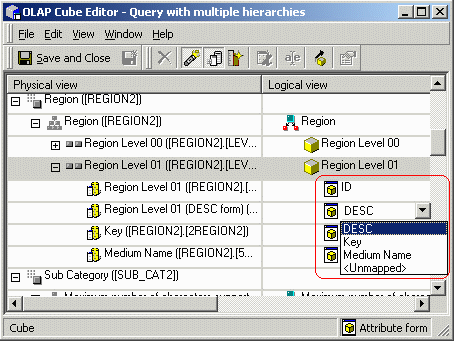
  • Make sure that cube database columns are properly mapped to attribute forms.
ka02R000000kbkTQAQ_0EM440000002F39.gif
  • Save and close the cube editor.

To confirm that the mappings were properly removed:
 

  • Edit the relational attribute and verify that all attribute form expressions from the cube no longer exist.
  • Re-enter the cube editor, right-click on the attribute that was just changed and choose "Properties..." The object's location should now read "Managed by the system."

Comment

0 comments

Details

Knowledge Article

Published:

June 9, 2017

Last Updated:

June 9, 2017