EducationSoftwareStrategy.com
StrategyCommunity

Knowledge Base

Product

Community

Knowledge Base

TopicsBrowse ArticlesDeveloper Zone

Product

Download SoftwareProduct DocumentationSecurity Hub

Education

Tutorial VideosSolution GalleryEducation courses

Community

GuidelinesGrandmastersEvents
x_social-icon_white.svglinkedin_social-icon_white.svg
Strategy logoCommunity

© Strategy Inc. All Rights Reserved.

LegalTerms of UsePrivacy Policy
  1. Home
  2. Topics

KB17609: How to get rid of the ‘Empty Report’ message displayed in MicroStrategy Developer 10.x when a report that returns no data is used inside a Report Services document


Stefan Zepeda

Salesforce Solutions Architect • Strategy


KB17609: How to get rid of the ‘Empty Report’ message displayed in MicroStrategy Developer 10.x when a report that returns no data is used inside a Report Services document

SYMPTOM:
A user will see a message 'Empty Report' when using a report that returns no data inside a Report Services document in Strategy Developer 10.x. Depending on the prompts and filters on the document's dataset, it might make sense that a report returns no data. In that case, users would like to hide everything related with that report.
 
Refer to the following Strategy Knowledge Base technical note for information on how to apply conditional formatting thresholds to individual report objects in a Report Services document:
 
KB11941 (KB5700-800-1516): How to use conditional formatting thresholds on individual report objects in a Strategy Report Services 8.0.0 document
 
Even after applying the 'Hide object' threshold to every object and the 'Hide if empty' property to the section, the document will display a message where the report object lies, as shown in the image below.
 
ACTION:
To workaround this issue, follow these steps:
 

  • From the Insert menu, insert a text box on the section where the report is.
  • From the Format menu > Format > Background, format the text box to have a solid white background.
  • From the Format menu > Properties > Layout, change the height mode to Fixed.
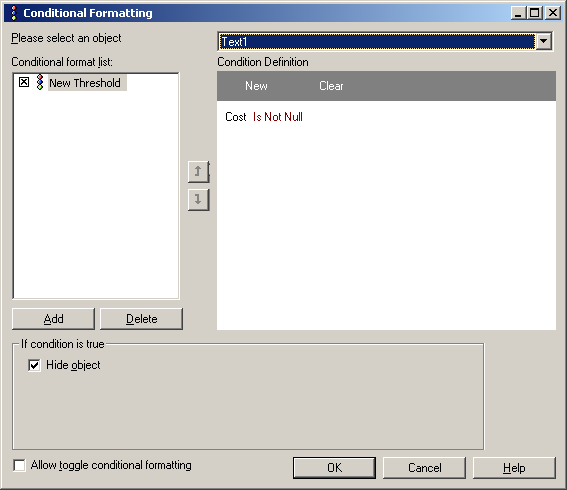
  • Open the conditional formatting for the text box by right clicking on it and selecting it from the menu.
  • Add a new threshold by clicking the Add button.
  • Set it to qualify on any metric from that report with operator: Is Not Null.
  • Enable the option Hide Object under 'if condition is true'.
ka02R000000kbJ4QAI_0EM440000002VB2.jpeg
  • Click OK.
  • Right click the text box again and change the Order to 'bring to front'.
  • Place text box on top of the report, run the document several times, until you can get the text box to cover the `Empty Report` message completely as shown in the image below.

Comment

0 comments

Details

Knowledge Article

Published:

July 19, 2017

Last Updated:

July 19, 2017