EducationSoftwareStrategy.com
StrategyCommunity

Knowledge Base

Product

Community

Knowledge Base

TopicsBrowse ArticlesDeveloper Zone

Product

Download SoftwareProduct DocumentationSecurity Hub

Education

Tutorial VideosSolution GalleryEducation courses

Community

GuidelinesGrandmastersEvents
x_social-icon_white.svglinkedin_social-icon_white.svg
Strategy logoCommunity

© Strategy Inc. All Rights Reserved.

LegalTerms of UsePrivacy Policy
  1. Home
  2. Topics

KB17610: How to change the number of elements displayed on a prompt page in MicroStrategy Developer 10.x.


Stefan Zepeda

Salesforce Solutions Architect • Strategy


This Technical Note describes how to set the number of elements displaying in a prompt window at the attribute and project level in MicroStrategy Developer 10.x.

SYMPTOM:
When displaying a prompt window, the number of elements displaying can be set at the attribute and project level in Strategy Developer 10.x, as shown below:

ka02R000000kcLjQAI_0EM440000002EzZ.jpeg

 
CAUSE:
This is by design, the number of elements displayed can be set both at the project and attribute level.
 
ACTION:
In order to set the number of elements displayed in the prompt window at the attribute level, follow the steps below:
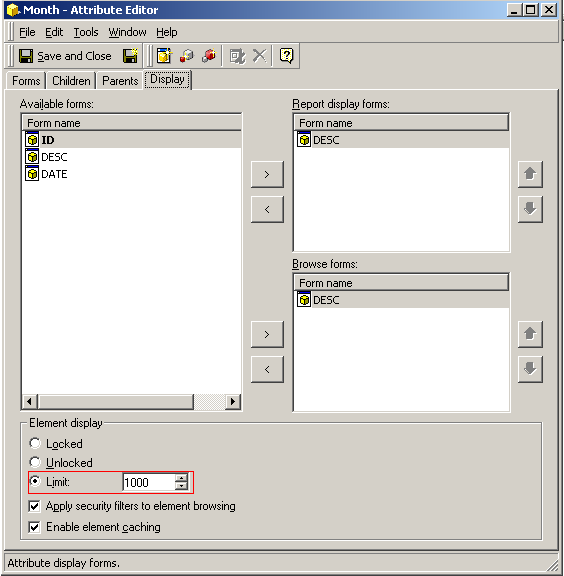
  • Right click on the attribute and select Edit.
  • Go to Display > Element Display and set the 'limit' to the number of elements to be displayed, as shown in the image below:
ka02R000000kcLjQAI_0EM440000002Ezj.jpeg

In order to set the number of elements displayed in the prompt window at the project level, follow the steps below:
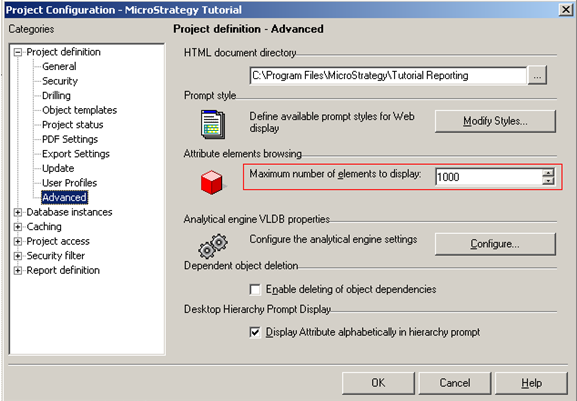
  • Right click on the project and select Project Configuration.
  • Go to Project Definition > Advanced and set the 'Maximum number of elements to display' to the number of elements to be displayed, as shown in the image below:
ka02R000000kcLjQAI_0EM440000002Ezh.jpeg

Comment

0 comments

Details

Knowledge Article

Published:

May 8, 2017

Last Updated:

May 8, 2017