EducationSoftwareStrategy.com
StrategyCommunity

Knowledge Base

Product

Community

Knowledge Base

TopicsBrowse ArticlesDeveloper Zone

Product

Download SoftwareProduct DocumentationSecurity Hub

Education

Tutorial VideosSolution GalleryEducation courses

Community

GuidelinesGrandmastersEvents
x_social-icon_white.svglinkedin_social-icon_white.svg
Strategy logoCommunity

© Strategy Inc. All Rights Reserved.

LegalTerms of UsePrivacy Policy
  1. Home
  2. Topics

KB17647: How to include SQL when exporting to Microsoft Excel in MicroStrategy Developer 9.x and 10.x


Stefan Zepeda

Salesforce Solutions Architect • Strategy


KB17647: How to include SQL when exporting to Microsoft Excel in MicroStrategy Developer 9.x and 10.x

When exporting a report into Microsoft Excel, users have the option of including the SQL generated by the report (SQL view) into the Excel worksheet as shown below:
 

ka02R000000kXtNQAU_0EM440000002Eyr.jpeg

 
There are two ways to enable this setting in Strategy Developer 9.x and 10.x:
 
At the project level
This setting can be enabled for all the reports within the project:
 

  • Right click on the project and select 'My Preferences', as shown below:
ka02R000000kXtNQAU_0EM440000002Eyy.jpeg
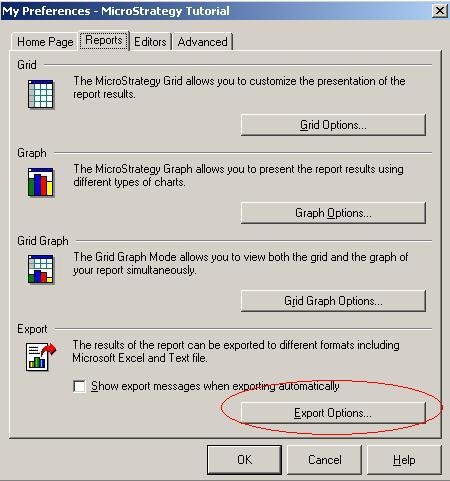
  • Under the 'Report' tab in the 'My Preferences' window, click on the 'Export Options' window as shown below:
ka02R000000kXtNQAU_0EM440000002Eyv.jpeg
  • Within the 'Export options' window, in the 'Appearance' tab, click the 'Report SQL' under the 'Exported Fields' section. This section also allows users to include other options when exporting like Report Details, Report data, and Report Title. Make sure to select 'MS Excel Worksheet' in the 'Application' drop down menu, as shown below:
ka02R000000kXtNQAU_0EM440000002Ez7.jpeg

At the report level:
This setting is basically the same, but it only gets applied on the particular report where the option is set.
 
Select the 'Data' menu either when editing or viewing a report. Then choose 'Export options' setting. Afterwards, you select the same option described on step three for the project level.
 

ka02R000000kXtNQAU_0EM440000002Eyt.jpeg

 
Once the checkbox for 'Report SQL' is selected, when exporting to Microsoft Excel users will see the report SQL below the report data itself.


Comment

0 comments

Details

Knowledge Article

Published:

June 13, 2017

Last Updated:

June 13, 2017