EducationSoftwareStrategy.com
StrategyCommunity

Knowledge Base

Product

Community

Knowledge Base

TopicsBrowse ArticlesDeveloper Zone

Product

Download SoftwareProduct DocumentationSecurity Hub

Education

Tutorial VideosSolution GalleryEducation courses

Community

GuidelinesGrandmastersEvents
x_social-icon_white.svglinkedin_social-icon_white.svg
Strategy logoCommunity

© Strategy Inc. All Rights Reserved.

LegalTerms of UsePrivacy Policy
  1. Home
  2. Topics

KB17660: How to force a metric condition to ignore report filter when the attributes in the two filters are not related in MicroStrategy Developer


Stefan Zepeda

Salesforce Solutions Architect • Strategy


This Community Article gives instructions on how to force the MicroStrategy SQL Engine to ignore a report filter during the metric calculation when the attributes in the report filter and the metric condition are not related.

SYMPTOM:
There is an advanced metric conditionality setting that allows the Strategy SQL Engine to ignore filters in a report when the attribute used in the metric condition is related to the attribute used in the report filter. Report filters based on attributes unrelated to the attribute in the metric condition are still kept and included in the WHERE clause.
This Community article gives instructions on how to force the Strategy SQL Engine to ignore a report filter during the metric calculation when the attributes in the report filter and the metric condition are not related.
 
Consider the following example:
 

  • Create a month filter definition, as shown below:
ka02R000000kZ61QAE_0EM440000002VAw.jpeg
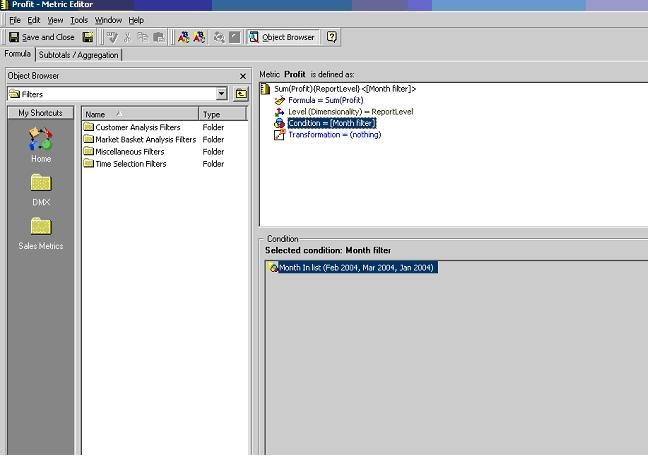
  • Add filter to profit metric, as shown below:
ka02R000000kZ61QAE_0EM440000002VAv.jpeg
ka02R000000kZ61QAE_0EM440000002buV.png
  • Add the profit metric to the report and run it:
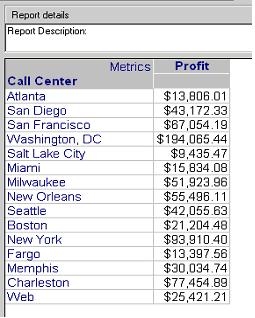
    Below are the report results:
     
ka02R000000kZ61QAE_0EM440000002VAr.jpeg
  • Now add a report filter with an attribute qualification that is not related to the metric filter. Example: Categories = Books, as shown below:
ka02R000000kZ61QAE_0EM440000002VAo.jpeg
  • Run the report and compare results to the previous results, as shown below:

CAUSE:
The metric does not ignore the report filter because the attribute month used in the metric condition and the attribute category used in the report filter are not from the same hierarchy. This limitation is by design.
 
ACTION:
A workaround for this issue is to add a filter in the metric condition that includes a related attribute to the one of the report filter without having change the outcome. The attribute will act as a blank filter which only serves to link both filters.
 
EXAMPLE:
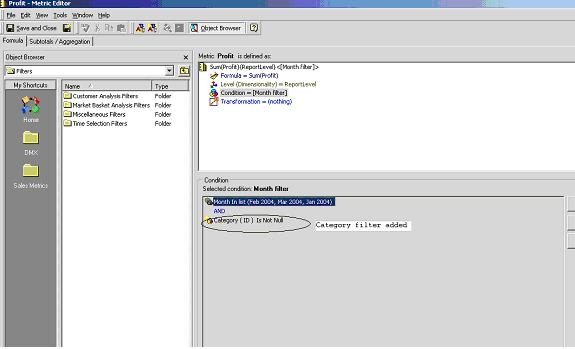
  • Edit the metric condition by adding category filter as (is not null). This filter will create a relationship between this metric filter and the report filter but will not change the outcome of the report, as shown below:
ka02R000000kZ61QAE_0EM440000002VAt.jpeg
  • Run the report again and notice how the metric values are the same as if the report filter was not there, as shown below:
ka02R000000kZ61QAE_0EM440000002VB3.jpeg

Comment

0 comments

Details

Knowledge Article

Published:

July 20, 2017

Last Updated:

July 20, 2017