EducationSoftwareStrategy.com
StrategyCommunity

Knowledge Base

Product

Community

Knowledge Base

TopicsBrowse ArticlesDeveloper Zone

Product

Download SoftwareProduct DocumentationSecurity Hub

Education

Tutorial VideosSolution GalleryEducation courses

Community

GuidelinesGrandmastersEvents
x_social-icon_white.svglinkedin_social-icon_white.svg
Strategy logoCommunity

© Strategy Inc. All Rights Reserved.

LegalTerms of UsePrivacy Policy
  1. Home
  2. Topics

KB17712: How to set a hierarchy imported from an OLAP Cube data source as ragged or unbalanced in MicroStrategy Developer 9.x


Stefan Zepeda

Salesforce Solutions Architect • Strategy


How to set a hierarchy imported from an OLAP Cube data source as ragged or unbalanced in MicroStrategy Developer 9.x

Ragged and unbalanced hierarchies are those in which data are not uniformly present for all levels in every branch of the data tree. For instance, most Sales Representatives in a hypothetical database would report to a Sales Executive, but in some smaller marketing territories, there may be Representatives without a Sales Executive, who report directly to the next higher level.
 
When multidimensional cubes are imported from OLAP Cube data sources, hierarchies are assumed to be balanced (complete at all levels) unless otherwise specified. The setting to control whether a cube hierarchy is either ragged or unbalanced is a property of the physical Dimension object created during cube import.
 
To reach the setting, take the following actions in Strategy Developer 9.x:
 

  • Edit the OLAP Cube. This may be done in two ways:
     
    • In the OLAP Cube Catalog, go to the 'Cube Mapping' tab and select the cube in the drop-down menu.
    • Or, in the Data Explorer for the cube database instance, right-click on a cube containing the ragged hierarchy and choose 'Edit...'
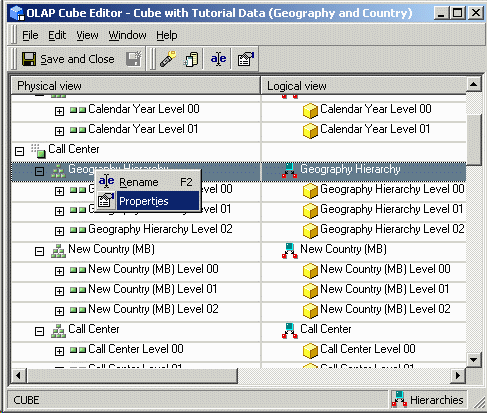
  • A list of cube objects appears, with physical objects (dimension/hierarchies, levels and member properties) on the left and Strategy logical objects (hierarchies, attributes, metrics) on the right.
  • Locate the physical dimension (at left) that should be marked as ragged or unbalanced.
  • Right-click on it and choose 'Properties...' as illustrated below:
ka04W000001IqMiQAK_0EM440000002F2X.gif
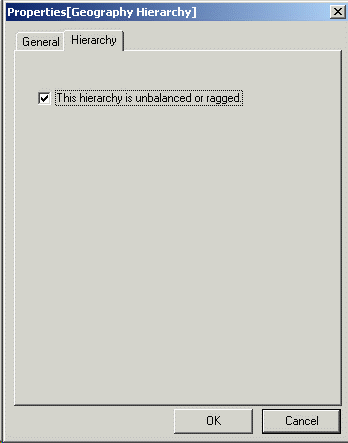
  • In the properties window, go to the 'Hierarchy' tab and set the checkbox as needed, as illustrated below:
ka04W000001IqMiQAK_0EM440000002F2a.gif

When enabled, the setting alters MDX generation for reports using attributes within the ragged hierarchy. For balanced hierarchies, only the levels (attributes) required in the report template will be selected. Ragged hierarchies select all levels, even those not on the template, to ensure that data are not omitted.
 
Note: Hyperion Essbase presents special challenges in the handling of ragged/unbalanced hierarchies. Consult the following Strategy Knowledge Base technical notes for additional details.

  • KB16411: The MicroStrategy display of ragged and unbalanced hierarchies in Hyperion Essbase cubes does not match the cube definition
  • KB16412: 'Unexpected level found in result set' error occurs when running a report against Hyperion Essbase in MicroStrategy 9.4.x and newer


KB17712


Comment

0 comments

Details

Knowledge Article

Published:

May 30, 2017

Last Updated:

December 31, 2018