EducationSoftwareStrategy.com
StrategyCommunity

Knowledge Base

Product

Community

Knowledge Base

TopicsBrowse ArticlesDeveloper Zone

Product

Download SoftwareProduct DocumentationSecurity Hub

Education

Tutorial VideosSolution GalleryEducation courses

Community

GuidelinesGrandmastersEvents
x_social-icon_white.svglinkedin_social-icon_white.svg
Strategy logoCommunity

© Strategy Inc. All Rights Reserved.

LegalTerms of UsePrivacy Policy
  1. Home
  2. Topics

KB17812: In MicroStrategy Narrowcast Server, users are not able to change Time Zone logging format


Community Admin

• Strategy


SYMPTOM:
After users configure Time Zone under Logging Format in Strategy Narrowcast Server, the value shows no update and remains the default (GMT, Greenwich Mean Time) or old settings. See Logging Format window below:

ka04W000000OdNEQA0_0EM440000002BMo.jpeg

 
To verify the behavior, after users change the time zone, perform the following steps:

  1. Go to Start > Run. Type in regedit.
  2. Browse to HKEY_LOCAL_MACHINE\SOFTWARE\MicroStrategy\Strategy Broadcast Server\7.0\Distributed Logging Service\MLS Client Settings.
  3. Locate Time Zone and check if the value is changed to the desired setting.

 
CAUSE:
The possible cause is that the Windows Remote Registry Service is not running. If the service is started, users see the process regsvc.exe in Task Manager. The service allows remote registry manipulation.
 
ACTION:
After Remote Registry Service is started, users are able to modify the time zone.
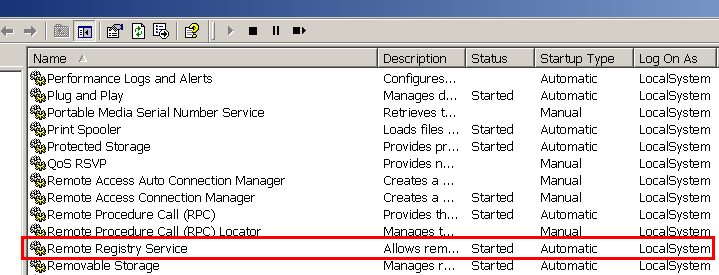
  • In the Strategy Narrowcast Server machine, go to Start > Settings > Control Panel > Administrative Tools and launch the Services window.
  • Locate 'Remote Registry Service' and start the service, as shown below:
ka04W000000OdNEQA0_0EM440000002BMf.jpeg

Comment

0 comments

Details

Knowledge Article

Published:

June 22, 2017

Last Updated:

June 22, 2017